Do these 3 things before closing this tab:
1Fix the driver behind crashes, sound loss and screen glitches2Repair Windows errors before they cause bigger problems3Scan for outdated or missing drivers - takes under a minuteThe Geeks Club is reader-supported. When you buy through links on our site, we may earn an affiliate commission. As an Amazon Associate I earn from qualifying purchases. Learn more
OBS Studio is the best all-purpose 4K screen recorder for most desktop creators because it handles windows, games, multiple sources, streaming, and supported capture devices without a subscription. Camtasia is the better fit when recording and editing tutorials in one application matters. NVIDIA ShadowPlay is the most focused choice for gameplay on a compatible GeForce PC. No published evidence establishes a universal performance winner, so the right choice depends on your source, frame-rate target, HDR needs, editing workflow, and hardware.
Before choosing, remember that 4K normally means UHD at 3,840 × 2,160 pixels. DCI 4K is 4,096 × 2,160. A file exported at 3,840 × 2,160 is not proof that the recorder captured native 4K; a lower-resolution source can simply be enlarged.
At a glance
| Name | Best for | Key spec | Free plan / price | Platforms | Checked |
|---|---|---|---|---|---|
| OBS Studio | Flexible desktop, game, window, streaming, and multi-source capture | UHD capture depends on source, encoder, scene, and hardware; HDR capture-device workflow is Windows-only | Free and open source | Windows, macOS, Linux | Nov 2026 |
| Camtasia | Tutorials and training with recording plus editing | TechSmith documents 4K/60 with Camtasia 2024 or later, H.264, a 60 Hz or faster 4K display, and a discrete GPU | Paid software; trial available | Windows, macOS | Nov 2026 |
| NVIDIA ShadowPlay | Gameplay capture and instant replay on GeForce systems | NVIDIA advertises up to 8K HDR at 30 fps or 4K HDR at 120 fps for manual recording | Included with supported NVIDIA software and hardware | Windows PCs with supported GeForce hardware | Nov 2026 |
| Bandicam | Windows users who want a conventional recorder with game and desktop modes | 4K recording support is available in supported modes; output depends on codec and hardware | Free version with limits; paid license available | Windows | Nov 2026 |
| Action! | Windows gameplay and desktop recording with a simple interface | Supports high-resolution recording when the source, encoder, and GPU can sustain it | Trial available; paid license available | Windows | Nov 2026 |
| ScreenFlow | Mac creators who want capture, editing, and publishing together | Can record high-resolution Mac displays; actual 4K results depend on the display and project settings | Trial available; paid license available | macOS | Nov 2026 |
| QuickTime Player | Mac users needing a basic built-in screen recording | Captures the Mac screen at the available display/source resolution; advanced 4K controls are limited | Free with macOS | macOS | Nov 2026 |
Prices and availability can vary by edition and region. The table separates advertised capability from the conditions that determine the file you actually obtain.
What’s actually slowing this PC down?
Pick the symptom - the matching free tool is one click away.
What counts as a 4K screen recording?
For most computer-video workflows, 4K means UHD, 3,840 × 2,160 pixels. DCI 4K is slightly wider at 4,096 × 2,160 and is more common in cinema workflows. Check both the capture source and the output settings: a 1080p desktop enlarged to a UHD export still contains 1080p detail.
Shopping ad

- Seamless Broadcasting and Versatile Streaming: Connect effortlessly to any app such as OBS, Streamlabs, Twitch Studio, Restream, Zoom, Teams, and stream flawlessly on various platforms like YouTube, Twitch, Discord, Facebook Gaming, etc., providing you with unparalleled flexibility and reach.
- Next-gen capture: Unleash the full potential of your content with cutting-edge 4K resolution, delivering crystal-clear visuals at an impressive 144 frames per second.
- HDMI 2.1 in/out: Elevate your recording capabilities with HDMI 2.1 support, allowing you to document high frame rates up to 240fps in glorious 1080p resolution for an unparalleled viewing experience.
- VRR passthrough: Immerse yourself completely in the gaming experience as our Variable Refresh Rate (VRR) passthrough ensures flawlessly smooth gameplay, eliminating screen tearing for an uninterrupted visual feast.
- Ultra-low latency: Stay in the moment with ultra-low latency powered by USB 3.2 Gen 2, ensuring your broadcast and gameplay remain perfectly synchronized, delivering an immersive and responsive streaming experience.
Resolution is only one part of the workload. A 4K recording at 60 frames per second requires the recorder to process twice as many frames as a 30 fps recording, while HDR adds color-format and bit-depth requirements. The monitor refresh rate, graphics processor, encoder, storage speed, scene complexity, and editing application all affect whether the result is smooth.
For external HDMI sources such as a console, a capture device sits between the source and the computer. That is different from recording the computer’s own desktop. OBS documents HDR capture-device support on Windows with a device that supports a 10-bit format such as P010, and lists the Elgato 4K X among tested devices. A capture card is therefore an accessory for an external source, not a default requirement for native desktop capture.
1. OBS Studio: who it is for
OBS Studio is the strongest general-purpose choice when you need control over desktop, application-window, game, webcam, microphone, and capture-device sources. It is free and open source, and runs on Windows, macOS, and Linux. Its scene-and-source model lets you build separate layouts for a full desktop, a single application, a game, or a presentation, then switch between them or send the same production to a stream.
Recommended Free Tools
OBS does not impose a single 4K preset that guarantees a result on every computer. Set the canvas and output resolutions to UHD, choose a hardware or software encoder your system supports, and select a frame rate that your source can sustain. The final output depends on the source resolution, encoder, scene composition, and available hardware.
For a 4K desktop recording, create a scene, add Display Capture or Window Capture, and confirm that the source is really 3,840 × 2,160. In Settings → Video, set the Base (Canvas) Resolution and Output (Scaled) Resolution deliberately rather than assuming that an output number proves native capture. In Settings → Output → Recording, select the container and encoder appropriate to your editing software, then make a short test clip to verify frame pacing, audio, and file size on your own system.
OBS is also the most adaptable option for supported external sources. Its documented HDR capture-device workflow is Windows-only, so a Mac or Linux user should not assume that the same HDR path is available. OBS offers no built-in editing timeline; trim and finish the recording in a separate editor.
Best match: creators who value flexibility, multi-source scenes, streaming, or capture-card support over an all-in-one editing workflow.
Free tools Windows power users keep installed
One-click scans. No signup required.
2. Camtasia: who it is for
Camtasia is designed for tutorials, software demonstrations, training, and narrated presentations where recording and editing in one application saves handoffs. TechSmith’s guidance states that Camtasia 2024 and later can record 4K at 60 fps under a specific setup.
For that documented 4K/60 workflow, use Camtasia 2024 or later, set the maximum capture frame rate to 60 fps and the encoder to H.264, and make sure the screen content refreshes at 60 fps or higher. TechSmith also calls for a 4K monitor running at 60 Hz or faster and a discrete GPU; its examples are an NVIDIA GeForce RTX 2060 or higher or an AMD Radeon RX 5700 XT or higher. Integrated graphics cannot capture true 4K/60 in this workflow.
Shopping ad

- Turn Your Camera into a Pro Webcam: Connect your DSLR or mirrorless camera to any computer and go live in stunning quality
- Stunning quality: Stream and record in 1080p60 or even 4K60 for razor-sharp detail (Requires a compatible camera and the latest Cam Link 4K model)
- Connect More Than Just Cameras: Use a camcorder, action cam, or even your iPhone to level up your content
- No Lag, No Delays: Ultra-low latency keeps your video and audio perfectly in sync, just like it should be
- Your iPad, Now a Pro Field Monitor: Preview your shots in real time on an iPad with USB-C
Those conditions matter. If your monitor is 30 Hz, the source application updates less frequently, or the computer uses integrated graphics, selecting a 4K output does not turn the capture into native 4K/60. UHD guidance should not be interpreted as support for DCI 4K.
Camtasia’s advantage is the post-capture workflow: screen footage, webcam video, microphone narration, callouts, cursor emphasis, captions, and cuts can be assembled in the same project. It is paid software with a trial, and the exact license terms depend on the edition and region. It is less attractive if you only want a lightweight game recorder or need Linux support.
Best match: educators, support teams, and course creators who need polished instructional edits immediately after capture.
3. NVIDIA ShadowPlay: who it is for
NVIDIA ShadowPlay is built around gameplay capture on supported GeForce hardware rather than general-purpose production. Its Instant Replay feature continuously buffers gameplay so you can save the previous 30 seconds after something happens. NVIDIA also describes manual recording up to 8K HDR at 30 fps or 4K HDR at 120 fps on compatible systems.
Those figures are NVIDIA’s advertised limits, not an independent cross-tool benchmark. Actual availability depends on the GeForce GPU, driver and application support, game output, HDR mode, encoder settings, and storage. A game rendered below 4K cannot gain missing detail merely because the recording setting says 4K.
ShadowPlay is convenient when you want a low-friction replay buffer, a hotkey-driven recording, or gameplay clips without building scenes. It is not the right tool for a presentation with several windows, elaborate overlays, or a capture-card workflow that requires OBS’s source routing. Check that your GeForce system supports the current NVIDIA recording features before planning a 4K/120 workflow.
Windows Errors? Fix Them Before They Spread
Repair common Windows errors and clear accumulated junk for a smoother, more stable PC - no reinstall needed.Free scan · no reinstallCrashes, No Sound, or Screen Glitches?
Random freezes, missing sound and display glitches usually trace back to one bad driver. Find and replace yours safely.Free scan · under a minuteBest match: GeForce PC players who mainly want instant replays and straightforward gameplay clips.
4. Bandicam: who it is for
Bandicam is a Windows recorder with separate approaches for games and desktop capture. It is aimed at people who prefer a conventional recorder interface over a scene-building production tool. Supported modes can record high-resolution desktop or game footage, but the achievable frame rate and codec choice remain hardware-dependent.
The free version is limited and places restrictions on recordings; a paid license removes those limits. Check the current edition’s restrictions before committing to a long tutorial or a full-length game session. Bandicam does not replace a full editor, so plan to cut, caption, and mix the resulting files elsewhere if your project needs those steps.
Shopping ad

- Seamless Broadcasting and Versatile Streaming: Connect effortlessly to any app such as OBS, Streamlabs, Twitch Studio, Restream, Zoom, Teams, and stream flawlessly on various platforms like YouTube, Twitch, Discord, Facebook Gaming, etc., providing you with unparalleled flexibility and reach.
- Unrivaled Gaming Experience: Immerse yourself in pure gameplay at an astounding 8K60 resolution, all while effortlessly capturing the action in stunning 4K60 quality.
- Cutting-Edge Connectivity: Harness the power of HDMI 2.1 in/out to effortlessly record high frame rates, reaching up to an incredible 240fps in pristine 1080p resolution.
- Seamless Visuals: Say goodbye to screen tearing and relish in a flawlessly smooth gaming experience with Variable Refresh Rate (VRR) passthrough technology.
- Perfectly Synced Entertainment: Achieve unparalleled synchronization between your broadcast and gameplay, thanks to ultra-low latency that ensures every moment is captured with precision.
For 4K, verify the source monitor resolution, select UHD in the recording settings, and confirm that the chosen codec and storage drive can sustain the data rate. A short recording should be used to check that the file reports 3,840 × 2,160 and that motion is not dropping frames.
Quick wins for a faster PC:
Repair Windows errors before they cause bigger problemsFix Now →Fix the driver behind crashes, sound loss and screen glitchesFind Drivers →Best match: Windows users seeking a focused recorder with game and desktop modes and who are comfortable editing in another application.
5. Action!: who it is for
Action! targets Windows gameplay and desktop recording with a streamlined control panel. It is useful when you want hotkey-based capture, a game-oriented workflow, and high-resolution output without assembling a complex scene graph.
A trial is available, while the full application requires a paid license. High-resolution recording still depends on the source, encoder, GPU, and disk speed; selecting a 4K output cannot compensate for a lower-resolution game or a display that is not running at UHD. Review the trial’s output restrictions before using it for a production deliverable.
Action! is a better fit for direct capture than for tutorials requiring extensive callouts, zooms, or multi-track editing. If you need those elements, export the recording to a separate editor or choose an all-in-one application instead.
Best match: Windows gamers and desktop users who want a simple recorder and are willing to finish edits elsewhere.
6. ScreenFlow: who it is for
ScreenFlow combines screen capture and timeline editing for Mac users. It can record high-resolution Mac displays and then provide the editing tools needed for cuts, annotations, audio work, and publishing in one project.
The exact 4K result depends on the Mac’s display or attached monitor, the capture source, and the project settings. Confirm that the source is actually UHD before exporting a 3,840 × 2,160 movie. A trial is available, with a paid license for continued use; edition terms and export restrictions can change.
ScreenFlow is appealing when your work is Mac-first and you want to avoid moving recordings between a recorder and an editor. It is not a Windows or Linux option, and it is unnecessary for a quick one-off clip if the built-in macOS recorder already meets your needs.
Shopping ad

- Up to 8K60 and 4K144 HDR passthrough over HDMI 2.1
- Captures up to 4K60, 1440p144, or 1080p240 with HDR10
- VRR and ALLM passthrough for consoles
- PCIe x4 internal card for Windows desktop PCs
- Works with Elgato Studio, 4K Capture Utility, and OBS; 8K HDMI cable included
Best match: Mac educators, presenters, and creators who want capture and editing in a single application.
7. QuickTime Player: who it is for
QuickTime Player is the basic built-in screen recorder on macOS. Use File → New Screen Recording, choose the display or a selected region, select a microphone if needed, and stop from the menu bar. It is free with macOS and requires no separate recorder installation.
QuickTime is convenient for a short demonstration or troubleshooting clip, but it exposes fewer controls than dedicated 4K recorders. The captured resolution follows the available screen or selected source, and advanced controls for encoder, HDR, scene composition, and frame-rate management are limited. Before relying on it for a UHD deliverable, inspect the resulting file’s dimensions and frame rate.
There is no built-in multi-source production workflow comparable to OBS and no tutorial-focused editing system comparable to Camtasia or ScreenFlow. Use another editor when you need titles, callouts, precise audio mixing, or a controlled export.
Best match: Mac users who need a quick, free recording and can accept minimal controls.
How do I choose a 4K screen recorder?
Choose by the source and the finished video you need, not by the largest number in a feature list.
- Confirm the source. Is it a 3,840 × 2,160 desktop, a game rendered at UHD, a window, or an external HDMI device? If the source is 1080p, a 4K export is upscale rather than native detail.
- Set the frame-rate target. Tutorials often work well at 30 fps; fast gameplay may benefit from 60 fps or more. A higher target increases capture, encoder, storage, and editing demands.
- Check HDR requirements. HDR capture is not universal. OBS’s documented HDR capture-device path is Windows-only and requires a compatible 10-bit format such as P010. ShadowPlay’s HDR claims apply to supported NVIDIA hardware and games.
- Decide whether you need editing. OBS and dedicated recorders focus on capture, while Camtasia and ScreenFlow combine capture with a timeline. A built-in recorder may be enough for a clip but limiting for a course or product demo.
- Match the hardware. Camtasia’s documented 4K/60 workflow calls for a 4K/60 Hz-or-faster display and a discrete GPU such as an RTX 2060 or RX 5700 XT or higher. Other applications also depend on encoder and storage performance, even when their marketing does not list a specific GPU.
- Identify external-source needs. A console or camera generally needs an HDMI capture device. Check the exact card’s maximum resolution, frame rate, HDR format, passthrough, connector type, and compatibility before buying.
- Plan storage and editing. UHD files consume substantially more storage than 1080p files. Confirm that your editor accepts the recorder’s container and codec, and keep enough free space for temporary render files.
How do I record a native 4K desktop in OBS Studio?
- Set the monitor to 3,840 × 2,160 at the refresh rate you intend to record.
- Create a scene and add Display Capture or Window Capture. Check the source properties and confirm that the captured dimensions match the UHD display.
- Open Settings → Video. Set the Base (Canvas) Resolution to the source resolution and the Output (Scaled) Resolution to 3,840 × 2,160 when you want native UHD output.
- Open Settings → Output → Recording. Choose an encoder available on your system, a container supported by your editor, and a quality setting that your storage can sustain.
- Add and meter your microphone and desktop audio separately. A sharp picture with clipped or missing narration is still a failed tutorial.
- Record a short clip containing motion, text, and a dark area. Inspect the file’s dimensions, frame rate, audio channels, and playback for dropped frames before recording the full session.
How do I meet Camtasia’s documented 4K/60 conditions?
Use Camtasia 2024 or later, a 4K monitor running at 60 Hz or higher, a discrete GPU, and a source that refreshes at 60 fps or higher. Set maximum capture to 60 fps and use H.264. TechSmith lists an NVIDIA GeForce RTX 2060 or AMD Radeon RX 5700 XT, or higher, as examples for this workflow. Integrated graphics cannot capture true 4K/60 under the documented conditions.
After recording, verify the project’s dimensions and frame rate before exporting. If the source application animates at 30 fps, exporting at 60 fps will not create additional motion detail.
Do you need a capture card for 4K?
Only when the source is external or when you specifically want the card to handle the HDMI ingest. Native desktop capture is normally software-based. For a console, camera, or second computer, choose a card that explicitly supports the source’s UHD frame rate, HDR format, passthrough, and operating system.
Shopping ad
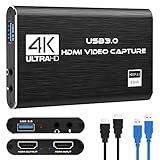
- 【4K60 Loop-Out & 1080P60/2K30 Capture】 This HDMI game capture card supports 4K 60Hz HDMI input and loop-out, captures up to 1080P 60fps video, and outputs up to 2K 30Hz via USB 3.0 with YUY2. HDMI input supports 4K30/60Hz and 1080p120/144Hz; it does not support 4K120/144Hz. Ideal for PS4/PS3, Xbox One/360, Wii U, Switch 2, DVD, DSLR, camera, security camera, set-top box, live games, online meetings, real-time recording, and preview.
- 【Plug-and-Play, Stable & Ultra-Low Latency】 No driver or external power supply required—true plug and play. The device is automatically identified, detects input, and adjusts output automatically. Aluminum alloy body with strong heat dissipation and optimized cable layout improves stability and picture clarity, helping avoid blue screens and lag. USB 3.0 low-latency capture with optional audio capture; no CPU occupation and no freeze with correct settings.
- 【HDMI Loop-Out & Mic-In】 High-speed USB 3.0 single-channel HD HDMI capture with loop-out for lag-free live gameplay. The 3.5mm mic input lets you add external commentary during games or interviews; it only accepts a 3.5mm microphone headset. Note: it does not record party chats.
- 【Wide Compatibility】 Works with Windows 7/8/10, macOS or above, Linux, Android, laptops, Switch, PS3/PS4/PS5, Xbox One/Series X, Xbox 360, Wii U, cameras, webcams, DSLR, security cameras, Steam, TV BOX, and HDTV. Streams to Twitch, YouTube, Facebook, and Twitter; compatible with OBS Studio, Streamlabs, XSplit, Potplayer, VLC, ZOOM, etc.
- 【Package Content & Important Notes】 Includes 1x Video Capture Card, 1x English User Manual, 1x USB-A to USB-C Adapter and 1x USB 3.0 USB-A Cable. After completing audio setup, please restart OBS Studio to avoid no sound output. Customer service is available 24 hours a day for quality problems.
How we picked
The ranking prioritizes distinct recording workflows: flexible desktop and device capture, tutorial production, gameplay replay, Windows-focused recorders, and Mac-native options. It weighs source compatibility, stated resolution and frame-rate conditions, HDR support, editing integration, platform coverage, and whether a free version or trial is available. It does not claim a controlled performance test or a universal winner.
Frequently Asked Questions
Can a 4K recorder capture a 4K game at 120 fps?
Only if the game, display, GPU, encoder, recorder, and storage path all support that combination. NVIDIA advertises 4K HDR at 120 fps for ShadowPlay on supported systems, but that is a vendor-stated capability rather than a guarantee for every GeForce configuration.
Why does my 4K recording look soft?
Check the source dimensions first. A recorder can place a 1,920 × 1,080 source into a 3,840 × 2,160 file, but upscaling cannot restore detail; scaling, bitrate, focus, and playback settings can also soften text.
The Tool Desk
Outbyte Driver Updater FREEFix the driver behind crashes, sound loss and screen glitchesFind Drivers →Outbyte PC Repair FREERepair Windows errors before they cause bigger problemsFix Now →Is HDR worth enabling for screen tutorials?
HDR is useful when the display and delivery platform are part of the lesson, but it adds compatibility and color-management requirements. For ordinary software tutorials, SDR is often simpler because more editors, players, and browsers handle it consistently.
What container should I use for a 4K recording?
Use a container your editor accepts reliably and keep a separate copy of important recordings. The best choice depends on the selected encoder, audio tracks, and whether you need the file to recover cleanly after an interrupted recording; confirm support in your target editor before a long session.
How much storage does 4K recording need?
There is no single universal number because bitrate, codec, frame rate, HDR, and scene complexity determine file size. Record a short sample with your chosen settings, note the resulting megabytes per minute, and multiply by the planned session length plus room for editing cache and exports.
Frequently Asked Questions
Can a 4K recorder capture a 4K game at 120 fps?
Only if the game, display, GPU, encoder, recorder, and storage path all support that combination. NVIDIA advertises 4K HDR at 120 fps for ShadowPlay on supported systems, but that is a vendor-stated capability rather than a guarantee for every GeForce configuration.
Why does my 4K recording look soft?
Check the source dimensions first. A recorder can place a 1,920 × 1,080 source into a 3,840 × 2,160 file, but upscaling cannot restore detail; scaling, bitrate, focus, and playback settings can also soften text.
Is HDR worth enabling for screen tutorials?
HDR is useful when the display and delivery platform are part of the lesson, but it adds compatibility and color-management requirements. For ordinary software tutorials, SDR is often simpler because more editors, players, and browsers handle it consistently.
What container should I use for a 4K recording?
Use a container your editor accepts reliably and keep a separate copy of important recordings. The best choice depends on the selected encoder, audio tracks, and whether you need the file to recover cleanly after an interrupted recording; confirm support in your target editor before a long session.
How much storage does 4K recording need?
There is no single universal number because bitrate, codec, frame rate, HDR, and scene complexity determine file size. Record a short sample with your chosen settings, note the resulting megabytes per minute, and multiply by the planned session length plus room for editing cache and exports.
Quick Recap
Product prices and availability are accurate as of the date/time indicated and are subject to change. Any price and availability information displayed on Amazon at the time of purchase will apply.

