The Geeks Club is reader-supported. When you buy through links on our site, we may earn an affiliate commission. As an Amazon Associate I earn from qualifying purchases. Learn more
OBS Studio is the best all-purpose choice for recording multiple sources, scenes, capture devices, and streams. For a quick Windows clip, use Xbox Game Bar; for a selected-area recording, use Snipping Tool; and for an edited tutorial, Camtasia is the more complete workflow. Console recording usually requires compatible capture hardware in addition to software. There is no universal winner: the right recorder depends on whether you need a screen region, a game or app, a webcam, a microphone, system audio, an external camera, or a console feed.
At a glance
| Name | Best for | Key spec | Free plan / price | Platforms | Checked |
|---|---|---|---|---|---|
| OBS Studio | Multi-source recording and streaming | Scenes, sources and capture devices | Free, open source | Windows, macOS, Linux | Nov 2026 |
| Camtasia | Tutorials that need editing | Screen, camera, microphone and optional system audio capture | Commercial license; current terms from TechSmith | Windows and macOS | Nov 2026 |
| Xbox Game Bar | Quick app or game clips on Windows | Built-in capture widget | Included with Windows | Windows 10/11 | Nov 2026 |
| Snipping Tool | Selected-area Windows recordings | Region selection and MP4 output | Included with Windows 11 | Windows 11 | Nov 2026 |
| NVIDIA ShadowPlay | GPU-assisted game capture on compatible PCs | Game-focused recording utility | Included with compatible NVIDIA software | Windows PCs with supported NVIDIA hardware | Nov 2026 |
| AMD Software: Adrenalin Edition Record & Stream | Game capture on Radeon PCs | Driver-integrated recording and streaming | Included with AMD Software | Windows PCs with supported Radeon hardware | Nov 2026 |
| QuickTime Player | Simple screen or camera recording on Mac | macOS recording utility | Included with macOS | macOS | Nov 2026 |
Prices and inclusion status are shown as product categories rather than a quoted subscription amount where a current vendor price was not established. Confirm the current Windows build, driver, license and hardware requirements before purchase.
Which kind of video recorder do you need?
“Video recording software” can mean several different tools. A screen recorder captures a desktop or selected region; a game recorder focuses on gameplay or a supported application; a production tool such as OBS combines sources into scenes and can support streaming; and a tutorial tool may pair capture with a full editing workflow. These categories overlap, but they are not interchangeable.
Start by listing exactly what must appear and be heard in the final video. A short bug report may need only a rectangle of the desktop. A narrated walkthrough may need the screen, webcam, microphone and computer audio. A console recording adds a video signal that must reach the computer, often through a capture card. Choosing around those inputs is more reliable than picking the tool with the longest feature list.
Shopping ad
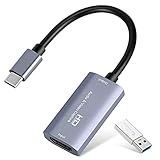
- 【1080P 60FPS Video Capture Card】 This HDMI game capture card is based on USB3.0 high speed transmission port, input resolution up to 4K@30HZ, output resolution up to 2K@30Hz or 1920×1080@60Hz. Type c and USB interface can meet most of the devices in daily life. Easily meet the online capture, real-time recording, online meetings, live gaming and other functions, so you have a better visual enjoyment. Note: For capture use only; requires capture software to function and is not intended for direct screen casting to a monitor or TV
- 【Ultra Low Latency Screen Sharing】 HDMI capture card is made of good quality aluminum alloy with strong heat dissipation, allowing you to enjoy ultra low latency while live gaming or video recording or live streaming, avoiding blue screens and lag. This HDMI to USBC capture card supports easy recording of good quality audio or HD video and transferring it to your computer or streaming platform, allowing you to record 60 fps HD video directly on your hard drive and real-time preview
- 【Plug and Play, Easy to Carry】 This HDMI 1080P video capture card does not require any additional drivers or external power supply, just plug and play for fast capture. The capture card is small and lightweight, so you can put it in your bag for emergencies, making it very portable for outdoor live streaming. It's also a great way to share content in game recording, video conference, video recorder and online teaching
- 【Wide Compatibility USB Capture Card】 Easily streams to Facebook, Youtube or Twitch. With the connection, this HDMI to USB C/3.0 video capture devices can be working on several Operating Systems and various software: Windows 7/ 8/ 10, Mac OS or above, Linux, Android, Laptop, Xbox One, PS3/PS4/PS5, Camera, DVDs, Set Top Box, Webcame, DSLR, Switch/Switch 2, TV BOX, HDTV, Potplayer/VLC, ZOOM, OBS Studio etc.
- 【Package Content & Note】 1x HD Audio Capture Card , 1x USB 3.0 to USB C Adapter (A-side 3.0, B-side 2.0), 1x user manual. Please note that you need to restart the OBS Studio software after the audio setup is complete, otherwise it will result in no sound output. When using an adapter, if the device is recognized as USB 2.0, try using the other side with the USB-C port. Simply flip the capture card and reconnect it to be recognized as USB 3.0
1. OBS Studio: best for multi-source recording and streaming
OBS Studio is the strongest starting point when a recording combines a display, a game or application, webcam, microphone, system audio and an external capture device. Its scene-and-source model lets you prepare several layouts, then switch between them while recording or streaming.
- What it does: Records and streams scenes assembled from multiple input sources.
- Standout features: Scene switching, capture-device support and a flexible recording/streaming workflow.
- Platforms: Windows, macOS and Linux.
- Cost: Free and open source.
- Limits: Setup is more involved than a built-in recorder. Current operating-system support, encoder choices, device compatibility and the load on your particular computer must be checked for the intended workflow; published comparisons do not establish a universal winner for image quality, frame rate or system impact.
Choose OBS when you need repeatable layouts, separate sources or a path from recording to live broadcast. It is unnecessary overhead for a one-off clip of a single application.
That flexibility also means more decisions before recording: which sources belong in a scene, how they should be arranged, which audio inputs are active, and which output settings suit the intended file or stream. If you are new to it, build one simple scene and test it before a long take. Confirm that the correct display or capture device is visible, that the microphone registers, and that the audio you want is being captured. OBS is a flexible candidate, not a guarantee of a particular result on every computer.
Recommended Free Tools
2. Camtasia: best for instructional videos that will be edited
Camtasia combines capture with an editor, so it fits demonstrations, lessons and software walkthroughs that need cuts, callouts or narration after recording. TechSmith’s Camtasia 2024 documentation describes screen, camera and microphone recording, with optional system-audio capture, followed by editing in the same product family.
- What it does: Captures the desktop and presenter inputs, then opens the result in an editor.
- Standout features: Screen plus camera recording, microphone input and optional system audio.
- Platforms: Windows and macOS.
- Cost: Commercial software; TechSmith sets the current license and trial terms.
- Limits: It is a paid editor rather than a minimal clip recorder. Check the current version, operating-system support and license terms before committing.
Camtasia is the practical choice when the recording itself is only the first step and the finished lesson needs editing, annotations and a presentable structure.
Its advantage is workflow continuity: screen and presenter inputs can be captured for a lesson and then carried into an editor, rather than treating the raw recording as the finished deliverable. Before buying, decide whether you will regularly use that editing path. If all you need is an occasional unedited clip, a built-in utility may be enough; if you need to trim, explain and polish instructional material, the editor can be more relevant than a long list of capture controls. Review TechSmith’s current commercial terms and supported version before choosing.
3. Xbox Game Bar: best for a fast Windows game or app clip
Xbox Game Bar is Windows’ built-in capture widget for supported games and applications. Open it with Win+G, select the Capture widget and start recording without installing a separate recorder.
Quick wins for a faster PC:
Fix the driver behind crashes, sound loss and screen glitchesFind Drivers →Clear out junk files and repair common Windows errorsFree Scan →Scan for outdated or missing drivers - takes under a minuteDriver Scan →Shopping ad

- True 4K60 HDR Pass-Through: This game capture card supports up to 4K@60Hz HDR HDMI input and pass-through, allowing you to enjoy ultra-smooth gameplay on your TV or monitor while recording in crisp 1080P@60FPS. Ideal for PS5, Xbox Series X/S, Nintendo Switch, PC gaming, etc
- USB 3.0 & Type-C 2 in 1 Capture: Built with high-speed USB 3.0 and Type-C interfaces for stable video transmission with minimal latency. The premium aluminum housing provides efficient heat dissipation for reliable long-term gaming and streaming sessions
- Mic Input for Live Commentary: Features a 3.5mm microphone input, allowing you to add real-time voice commentary while gaming. The 3.5mm audio output lets you connect headphones for convenient audio monitoring during streaming and recording
- Plug & Play, No Drivers Required: No drivers or external power required. Simply connect and start recording or streaming instantly. Compatible with OBS, Streamlabs, QuickTime Player, VLC, PotPlayer, and other popular recording and streaming applications
- Broad Compatibility: Compatible with Windows, macOS, works seamlessly with PS5, PS4, Xbox Series X/S, Xbox One, Switch, DSLR cameras, camcorders, and other HDMI video sources for streaming to YouTube, Twitch, Facebook Gaming, and more
- What it does: Captures an app or game window from Windows.
- Standout features: Built-in overlay and quick-start recording controls.
- Platforms: Windows 10 and Windows 11.
- Cost: Included with Windows.
- Limits: Microsoft notes that protected content or unsupported windows can prevent recording. Audio and capture behavior depend on current Windows settings and build.
Use Game Bar when speed matters more than elaborate scenes. If the target window is blocked, or you need several sources and a capture card, move to OBS.
Game Bar is a sensible first try for a straightforward app or game clip because it avoids installing a separate recorder. It is less suitable when you need to arrange several independent sources or produce a designed layout. If recording fails, do not assume the computer is broken: the target may be protected or unsupported, and the relevant behavior can depend on Windows configuration. Try a supported window or use a recorder intended for the inputs and workflow you need.
4. Snipping Tool: best for recording a selected area on Windows 11
Windows 11’s Snipping Tool can record a rectangle that you draw around part of the desktop and save the result as an MP4. Press Win+Shift+R where supported, select the area and begin recording.
- What it does: Captures a user-selected region rather than the entire desktop.
- Standout features: Region selection and MP4 output.
- Platforms: Windows 11.
- Cost: Included with Windows 11.
- Limits: Microsoft’s detailed guide, published March 6, 2023, described audio recording as unsupported at that time and warned that feature availability can vary by Windows version or region. Treat those details as time-sensitive and check the current build.
Snipping Tool is ideal for a short software demonstration or bug report where only one area should appear. It is not a replacement for a scene-based recorder or a tutorial editor.
Its region selection is useful when the rest of the desktop should stay out of the recording, such as when you want to show one application panel. The audio caveat matters for narrated instructions: Microsoft’s Windows Learning Center guide from March 6, 2023 stated, “Audio recording is not yet supported, nor is a ‘Spot Light’ feature.” That describes the feature state in that guide, not necessarily every 2026 Windows build. Check the current Snipping Tool behavior before relying on it for a presentation with narration or system sound.
5. NVIDIA ShadowPlay: best for compatible NVIDIA gaming PCs
NVIDIA ShadowPlay is a game-focused recorder supplied through NVIDIA’s PC gaming software. It belongs on the shortlist when the computer already uses supported NVIDIA hardware and the main task is capturing gameplay rather than assembling a multi-source production.
- What it does: Provides game recording and replay-style capture through NVIDIA’s software stack.
- Standout features: GPU-vendor integration and a gaming-first workflow.
- Platforms: Windows PCs with supported NVIDIA hardware and drivers.
- Cost: Included with compatible NVIDIA software.
- Limits: Eligibility and available controls depend on the installed GPU, driver and current NVIDIA application. It is less suitable than OBS for complex scenes, varied capture devices or a cross-platform workflow.
Use it for a low-friction game capture path on a compatible GeForce system; choose OBS when you need independent control over sources and scenes.
Shopping ad

- [Real-Time HD Video Capture] Delivering smooth, stutter-free footage at 1080P/60FPS via USB 3.0, this USB 3.0 video capture card ensures flawless streaming. It also features a 4K/30FPS HDMI loop-out for zero-latency gameplay while recording. Provide your audience with a stunning, delay-free viewing experience to level up your broadcasts. (Tip: To solve the problem of no screen display, please refer to the user manual and troubleshooting guide in the Product guides and documents section below the listing for specific instructions.)
- [Wide Compatibility] Adapting effortlessly to your ever-growing gaming collection, this versatile game capture card integrates smoothly with Windows and Mac PCs. Whether playing on PS4, PS5, or PC, this 4K capture card makes connecting and recording incredibly easy. Enjoy a seamless, plug-and-play experience that adapts to all your favorite consoles.(Tip: Please use the original USB cable for best performance.)
- [Easy to Use] Bypassing complex driver installations, this external capture card for PS5 starts capturing instantly via the provided USB and HDMI cables. Featuring HDMI Output, LINE IN, and Headset Ports, this HDMI video capture card expands your setup perfectly. Enjoy crystal-clear monitor pass-through and seamless teammate communication during intense gameplay.
- [Controllable RGB Lights] Elevating your streaming aesthetics with dynamic lighting, this switch capture card for XBOX offers 9 vibrant RGB modes to match your content. Whether playing an intense shooter or a relaxing indie game, you can create an immersive environment effortlessly. More than just a USB capture card for PS4, it serves as a stylish centerpiece for your desk.
- [Versatile Streaming Solution] Seamlessly integrating with popular platforms like OBS, YouTube, Discord, and Twitch, this audio video capture card meets the diverse needs of creators. Whether capturing intense gameplay, broadcasting, or hosting video conferences, it delivers flawless performance. As an essential capture card for streaming PS5, it is a valuable addition to any professional setup.
6. AMD Software: Adrenalin Edition Record & Stream: best for Radeon game capture
AMD Software: Adrenalin Edition Record & Stream is the Radeon counterpart for users who want recording and streaming controls integrated with the graphics driver software.
Outdated Drivers Are Slowing You Down
One free scan finds every outdated or missing driver and matches the right update for your exact hardware.Free scan · exact hardware matchPC Slower Than It Used to Be?
A free scan shows the junk files, broken settings and background clutter dragging Windows down - then fixes them in one click.Free scan · Windows 10 & 11- What it does: Records gameplay and supports a driver-level game-streaming workflow.
- Standout features: Integration with Radeon hardware and gaming controls.
- Platforms: Windows PCs with supported Radeon graphics and drivers.
- Cost: Included with AMD Software.
- Limits: The exact feature set depends on the current Adrenalin release and GPU. It is aimed at game capture, not a general-purpose editor or a scene-heavy production system.
Radeon owners should consider this before installing another game recorder. For tutorials, webcam layouts or console inputs, an application such as Camtasia or OBS is a better fit.
For either GPU-vendor tool, verify that the installed hardware, software and driver version are eligible before building a workflow around it. Their appeal is a game-oriented route on a compatible PC; the trade-off is that they are tied to the relevant vendor environment. The available comparisons do not establish that either GPU recorder will deliver better image quality, frame rate or lower system impact than OBS on every setup.
7. QuickTime Player: best for simple Mac recordings
QuickTime Player provides a straightforward macOS route for recording the screen or a connected camera. It is useful when the recording needs little or no post-production and the Mac’s built-in tools are sufficient.
- What it does: Creates basic screen and camera recordings on macOS.
- Standout features: Simple Apple-native workflow and no separate recorder installation.
- Platforms: macOS.
- Cost: Included with macOS.
- Limits: It does not replace OBS’s scene system or Camtasia’s tutorial-editing workflow. Available audio choices and permissions depend on the macOS version and the selected input.
Choose QuickTime for a clean, uncomplicated Mac capture. Move to OBS when you need multiple sources, or to an editor when the finished video needs callouts and corrections.
Do these 3 things before closing this tab:
1Scan for outdated or missing drivers - takes under a minute2Clear out junk files and repair common Windows errors3Fix the driver behind crashes, sound loss and screen glitchesHow do these options compare?
| Priority | Start with | Why | Check first |
|---|---|---|---|
| Multiple inputs, scenes or a recording-and-streaming setup | OBS Studio | Built around scenes, sources and capture-device workflows. | OS support, device compatibility, encoding choices and setup comfort. |
| A quick clip of one supported Windows app or game | Xbox Game Bar | Built into Windows and has a capture widget. | Whether the target is supported and how audio is configured. |
| A selected rectangle on a Windows 11 desktop | Snipping Tool | Lets you draw a region and produces an MP4. | Current build behavior, especially audio needs. |
| A tutorial that will be edited | Camtasia | Pairs capture inputs with an editor workflow. | Current license, version and whether the editor is worth the cost. |
| Console gameplay entering a computer | OBS plus compatible capture hardware | The hardware brings the console video into the recording workflow. | Console, card, connection, resolution, frame rate and passthrough compatibility. |
This is a workflow comparison, not a performance ranking. The available comparisons do not establish one universal winner for image quality, frame rate or system impact between tools such as OBS and Game Bar. Your actual result depends on the software version, hardware, settings and selected inputs, so check compatibility and test your own configuration rather than choosing from an assumed benchmark.
How do you choose the right video recorder?
Start with the input and the finished deliverable, not the longest feature list.
Shopping ad
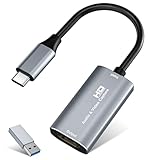
- 【4K HDMI Input, 2K@30Hz Recording】Powered by a true USB 3.0 high-speed interface, the capture card supports up to 4K@30Hz HDMI input and records at 2K@30Hz or 1080P@60Hz. Perfect for gamers, streamers, and professionals who need crisp, smooth video for live streaming, gameplay recording, or online meetings.
- 【Ultra Low Latency Screen Sharing】Built with a premium aluminum alloy shell and advanced chipset for stable heat dissipation, ensuring ultra-low latency transmission. Capture high-quality video and dual-channel audio in real time—no lag, no frame drop—ideal for Twitch, YouTube, or OBS streaming.
- 【Easy Plug and Play, Compact & Portable】No driver or external power required—just plug and play via USB 3.0 or Type-C connection to your Windows or macOS computer. Lightweight and compact design makes it easy to carry for outdoor streaming, live shows, or mobile recording setups.
- 【Wide Compatibility & Multi-Device Support】Compatible with Windows 7 8 10 11, macOS, Linux,Android and supports most popular software such as OBS, Zoom, VLC, Twitch Studio, and more. Works seamlessly with PS4, PS5, Xbox, Switch, DSLR cameras, TV boxes, and other HDMI-output devices for streaming to YouTube, Twitch, etc.
- 【What You Get】Includes: HDMI Capture Card, USB 3.0 to USB-C Adapter, User Manual. Tips: Make sure your tablet’s OTG function is enabled before connecting. Test your HDMI device with a monitor first to confirm video and audio output, then connect to the Video Capture Card for recording.
- Identify the source. Decide whether you are capturing a desktop region, a single app, a game, a webcam, a microphone, system audio, an external camera or a console. A console feed commonly needs an HDMI capture card connected to the computer.
- Decide whether you are recording or streaming. If the same scene must be sent live, OBS is the most flexible starting point. A one-time clip can use Game Bar, Snipping Tool or a GPU recorder.
- Choose the editing path. If you need cuts, annotations, narration and polished lessons, Camtasia’s capture-to-editor workflow avoids moving the recording between unrelated tools.
- Check the operating system. Snipping Tool and Game Bar are Windows tools; QuickTime is macOS; OBS supports Windows, macOS and Linux; Camtasia supports Windows and macOS. GPU recorders require the matching vendor hardware and current drivers.
- Check audio routing. Confirm whether the tool can receive microphone audio, system audio, both, or neither. Microsoft’s older Snipping Tool guide specifically documented no audio recording, but that behavior should be checked against the current Windows release.
- Check the hardware path for consoles. Verify the console output, capture-card inputs, USB or other connection, supported resolution and frame rate, passthrough needs and software compatibility. A capture card is a category requirement, not a guarantee that every model works with every console.
- Check licensing and support. Built-in Windows and macOS utilities and OBS avoid a separate recorder purchase. Camtasia is commercial, while GPU recorders depend on supported hardware and software versions.
It also helps to decide how much setup you are willing to take on. Built-in tools are convenient when the task matches their supported capture type. OBS provides more control but asks you to configure sources, scenes and audio. Camtasia is most compelling when capture is part of an editing process, rather than a one-time clip. The best fit is the one that can reliably capture the inputs you need and deliver a file or stream in the form you intend to use.
Independent reader supportYour contribution helps us test, update, and keep practical guides available for everyone.How do you record a Windows 11 screen?
For a selected rectangle, use Snipping Tool; for a supported app or game, use Xbox Game Bar.
The Tool Desk
Outbyte PC Repair FREEClear out junk files and repair common Windows errorsFree Scan →Outbyte Driver Updater FREEScan for outdated or missing drivers - takes under a minuteDriver Scan →- Open the tool that matches the target: Snipping Tool for a region, or Game Bar for an app or game.
- For Snipping Tool, choose video capture, drag the rectangle around the content and start recording.
- For Game Bar, focus the app, press Win+G, open Capture and select record.
- Stop the recording from the tool’s control bar and open the saved file.
- If the window will not record, check whether it is protected or unsupported. For multiple sources, external devices or a blocked window, configure OBS instead.
Before an important recording, make a short test and play it back. Confirm that the selected region or app is the intended one, check whether the microphone or other required audio is present, and make sure the saved video opens. This simple check can reveal a mismatch between the task and tool before you capture a full lesson or game session. In particular, do not assume the older Snipping Tool audio description applies unchanged to the Windows build you are using.
How do you record console gameplay through a computer?
Use a compatible capture card between the console and computer, then select that device in OBS or another recorder. The correct setup depends on the console, capture hardware, connections, resolution, frame rate and whether you need passthrough to a television or monitor.
- Confirm the console’s video output and the capture card’s supported input.
- Connect the console to the capture device and the device to the computer using the required cables.
- Install the capture card’s current software or driver if required.
- Add the capture device as a source in OBS and configure microphone and system-audio sources separately.
- Check the preview, audio meters and display passthrough before recording the full session.
Do not buy a card on the assumption that “HDMI capture” alone guarantees compatibility. Compare the specific console output with the card’s supported input and connection, then check whether its supported resolution and frame rate match your goal. If you want to keep playing on a separate display while capturing, confirm the passthrough arrangement as well. A capture card adds a hardware purchase to this branch of the workflow; no particular model or current price is established here, so check the vendor’s specifications and availability before choosing.
How we picked these recommendations
The ranking reflects documented fit for distinct workflows: multi-source recording and streaming, quick built-in Windows capture, selected-area recording, tutorial capture with editing, GPU-integrated game recording and simple Mac capture. It also considers operating-system coverage, input support, audio routing, workflow complexity, editing, streaming, licensing and the extra hardware required for console video. No universal image-quality, frame-rate or system-impact winner has been established.
What’s actually slowing this PC down?
Pick the symptom - the matching free tool is one click away.
These are recommendations based on published product documentation and comparisons, not hands-on test results. The Microsoft Windows Learning Center guide for Snipping Tool and Game Bar is dated March 6, 2023, so details about Windows features may have changed. TechSmith’s Camtasia 2024 help describes its capture-to-editor workflow, while pricing, licensing, operating-system support and hardware eligibility should be verified against current vendor information. We do not assign benchmark scores or claim a performance advantage without comparable testing.
Shopping ad

- 2K 30FPS & 1080p 60FPS HDMI Capture Card: The 4K@30Hz input and 2K@30Hz output resolutions offer dual benefits. The high input resolution preserves original video quality for post-production editing, while the 2K output provides an optimal balance between clarity and compatibility. At the same time, this HDMI to USB-C capture card is also backward compatible with 1080p 60FPS, to fulfill a variety of daily needs. Note: Ensure your HDMI source device and the capture device support 2K resolution
- Low Latency 5 Gbps High Data Transfer Speed: With high-speed USB 3.0 technology for optimal performance and low delay, you can easily stream video from the Switch/Switch 2/PS4/PS5 to Twitch, YouTube, Facebook, Twitter, OBS, Potplayer, and VLC on a computer. It's also backward compatible with USB 2.0. Note: This capture card for streaming only supports HDMI input sources, as well as iPadOS devices need to be updated to 17 or higher to use it
- USB A and USB C ports: Featuring both USB-A and USB-C interfaces, this streaming capture card ensures broad compatibility with modern devices, including smartphones, laptops, tablets, desktops, and Quest 3. Perfect for multi-scenario streaming—whether you're broadcasting camera footage, mobile gaming, or PC live streams. Note: This capture card only supports unidirectional signal flow—HDMI input to USB output
- Universal Compatibility: This Driver-Free HDMI capture card for streaming supports Windows 11/10/8.1/7, MacOS, Linux, and phones/tablets. This capture card effortlessly livestreams gameplay from Switch, Switch 2, PS4/PS4 Pro/PS5 (Disable HDCP mode), Xbox Series X, and Meta Quest 3/2 directly to your iPad, laptop, or PC. Fully support OBS Studio, XSplit, PotPlayer, QuickTime Player, and more for streaming, recording, editing, and high-res video transfer. Note: iPadOS 17 or later is required for USB-C iPad compatibility. Switch / Xbox / PS5/ PS4 work fine when HDCP is turned off
- Durable USB Capture Card: The aluminum alloy casing easily dissipates heat and is lightweight while effectively shielding against EMI, ensuring stable signal transmission. The built-in cable features 26AWG (2C) + 30AWG (1P) tinned copper conductors, ensuring excellent conductivity and corrosion resistance, enhancing durability, and reducing signal loss
Frequently Asked Questions
Frequently Asked Questions
Can I record a Windows screen without installing software?
Yes. Windows 11 includes Snipping Tool for a selected area and Xbox Game Bar for supported apps and games. Their behavior depends on the current Windows build, permissions and whether the target content is protected.
Do I need a capture card to record PS5 or Xbox gameplay?
You generally need compatible capture hardware when the console video must enter a computer for recording or streaming. Check the console output, capture-card inputs, supported resolution and frame rate, connections and passthrough requirements before buying.
Which recorder is easiest for a software tutorial?
Camtasia is designed around capturing the screen, camera and microphone and then editing the result. Snipping Tool or Game Bar can make a quick clip, but they do not provide the same capture-to-editor workflow.
Is OBS better than a GPU recorder for games?
OBS is the more flexible option when you need scenes, several sources, capture hardware or streaming controls. A compatible NVIDIA or Radeon recorder is simpler when the goal is a straightforward game capture on matching hardware. The available comparisons do not establish a universal image-quality, frame-rate or system-impact winner.
What is the best video recording software overall?
There is no single best choice for every recording. OBS is a flexible starting point for multiple sources, scenes, capture devices and streaming; Game Bar and Snipping Tool are convenient for their supported Windows tasks; Camtasia suits tutorials that will be edited.
Can Snipping Tool record audio in Windows 11?
Microsoft’s Windows 11 guide dated March 6, 2023 said audio recording was not supported in the feature state it documented. That older note is not confirmation of every current Windows build, so check the behavior on your PC before depending on Snipping Tool for narration or system audio.
Is OBS suitable for recording only, without streaming?
Yes. OBS is a candidate for recording as well as streaming, especially when you need multiple sources, scenes or a capture device. If you only need a short single-app clip, a built-in recorder may involve less setup.
What should I compare before buying an HDMI capture card?
Check compatibility with the specific console, the card’s input and computer connection, supported resolution and frame rate, passthrough needs, and compatibility with your recording software. Confirm current model details and price with the vendor before buying.
Are these recommendations based on benchmark tests?
No. They describe documented fit for different workflows, not measured quality or performance. The cited comparisons do not establish a universal winner for image quality, frame rate or system impact.
The Bottom Line
Bottom line: Choose OBS Studio for multi-source recording, scenes, capture devices or streaming; Xbox Game Bar or Snipping Tool for quick supported Windows captures; Camtasia when you want to record and edit a tutorial in one workflow; and compatible capture hardware when console video needs to enter a computer. Check current software, Windows, driver, license and device requirements before committing, and test your audio and capture path before an important recording.
Quick Recap
Product prices and availability are accurate as of the date/time indicated and are subject to change. Any price and availability information displayed on Amazon at the time of purchase will apply.
Free tools Windows power users keep installed
One-click scans. No signup required.

