Do these 3 things before closing this tab:
1Repair Windows errors before they cause bigger problems2Fix the driver behind crashes, sound loss and screen glitches3Clear out junk files and repair common Windows errorsThe Geeks Club is reader-supported. When you buy through links on our site, we may earn an affiliate commission. As an Amazon Associate I earn from qualifying purchases. Learn more
Free SD-card recovery software is usually worth trying first, but paying makes sense when a free tool cannot export enough data, its command-line or manual workflow would cost more time than the license, or the files are valuable enough that reducing operator error matters. A paid license can add preview, filtering, export capacity, a graphical workflow, or support; it cannot restore sectors that have been overwritten or repair a card suffering physical failure. The safest approach is to stop using the card, scan it without writing to it, save recovered files to a different drive, and pay only after a scan or trial shows the files you need.
At a glance
The products below are listed alphabetically by product name, not ranked. Prices and plan details were checked in November 2026; where the available product information does not provide a numeric price, no price is shown.
| Name | Best for | Key spec | Free plan / price | Checked |
|---|---|---|---|---|
| PhotoRec | Severe file-system damage, reformatting, and users who can sort results manually | Read-only, signature-based recovery; more than 480 file extensions | Free and open source | November 2026 |
| R-Studio | Advanced users, business recovery, and technicians who need a scalable product family | Demo or trial can test whether a card and file system are recognized | Freeware or demonstration options; paid professional editions | November 2026 |
| Windows File Recovery | Technically confident Windows users who want a free command-line baseline | Regular and extensive modes; Microsoft directs FAT and exFAT SD cards to extensive mode | Free command-line app | November 2026 |
Is paid SD-card recovery software worth it?
Sometimes, but not automatically. The right question is not whether paid software is inherently more powerful; it is whether its workflow, export allowance, filtering, preview, or support is worth more to you than the license and the risk of continuing to work on the original card.
Recommended Free Tools
A free option is often sufficient when the card is still detected consistently, the recoverable files are replaceable or few in number, and you can safely save the results elsewhere. A paid option becomes easier to justify when a free allowance blocks the files you need, a command-line process or manual sorting would consume several hours, a graphical workflow reduces the chance of a mistake, or the card contains irreplaceable photographs, work, or records.
Shopping ad

- CAPTURE LARGER THAN LIFE. Unlock startling 5K[3] point-of-view and pristine high-res stills with video speed class ratings of U3 and V30[4].
- SPEED BARRIERS SHATTERED. Save precious moments with rapid read speeds up to 245MB/s[2] and write speeds up to 170MB/s[2] [256GB-1TB capacities[1]].
- MAXIMIZE WITH MASSIVE CAPACITY. Record longer and store more with up to 2TB[1] of storage.
- DURABILITY YOU CAN COUNT ON. SANDISK microSD cards are temperature proof, humidity proof, waterproof, shock proof, drop proof, magnet proof, X-ray proof and wear-out proof[7].
- EASY CONTENT MANAGEMENT. Easily back up, organize, and transfer your photos and videos with the SANDISK Memory Zone desktop or Android mobile app[10].
Do not treat payment as a recovery guarantee. Results depend on whether the relevant sectors were overwritten, how fragmented the files are, how badly the file system is damaged, whether the card remains readable, and the condition of its controller and memory. A paid tool may make discovery and export easier, but it cannot reverse physical failure or recreate data that no longer exists on the card.
What does free recovery software leave out?
Free software can leave out convenience rather than capability. The cost may appear as command-line syntax, manual file sorting, generic filenames, limited export capacity, less filtering, or the time needed to understand which scan mode fits the card.
There are three practical differences to check before paying:
Windows Errors? Fix Them Before They Spread
Repair common Windows errors and clear accumulated junk for a smoother, more stable PC - no reinstall needed.Free scan · no reinstallCrashes, No Sound, or Screen Glitches?
Random freezes, missing sound and display glitches usually trace back to one bad driver. Find and replace yours safely.Free scan · under a minute- Workflow: A command-line tool requires accurate source and destination identification and careful control of its options. A graphical tool may make scanning, filtering, previewing, and exporting easier to follow.
- Organization: Signature-based recovery can find file contents after directory information is gone, but the output may use generic names and require manual sorting. If original folder structure and filenames matter, check whether the tool preserves them before committing to a recovery method.
- Capacity and evaluation: Some free versions or trials let you scan or preview but restrict how much can be exported. That is useful when it lets you confirm that the required files are visible before paying, but it is not proof that every file will open successfully.
The zero-dollar price also does not eliminate the need for a destination drive with enough free space. It does not cover a replacement card, a second backup, or professional laboratory work if the hardware is failing.
Which free tool should I try first?
Choose based on the card’s condition and your tolerance for technical work, not on the word free. Windows File Recovery suits a technically confident Windows user who can work from documented source, destination, mode, and filter parameters. PhotoRec suits a user who needs a read-only, file-signature approach and can tolerate generic names and manual sorting. A R-Studio trial suits someone who wants to check whether the card and file system are recognized before deciding whether a professional workflow is worth paying for.
Do not run several recovery programs against a failing card simply because they are available. Each scan adds handling time and may encourage continued connection and disconnection of unstable media. If the card is intermittently detected, image or clone it first and perform later scans against the copy.
1. PhotoRec: who it is for
PhotoRec is for users who need a genuinely free, open-source recovery tool and are prepared to trade convenience for a signature-based recovery process. It is particularly relevant when an SD card has severe file-system damage or has been reformatted and the directory structure can no longer be trusted.
Shopping ad

- Compatible with Nintendo-Switch (NOT Nintendo-Switch 2)
- Save time with card offload speeds of up to 190MB/s powered by SanDisk QuickFlow Technology (Up to 190MB/s read speeds, engineered with proprietary technology to reach speeds beyond UHS-I 104MB/s, requires compatible devices capable of reaching such speeds. Based on internal testing; performance may be lower depending upon host device interface, usage conditions and other factors. 1MB=1,000,000 bytes. SanDisk QuickFlow Technology is only available for 64GB, 128GB, 256GB, 400GB, 512GB, and 1TB capacities. 1GB=1,000,000,000 bytes and 1TB=1,000,000,000,000 bytes. Actual user storage less.)
- Pair with the SanDisk Professional PRO-READER SD and microSD to achieve maximum speeds (sold separately)
- Up to 130MB/s write speeds for fast shooting (Based on internal testing; performance may be lower depending upon host device interface, usage conditions and other factors. 1MB=1,000,000 bytes.)
- 4K and 5K UHD-ready with UHS Speed Class 3 (U3) and Video Speed Class 30 (V30) (Compatible device required. Full HD (1920x1080), 4K UHD (3840 x 2160), and 5K UHD (5120 X 2880) support may vary based upon host device, file attributes and other factors. See HD page on SanDisk site. UHS Speed Class 3 (U3) designates a performance option designed to support real-time video recording with UHS-enabled host devices. Video Speed Class 30 (V30), sustained video capture rate of 30MB/s, designates a performance option designed to support real-time video recording with UHS-enabled host devices. See the SD Association’s official website.)
What it does: CGSecurity describes PhotoRec as using read-only access and working with Secure Digital cards. It ignores the file system and searches for recognizable file signatures, which allows it to continue in situations where normal directory information is missing. Its documentation associated with version 7.2 states that it recognizes more than 480 file extensions. See the PhotoRec documentation from CGSecurity for the supported workflow and recovery instructions.
Free access and limits: PhotoRec is free and open source. The main limit is not a paid export quota; it is the nature of the output. When directory structures are unavailable, recovered files commonly receive generic names, and the reader may need to sort the results manually. That can be a small inconvenience for a handful of images and a substantial time cost for a large card containing many file types.
When it fits: Use it when the card is still readable, the data is valuable enough to recover, and you can preserve the source while organizing the output. It is also a reasonable fallback when a normal file-system-based scan cannot see the expected directory structure.
When to look elsewhere: PhotoRec is a poor fit if you need a polished graphical workflow, original names and folders are essential, or you do not have a safe destination with enough space for a potentially large set of recovered files. It is also not a substitute for hardware-level recovery when the card is cracked, hot, repeatedly disconnecting, or absent from the computer entirely.
2. R-Studio: who it is for
R-Studio is for advanced users, businesses, and technicians who need a scalable recovery product family rather than a minimal one-off utility. R-Tools presents separate options for personal, business, and technician use, and its product information distinguishes freeware from professional products.
What it does: The product’s demonstration or trial capability can help determine whether an SD card and its file system are recognized before a purchase decision. That makes it useful for evaluation: the scan can show whether the card is visible and whether candidate files appear. It cannot prove that every listed file is intact, playable, or openable after export. Review the R-Tools R-Studio product page for the current product-family and licensing information.
Free access and limits: R-Studio information separates freeware or demonstration options from professional editions. Treat the free or trial stage as an assessment step, not as evidence that a complete recovery is guaranteed. Before paying, preview representative files if the current edition allows it, including the file types that matter most rather than relying only on a scan count.
Shopping ad
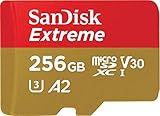
- With SanDisk QuickFlow Technology10 (64GB - 1TB), this card optimizes performance for timesaving media offloads with quick read speeds up to 190MB/s.9 Pair with the SanDisk Professional PRO-READER SD and microSD to achieve maximum speeds (sold separately).
- Capture fast-action photos or shoot 4K UHD video2 with write speeds of up to 130MB/s.9The SanDisk Extreme microSDXC UHS-I Card lets you shoot more and faster.
- Ideal for recording outdoor adventures, weekend trips, or sporting events without skipping frames. With up to 1TB1, the SanDisk Extreme microSD UHS-I card lets you capture uninterrupted 4K UHD and Full HD video with its UHS Speed Class 3 (U3) and Video Speed Class 30 (V30) ratings.5
- Get faster app performance for an outstanding smartphone experience thanks to the SanDisk Extreme microSD card’s A27Specification.
- SanDisk Extreme microSDHC and microSDXC UHS-I Cards are shockproof, temperature-proof, waterproof, and X-ray-proof,4 so you can enjoy your adventures without worrying about the durability of your memory card.
Paid editions and who should upgrade: A professional edition makes the most sense when the card is important enough to justify an advanced workflow, when a technician or organization needs a scalable recovery product, or when evaluating the card and file system is more useful than immediately committing to a blind purchase. Check the live license terms, platform coverage, support conditions, renewal language, and export behavior at checkout before buying.
Important boundary: R-Studio is still software. If the card is physically failing, repeated scans can make the situation harder to manage. Create a sector-by-sector image or clone when the card is intermittently readable, then work from the image rather than repeatedly stressing the original media.
3. Windows File Recovery: who it is for
Windows File Recovery is for a technically confident Windows user who wants a free, Microsoft-documented command-line baseline. It is not the easiest option for someone who wants a guided graphical process, but it makes the source, destination, recovery mode, and filtering decisions explicit.
What it does: Microsoft documents a syntax built around a source drive, a destination drive, a recovery mode, and optional filters. Its documented modes include regular and extensive. Microsoft identifies FAT and exFAT as common SD-card file systems and directs those media to extensive mode in its mode table. Follow the current Windows File Recovery instructions from Microsoft rather than relying on an old command example copied from another version of Windows.
Free access and limits: The application is free. Its real cost is operational: you must identify the correct source drive, choose a different destination drive, select the appropriate mode, and manage the output. Microsoft explicitly requires the source and destination to be different. Never send recovered files back to the affected SD card.
Free tools Windows power users keep installed
One-click scans. No signup required.
When it fits: It suits someone who is comfortable reading command documentation, checking drive letters carefully, and handling recovered output without a graphical preview-led workflow. It can be a sensible first attempt when the card is stable and the problem is accidental deletion rather than obvious physical failure.
When to look elsewhere: Choose a different workflow if command-line syntax creates a meaningful risk of selecting the wrong drive, if you need to preview many files before deciding what to export, or if the card is unstable and should first be imaged. A free command-line tool is not free of consequences when a mistake could overwrite the only copy.
Shopping ad

- CAPTURE LARGER THAN LIFE. Unlock startling 5K[3] point-of-view and pristine high-res stills with video speed class ratings of U3 and V30[4].
- SPEED BARRIERS SHATTERED. Save precious moments with rapid read speeds up to 245MB/s[2] and write speeds up to 170MB/s[2] [256GB-1TB capacities[1]].
- MAXIMIZE WITH MASSIVE CAPACITY. Record longer and store more with up to 2TB[1] of storage.
- DURABILITY YOU CAN COUNT ON. SANDISK microSD cards are temperature proof, humidity proof, waterproof, shock proof, drop proof, magnet proof, X-ray proof and wear-out proof[7].
- EASY CONTENT MANAGEMENT. Easily back up, organize, and transfer your photos and videos with the SANDISK Memory Zone desktop or Android mobile app[10].
How should I decide whether to upgrade?
Use a value-and-risk decision rather than assuming that a paid scan will find more. A practical upgrade is one that lowers the chance of a costly mistake or saves enough time to justify its current total price.
- Confirm that the files are visible. Use a free scan or trial when the product permits preview. Look for several representative photographs, videos, documents, or other files—not just one thumbnail or a large result count.
- Check the free export limit. If the files you need are visible but the free edition cannot export enough of them, record the exact license total before paying. Do not assume that a displayed scan result equals a recoverable file.
- Price your time. Include command-line setup, repeated scans, manual sorting, renaming, and checking whether files open. A license can be financially sensible even when the files have no straightforward replacement value, provided it materially reduces this work.
- Price the data’s importance. Family photographs, paid client work, legal records, and original creative files can justify a more controlled workflow even when the software cannot guarantee success. The value is risk reduction and convenience, not certainty.
- Subtract the costs people miss. Include recurring renewal if the license is subscription-based, taxes and currency conversion, any upgrade terms, storage for the recovered output, and possible professional-laboratory costs if the card is physically failing.
- Stop if the source is deteriorating. If the card becomes hot, cracks, repeatedly disconnects, or disappears from the computer, stop comparing software and consider professional recovery for the only copy.
A useful non-numeric model is: license cost versus the replacement value of the files, the value of the hours saved, and the reduction in operator error. The probability of intact recovery must remain a separate question. A very expensive license is not worthwhile if the card is no longer readable, while a modest license may be worthwhile if it prevents hours of sorting and the needed files are clearly previewable.
What’s actually slowing this PC down?
Pick the symptom - the matching free tool is one click away.
Can paid software recover an unreadable or formatted SD card?
Formatting does not automatically make recovery impossible, and a signature-based tool can sometimes continue after reformatting. A card that is physically unreadable is different: software cannot scan sectors that the computer cannot reliably access, and payment cannot repair a failed controller or damaged memory.
There are also intermediate cases. A card may appear in the operating system but disconnect during a scan, return inconsistent capacity, or show some files while failing on others. Treat that behavior as a warning. The safer response is to create a sector-by-sector image or clone if the card can still be read, then work on the image. If imaging cannot complete because the card is unstable, repeated software scans may not be the right next step.
For a formatted card, avoid writing anything new to it. Do not take more photographs, copy files onto it, accept a repair prompt, or format it again. New writes can overwrite sectors containing recoverable data.
What should I compare before buying?
Compare the workflow and the limits, not just the number of file types listed on a product page. The following questions reveal what a paid plan actually changes and what it cannot change.
Quick wins for a faster PC:
Scan for outdated or missing drivers - takes under a minuteDriver Scan →Clear out junk files and repair common Windows errorsFree Scan →| Question | Why it matters |
|---|---|
| Can I scan or preview before payment? | A preview can show whether the required files are discoverable, but it does not prove that every file will open after export. |
| What is the free recovery cap? | A free scan may be useful but still prevent exporting enough data to finish the job. |
| Is the workflow graphical or command-line? | Command-line tools require careful drive and option selection; graphical tools can reduce friction for users who prefer guided steps. |
| Are filenames and folders preserved? | Signature-based recovery can produce generic names when directory structures are gone, increasing sorting time. |
| Can the tool work from an image or clone? | Working from a copy protects an intermittently readable card from repeated scanning. |
| Can a session or scan result be saved? | Saving progress can reduce the need to rescan unstable media, when the product supports it. |
| Where does the recovered output go? | The destination must have enough free space and must not be the affected SD card. |
| What support and refund terms apply? | Check whether support is included, whether a subscription renews, and what happens after delivery or activation. |
| What kind of failure does it suit? | Deleted, formatted, corrupted, and physically failing cards are different problems; no software handles them with equal reliability. |
What is the safest recovery workflow?
The safest workflow protects the original card first and makes the payment decision second.
Shopping ad

- Up to 160MB/s read speeds to save time transferring high res images and 4K UHD videos (2); Requires compatible devices capable of reaching such speeds
- Up to 90MB/s write speeds for fast shooting; Requires compatible devices capable of reaching such speeds
- 4K UHD and Full HD Ready with UHS speed class 3 (U3) and video speed class 30 (V30)
- Rated A2 for faster loading and in app performance
- Built for and tested in harsh conditions: Temperature Proof, Water Proof, shock Proof and x ray Proof
- Stop all writes. Remove the card from the camera or computer if it is still being used. Do not photograph, copy, delete, format, or accept a repair prompt.
- Record what happened. Note whether the problem followed accidental deletion, a format prompt, a failed transfer, or repeated disconnections. This helps you choose between a normal recovery attempt and immediate escalation.
- Check whether the card is stable. If it is intermittently detected, makes the system hang, becomes hot, or disappears during access, avoid repeated scans. Consider imaging or cloning it sector by sector if it remains readable.
- Prepare a separate destination. Use another drive with enough space for the expected output. Microsoft requires different source and destination drives, and the same safety rule is appropriate for commercial recovery software.
- Start with a free scan or trial when available. Preview representative files and check whether the relevant file types appear. A thumbnail is encouraging, but it is not a guarantee that the full file will open.
- Choose the recovery method. Use a command-line baseline if you are comfortable with it, a signature-based approach if directory information is badly damaged, or a paid evaluation if you need a more advanced workflow and the card is recognized.
- Pay only when the evidence supports it. Confirm that the required files are visible, calculate the full license cost including renewal or tax where applicable, and check the output location before exporting.
- Validate the results. Open recovered photographs, play recovered videos through their full duration where possible, and open important documents. Do not assume that a result count or filename proves integrity.
- Create a second backup. Keep the first recovered output untouched and make another copy after validation. Only after the files exist in at least two safe locations should you consider reformatting or replacing the card.
What problems commonly make recovery worse?
- Formatting immediately: A format may write new file-system structures and complicate recovery. Cancel the prompt and begin with a read-only approach.
- Saving to the source: Recovered files written to the affected card can overwrite other recoverable sectors. Always choose a different destination.
- Scanning an unstable card repeatedly: Repeated disconnects can turn a difficult recovery into a hardware problem. Image the card or stop and use a professional laboratory.
- Trusting thumbnails alone: A visible thumbnail means a candidate is discoverable; it does not establish that the full image, video, or document is intact.
- Sorting the only copy: Generic filenames can encourage aggressive renaming or moving. Preserve the original recovered output and organize a duplicate.
- Comparing only file counts: A larger list is not necessarily a better recovery. Inspect representative files and consider whether names, folders, and content are usable.
- Ignoring the destination’s capacity: A scan can identify more data than the destination can hold. Check free space before starting the export.
What should I do after the files are recovered?
Open and verify the important files, copy them to a second safe location, and keep the original recovery output unchanged until the backup has been checked. Do not immediately return the card to service merely because some files were recovered; repeated failure is a warning that the media may no longer be dependable.
A replacement or second card can reduce future risk, but new storage cannot recover old files. For example, a SanDisk Extreme microSDXC UHS-I card may be considered as replacement or backup media, but it is not a recovery step. Keep important photographs and other irreplaceable files in more than one location rather than relying on a single removable card.
How we chose the options in this comparison
The shortlist focuses on tools with clearly different recovery approaches: a free open-source signature-based utility, a professional product family with trial or demonstration evaluation, and a free command-line application documented for Windows. The comparison emphasizes read-only handling, source and destination controls, preview or evaluation, file-system damage, reformatting, output organization, and the distinction between software limitations and physical card failure. Products are presented alphabetically rather than ranked because recovery outcomes depend heavily on the card’s condition and the user’s workflow.
The Tool Desk
Outbyte Driver Updater FREEScan for outdated or missing drivers - takes under a minuteDriver Scan →Outbyte PC Repair FREEClear out junk files and repair common Windows errorsFree Scan →What is the practical verdict?
Start free when the SD card is stable and the data is limited, replaceable, or visible through a useful preview. Upgrade when the free path blocks export, demands more manual work than the license is worth, or the value of a controlled workflow is high. Keep the source untouched, save elsewhere, and treat physical symptoms as a reason to stop scanning rather than a reason to buy a more expensive license.
Frequently Asked Questions
How should I organize PhotoRec results without risking a second loss?
Keep the first recovered output exactly as it was created, then make a working copy for sorting. Organize the copy by file type or date and retain the original until the important files have been opened and backed up elsewhere.
Can I compare recovery programs by the number of files they find?
No. A large result count can include incomplete or duplicate candidates, while a smaller set may contain the files that matter. Preview or open representative files and check whether the names, folders, and content are usable.
Should I buy a second SD card before recovery is finished?
A second card can be useful for future backups, but it does not recover data from the damaged card. Recovery output should go to a separate destination with enough capacity, and the old card should not be used again until the recovered files have been verified and backed up.
What does a recovery-software license not cover?
A license covers the software’s permitted features, not physical repair of a failing card or the cost of specialist laboratory work. If the card is cracked, hot, repeatedly disconnecting, or not detected, stop repeated scans and consider professional recovery for irreplaceable data.
Quick Recap
Product prices and availability are accurate as of the date/time indicated and are subject to change. Any price and availability information displayed on Amazon at the time of purchase will apply.

