What’s actually slowing this PC down?
Pick the symptom - the matching free tool is one click away.
The Geeks Club is reader-supported. When you buy through links on our site, we may earn an affiliate commission. As an Amazon Associate I earn from qualifying purchases. Learn more
Free video editing software is good enough for most beginners until a specific limitation blocks a real project. Start free, finish two small videos, and upgrade only when you can name the missing capability—such as a clean export, required resolution or codec, advanced audio and color tools, collaboration, or an automation feature that saves repeated work. Paying because software “looks professional” is not a reliable reason.
This guide compares six beginner-friendly paths, listed alphabetically rather than ranked. Prices and plan details were checked in November 2026 where supplied; terms can change by country, version, and billing period.



At a glance
| Name | Best for | Key spec | Free plan / price | Platforms | Checked |
|---|---|---|---|---|---|
| ACDSee Luxea | Windows beginners who accept branding or want a low-cost perpetual option | Unlimited tracks; content packs | Free export adds branded intro/outro; Pro $49.99/year or $79.95 lifetime | Windows | November 2026 |
| CapCut | Phone footage, short-form social videos, templates | Freemium editor with AI credits in Pro | Free basics; Pro pricing varies by region | Mobile and desktop versions | November 2026 |
| DaVinci Resolve | Desktop beginners who want a long-term editing foundation | Free edition supports up to Ultra HD 3840×2160 at 60 fps for supported 8-bit formats | Free with no watermark or time limit; Studio is paid, current price not listed here | Windows, macOS, Linux | November 2026 |
| Kdenlive | Beginners seeking a free, open-source desktop timeline | Traditional multi-track editing workflow | Free/open-source; verify current distribution terms | Windows, macOS, Linux | November 2026 |
| OpenShot | Very simple desktop cuts, titles, and transitions | Accessible timeline and drag-and-drop approach | Free; verify current distribution terms | Windows, macOS, Linux | November 2026 |
| Shotcut | Free desktop editing with broad format support | Open-source timeline editor | Free; verify current distribution terms | Windows, macOS, Linux | November 2026 |
Prices checked November 2026.
“Free” can mean a genuinely usable edition, not merely a short trial. It can also mean trade-offs: branding, fewer AI credits, less guidance, or a steeper learning curve. Compare the limitation that affects your actual delivery, not a feature checklist.
Free tools Windows power users keep installed
One-click scans. No signup required.
Is free video editing software good enough for beginners?
Usually, yes. A free editor can cover importing clips, organizing media, trimming, adding titles, balancing basic audio, and exporting a finished file. For a first YouTube upload, school project, family video, or short social post, those fundamentals matter more than a large effects library.
Shopping ad
Before paying, export a short section using the exact resolution, frame rate, audio format, and destination you need. Check for a watermark, export cap, missing codec, or disabled caption and audio features. If the file meets your delivery requirement, an upgrade may add convenience rather than necessary capability.
What should beginners compare before paying?
Use the following checks in order. They expose costs and friction that a feature list often hides.
- Delivery requirements: Confirm resolution, frame rate, codec, audio channels, subtitle format, and whether a watermark appears. A single blocked export is a stronger upgrade reason than dozens of unused effects.
- Learning curve: Guided modes and templates shorten the first project; a deeper timeline may take longer but can avoid switching tools later. Separate “I cannot find the control” from “the software cannot do it.”
- Repeated work: Count tasks you perform in every project: captions, noise cleanup, reframing vertical clips, color matching, proxy generation, or review links. A paid feature is valuable when it removes a recurring chore.
- Project exchange: If a client, teacher, or collaborator requires a particular project format, compatibility can justify a subscription even when a free editor can render a final movie.
- Storage and review: Cloud libraries, comments, approvals, and version history may be worth paying for a team. They are usually unnecessary for a solo creator with local backups.
- Billing and access: Compare the cost over the period you expect to edit. A subscription can stop access to premium functions when cancelled; a term or lifetime license may keep the installed version usable but can charge separately for later upgrades.
- Hardware fit: Higher-resolution media and effects require more storage and processing power. Proxy workflows and lower preview quality can help, but they add setup time.
1. ACDSee Luxea: who it is for
Luxea suits a Windows beginner who wants a straightforward editor with unlimited tracks and included content packs. The free edition places a branded intro/outro on exports, so it is appropriate for practice, internal videos, or audiences that do not mind the branding.
Quick wins for a faster PC:
Fix the driver behind crashes, sound loss and screen glitchesFind Drivers →Repair Windows errors before they cause bigger problemsFix Now →Scan for outdated or missing drivers - takes under a minuteDriver Scan →Free limits: The branded opening and ending are the main visible restriction identified for Luxea Free. Check an actual export before committing to a public channel, because a logo can make an otherwise finished video look unfinished.
Paid plans: Luxea Pro is listed at $49.99 per year or $79.95 for a lifetime license. A lifetime purchase does not guarantee future major-version upgrades; later upgrades may require another payment.
Upgrade when: You need unbranded delivery and expect to finish enough Windows projects for the one-time price to beat repeated workarounds. Stay free if the branded export is acceptable and you are still learning basic cuts.
2. CapCut: who it is for
CapCut is suited to phone footage, short-form publishing, and template-driven edits. Its free tier covers basic editing, while Pro adds more features and AI credits, making it a classic freemium choice.
Do these 3 things before closing this tab:
1Scan for outdated or missing drivers - takes under a minute2Clear out junk files and repair common Windows errors3Fix the driver behind crashes, sound loss and screen glitchesFree limits: The exact boundary between free and Pro features changes, so identify the template, caption tool, effect, or export setting you need before subscribing. Do not assume that an item visible in the interface is included in the free tier.
Paid plans: Regional pricing and plan terms change frequently. Open the current plan page in your country and check whether billing is monthly or annual, how AI credits refresh, and what happens to projects that use Pro-only assets after cancellation.
Upgrade when: A specific Pro template or AI function saves meaningful time across several videos, or a required export option is locked. If you mainly trim clips and add music, the free tier is often sufficient.
3. DaVinci Resolve: who it is for
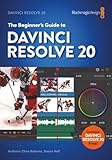
DaVinci Resolve is the strongest free-to-paid desktop path in this comparison for a beginner willing to learn a full timeline. Blackmagic Design describes Resolve 20 as one application combining editing, color correction, visual effects, motion graphics, and audio post-production. Its Beginner’s Guide to Resolve 20 provides a structured starting point.
Free limits: An independent 2026 comparison reports no watermark and no time limit, with support for virtually all 8-bit formats up to 60 fps and Ultra HD 3840×2160. The practical trade-off is complexity: bins, timelines, color pages, audio tools, and effects can feel excessive for a ten-minute montage.
Paid plans: Resolve Studio is the paid edition for advanced features, higher-end finishing, and performance tools. A current Studio price is not included here, so check Blackmagic Design’s product page before budgeting.
Upgrade when: You hit a Studio-only feature, need advanced noise reduction or finishing tools, or repeatedly rely on workflows unavailable in the free edition. Do not upgrade merely because the interface looks intimidating; use Blackmagic’s beginner, editor, color, Fairlight audio, and visual-effects guides first.
4. Kdenlive: who it is for
Kdenlive is a free, open-source desktop editor for beginners who prefer a conventional multi-track timeline and want to avoid subscription billing. It is a sensible place to learn the vocabulary of bins, tracks, cuts, transitions, and keyframes.
Free limits: Its no-cost model is attractive for practice and personal projects, but support, packaging, and feature availability can depend on the current release and operating-system build. Download from the project’s current official channel and confirm the formats your camera produces.
Paid plans: There is no paid tier to price into this comparison. If you later need managed collaboration, cloud review, or a client-mandated project format, compare a commercial editor at that point rather than paying for features you do not use now.
Upgrade when: The need is not “more effects,” but a concrete production requirement that this workflow cannot meet. Keep the original media and project files so you can migrate without re-editing from compressed exports.
5. OpenShot: who it is for
OpenShot fits beginners who want a simple desktop timeline for cuts, titles, transitions, and basic compositing. Its approachable layout can reduce the first-project friction that makes a deeper editor feel unnecessarily difficult.
Free limits: Treat it as a learning and lightweight-production tool. Confirm that your source footage, audio tracks, and intended export settings work on your computer before building a long project.
Paid plans: No paid plan or price is included in this comparison. If your work expands into demanding color, audio, or collaboration, evaluate the specific missing function and move to a tool that supplies it rather than buying add-ons blindly.
Upgrade when: You are spending more time finding workarounds than editing, or you need a repeatable workflow for many videos. For occasional family clips, staying free is usually the lower-risk choice.
6. Shotcut: who it is for
Shotcut is a free, open-source desktop editor for beginners who want broad format support and a traditional timeline without a recurring fee. It offers a middle ground between an ultra-simple editor and a large professional suite.
Recommended Free Tools
Free limits: Plan a short test project with your camera files and delivery preset. Open-source tools can expose more technical controls than a guided social editor, so save a custom preset only after confirming the exported file plays correctly where you will publish it.
Paid plans: There is no paid tier or price to include here. Budget instead for storage, backups, and learning time; those costs affect every editor.
Upgrade when: A client requires a different project format, managed review, or a feature unavailable in your workflow. If the free editor already produces the required file, paying for a new interface alone is unlikely to improve the finished video.
Independent reader supportYour contribution helps us test, update, and keep practical guides available for everyone.When should I upgrade to paid video editing software?
Upgrade after you reproduce a limitation in a real project and confirm that the paid plan removes it. The strongest triggers are a watermark or export cap, a missing codec or frame rate, a required caption or audio tool, a paid AI function that eliminates repeated manual work, a collaboration requirement, or a project format shared by a client.
Calculate the cost per finished project. Divide the plan cost for its full billing term by the number of videos you realistically expect to complete during that term. Include renewal pricing, taxes, storage, add-on credits, and the cost of maintaining a second tool if cancellation leaves projects dependent on premium assets.
Shopping ad
A weak trigger is the belief that paid software automatically produces better storytelling. Editing decisions—clear structure, usable audio, readable titles, and appropriate pacing—remain yours.
What is a practical beginner workflow?
- Choose one free editor that runs on your computer and import a small set of original clips.
- Finish two projects: learn bins or folders, timeline trimming, audio levels, titles, simple transitions, and export.
- Record the blocker: write down the exact error, watermark, missing setting, or repetitive task that stopped you.
- Export a short test: use the intended resolution, frame rate, codec, and audio settings before editing a long video.
- Compare the paid term: check the current price, cancellation effect, renewal, included storage, and AI or template allowances.
- Buy the smallest useful tier: reassess at renewal. Keep original media, project files, and a clean master export independent of the editor.
What costs do beginners overlook?
Annual billing can lower the monthly equivalent but increases the upfront commitment. A “lifetime” license can still exclude future major versions. Per-user seats, cloud-storage limits, AI-credit allowances, stock-media usage rights, taxes, and renewal prices can change the total.
Hardware and storage are separate expenses. High-resolution footage fills drives quickly; external backups protect against a failed disk; and proxy files can consume additional space. Include those costs when deciding whether a paid plan genuinely saves money.
The Tool Desk
Outbyte PC Repair FREERepair Windows errors before they cause bigger problemsFix Now →Outbyte Driver Updater FREEFix the driver behind crashes, sound loss and screen glitchesFind Drivers →Finally, cancellation can affect access differently. Some plans stop premium exports immediately, some leave an installed version with reduced features, and some term licenses remain usable until expiration. Read the current terms before starting a project that you cannot finish without the paid tools.
How we picked the shortlist
The shortlist covers distinct beginner paths: a no-cost professional-style desktop editor, a guided Windows option, a mobile-first freemium editor, and approachable open-source timelines. The comparison focuses on export restrictions, learning curve, recurring work, collaboration needs, platform fit, and total cost over the period you expect to edit. Products are listed alphabetically, not ranked.
Frequently Asked Questions
Is DaVinci Resolve free version enough for YouTube beginners?
For many channels, yes: the free edition can handle ordinary cuts, titles, audio, and high-resolution exports without a watermark or time limit. Move to the paid edition only when a specific advanced feature or performance tool is required.
Do free editors add watermarks?
Some do, while others do not. Export a short section before committing; branding, resolution caps, or locked codecs are product- and plan-specific rather than a rule about all free software.
Windows Errors? Fix Them Before They Spread
Repair common Windows errors and clear accumulated junk for a smoother, more stable PC - no reinstall needed.Free scan · no reinstallOutdated Drivers Are Slowing You Down
One free scan finds every outdated or missing driver and matches the right update for your exact hardware.Free scan · exact hardware matchWhat is the best video editor for YouTube beginners?
There is no universal answer. Choose a simple tool for occasional uploads, a free desktop editor for long-term control, or a paid plan when a documented export, collaboration, or automation need outweighs the cost.
Should I pay monthly for a video editor?
Monthly billing makes sense when you need the software briefly or want to avoid a long commitment. If you edit continuously, compare the full annual cost, renewal price, cancellation effect, and any included storage or AI credits.
Can I switch editors without losing my project?
Keep original media, audio, graphics, and project files, not only compressed final videos. Timeline formats are not universally interchangeable, so a move may require XML or EDL export, rebuilding effects, or finishing in the original application.
Quick Recap
Product prices and availability are accurate as of the date/time indicated and are subject to change. Any price and availability information displayed on Amazon at the time of purchase will apply.

