The Geeks Club is reader-supported. When you buy through links on our site, we may earn an affiliate commission. As an Amazon Associate I earn from qualifying purchases. Learn more
The right gaming screen recorder depends on what you need to save: instant replays, complete sessions, livestream scenes, edited videos, or footage from a console or second PC. For occasional Windows clips, Xbox Game Bar is the simplest starting point. GeForce owners can use NVIDIA App capture, Radeon owners can use AMD Software: Adrenalin Edition, and Medal is built around automatic clips and sharing. Choose OBS Studio when you need multiple sources, detailed audio routing, scenes, transitions, or livestream control. If the source is a PlayStation, Xbox, Switch, camera, or another computer, add a USB HDMI capture card. The products below are listed alphabetically, not ranked.
Before recording a long session, match the recorder to your GPU encoder, check audio tracks and storage, then make a short test recording on your own PC. No recorder can promise zero frame-rate impact in every game and configuration.
At a glance
| Name | Best for | Key spec | Free plan / price | Platforms | Checked |
|---|---|---|---|---|---|
| AMD Software: Adrenalin Edition | Radeon owners wanting an integrated workflow | Recording and streaming controls inside AMD’s gaming software | Included with the Radeon software utility | Radeon PCs | November 2026 |
| Bandicam | Users who want a dedicated paid recorder | Personal and perpetual license options | $33.26/year; $53.90 perpetual Bandicam 2027; $49.97 one-year bundle | PC | November 2026 |
| Medal | Automatic clips, replay buffers, editing and sharing | Separate system-audio and microphone tracks; GPU acceleration | Free recorder with no watermark or time limit | Windows 10 and 11 | November 2026 |
| NVIDIA App | GeForce users who want an in-game overlay | Recording tools in the NVIDIA in-game overlay | Recording included with the app | GeForce PCs | November 2026 |
| OBS Studio | Creators, livestreamers and multi-source productions | Scenes, mixers, hotkeys, capture cards and plug-ins | Free and open source | Desktop computers | November 2026 |
| Xbox Game Bar | Quick clips on a Windows gaming PC | Built-in capture and shortcut controls | Included with Windows | Windows PCs | November 2026 |
How should you choose a gaming screen recorder?
Start with the source and the finished file, not the brand name. Write down whether you are recording one PC game, a console, a second PC, a webcam, or several sources. Then decide whether you need a ten-second replay, a two-hour recording, a livestream, or an edited YouTube video.
Free tools Windows power users keep installed
One-click scans. No signup required.
- Identify the source. A PC game can usually be captured in software. A console, HDMI camera, or second computer normally needs a capture card connected to the recording computer.
- Define the job. Replay buffers save the last few minutes; full-session recording saves continuously; livestreaming needs scenes, transitions and reliable audio; edited videos benefit from separate tracks and controllable output settings.
- Check the encoder. Look for hardware encoding supplied by your GPU: NVIDIA’s NVENC path, AMD hardware encoding, Intel Quick Sync, or a CPU fallback. Update graphics drivers through the GPU maker before troubleshooting.
- Choose the simplest tool that covers every source and track. A one-button utility is easier to maintain, while a production application gives you more control but more settings to configure.
- Set hotkeys and storage. Pick a shortcut that the game does not use, select a recording folder on a drive with room, and avoid filling the system drive during a long session.
- Make a short test. Capture game audio, your microphone, Discord or other voice chat, and any webcam or capture-card feed. Watch the file for stutter, audio desynchronisation, missing HDR, dropped frames and an unexpectedly large file.
Hardware encoding can move compression onto dedicated GPU silicon, but resolution, frame rate, HDR mode, game load and bitrate still affect the result. Test the exact combination on your own PC instead of relying on a universal frame-rate-loss claim.
Shopping ad

- 【4K60 Loop-Out & 1080P60/2K30 Capture】 This HDMI game capture card supports 4K 60Hz HDMI input and loop-out, captures up to 1080P 60fps video, and outputs up to 2K 30Hz via USB 3.0 with YUY2. HDMI input supports 4K30/60Hz and 1080p120/144Hz; it does not support 4K120/144Hz. Ideal for PS4/PS3, Xbox One/360, Wii U, Switch 2, DVD, DSLR, camera, security camera, set-top box, live games, online meetings, real-time recording, and preview.
- 【Plug-and-Play, Stable & Ultra-Low Latency】 No driver or external power supply required—true plug and play. The device is automatically identified, detects input, and adjusts output automatically. Aluminum alloy body with strong heat dissipation and optimized cable layout improves stability and picture clarity, helping avoid blue screens and lag. USB 3.0 low-latency capture with optional audio capture; no CPU occupation and no freeze with correct settings.
- 【HDMI Loop-Out & Mic-In】 High-speed USB 3.0 single-channel HD HDMI capture with loop-out for lag-free live gameplay. The 3.5mm mic input lets you add external commentary during games or interviews; it only accepts a 3.5mm microphone headset. Note: it does not record party chats.
- 【Wide Compatibility】 Works with Windows 7/8/10, macOS or above, Linux, Android, laptops, Switch, PS3/PS4/PS5, Xbox One/Series X, Xbox 360, Wii U, cameras, webcams, DSLR, security cameras, Steam, TV BOX, and HDTV. Streams to Twitch, YouTube, Facebook, and Twitter; compatible with OBS Studio, Streamlabs, XSplit, Potplayer, VLC, ZOOM, etc.
- 【Package Content & Important Notes】 Includes 1x Video Capture Card, 1x English User Manual, 1x USB-A to USB-C Adapter and 1x USB 3.0 USB-A Cable. After completing audio setup, please restart OBS Studio to avoid no sound output. Customer service is available 24 hours a day for quality problems.
What should you compare before installing a recorder?
Compare seven practical characteristics: capture job, source coverage, setup effort, performance path, audio control, output control and publishing workflow.
- Capture job: Replay-buffer tools are designed for highlights. Production tools are designed for scenes, long sessions and streams.
- Source coverage: Confirm support for a game window, the full desktop, a webcam, a capture card and a console feed if you need them.
- Setup effort: Count installation, scene construction, hotkey assignment and the time needed to diagnose a black preview or missing audio.
- Performance path: Hardware encoding generally reduces CPU work, but it does not remove the cost of high resolution, high frame rate or HDR. CPU encoding remains a fallback when hardware support is unavailable.
- Audio control: Decide whether game audio, microphone, Discord, music and alerts should be mixed together or recorded on separate tracks. Separate tracks make later editing easier.
- Output control: Check container, codec, bitrate, keyframe behavior and where files are saved. The container must be readable by your video editor.
- Publishing workflow: Automatic libraries and sharing are convenient for clips; a conventional file workflow gives you more control over editing, backups and archiving.
1. AMD Software: Adrenalin Edition: who is it for?
AMD Software: Adrenalin Edition suits Radeon owners who want recording and streaming controls beside driver and game settings. AMD describes Adrenalin as its gaming software application for Radeon products and includes recording and streaming features in the product family. See the current Adrenalin product page for the release-specific feature set.
The attraction is an integrated path: a Radeon owner can manage graphics settings and capture controls in one vendor utility rather than adding a separate production application. This is a practical fit for clips or straightforward recordings from a single PC game.
Recommended Free Tools
Free access, limits and paid options
Adrenalin’s recording controls are part of the Radeon software utility. The exact feature names, supported codecs and available controls can change with driver releases, so confirm them after updating. A separate recorder subscription is not required for the integrated workflow described here.
When should you choose it?
- Choose it when your PC uses a Radeon GPU and you want minimal setup.
- Choose another tool when you need complex scenes, extensive plug-in support, a capture-card production, or deliberate multi-track mixing.
- Check the current driver release before promising a particular frame rate, codec or HDR behavior.
2. Bandicam: who is it for?
Bandicam is a dedicated PC recorder for users who prefer a paid license instead of relying only on an operating-system or GPU utility. Its listed purchase options support a conventional license model: a one-PC personal annual license, a one-PC perpetual license, and a one-year recorder-plus-editor bundle.
Plans and prices checked November 2026
- Personal annual license: $33.26 per year for one PC.
- Perpetual Bandicam 2027 license: $53.90 for one PC.
- Bandicam plus Bandicut package: $49.97 for one year.
These prices were shown on the vendor’s page on November 17, 2026. Treat annual renewal, the number of covered computers and the bundled editor’s scope as separate purchasing questions. A paid recorder can make sense when you want a dedicated application and a predictable licensing arrangement; compare its output and audio controls with the free utilities before committing.
What should you verify before buying?
Confirm the supported game-capture mode, output container and codec, microphone handling, webcam support, hotkeys and editor compatibility for your workflow. Also calculate storage for the longest session you expect. A useful planning formula is file size in gigabytes ≈ bitrate in megabits per second × recording seconds ÷ 8,000; the actual file can vary with codec and scene complexity.
Shopping ad

- [Enhanced 4K-1080P Video Capture Experience] Capture the Magic: Elevate your video recordings to new heights with our upgraded anti-static 1080P Video Capture Card. Immerse yourself in stunning visuals, supporting HDMI input at 4K 60FPS and USB output for capturing in 1080P, complete with rich stereo sound. Enjoy crystal-clear video recordings, dynamic gaming live streams, and professional conference broadcasts. Note: HDMI resolution: Max input can be 3840×2160@30Hz / Video output resolution: Max output can be 1920×1080@30Hz
- [Seamless Real-Time Preview] Stay in the Moment: Our advanced ultra-low latency technology ensures seamless real-time transmission of video streams. Experience instant, lag-free previews, allowing you to capture every detail precisely. Effortlessly record video directly to your hard disk, all without compromising on quality or introducing any delays.
- [Versatility and Broad Compatibility] Your Creative Hub: Connect your DSLR, camcorder, or action camera to a wide range of operating systems, including Windows, MacOS, and Linux. Unlock a world of possibilities with real-time streaming to popular platforms like Twitch, Youtube, OBS, Zoom, Potplayer, and VLC, giving you the tools to share your content effortlessly.
- [Effortless Plug and Play] Simplicity Redefined: Say goodbye to complex installations. Our plug-and-play design eliminates the need for drivers or external power supplies. Seamlessly integrate high-definition acquisition into various scenarios, whether it's educational recordings, immersive gaming, precise medical imaging, captivating live streams, or professional broadcasting.
- [Seize Every Detail with Precision] Unleash your creativity and attention to detail with our video capture card. Capture every nuance, every color, and every moment with precision, thanks to the enhanced capabilities of our technology. Whether you're a content creator, a gamer, or a professional, our capture card empowers you to seize the finest elements and bring them to life in your recordings and live streams.
3. Medal: who is it for?
Medal is aimed at players who want automatic game detection, replay-buffer clips, a searchable library, basic editing and sharing rather than a broadcast-style studio. Its current guide says the free recorder works on Windows 10 and 11 with NVIDIA, AMD or Intel GPUs, has no watermark or time limit, records system audio and microphone input on separate tracks, and can use GPU acceleration. Read the Medal PC screen-recorder guide for current support information.
Free plan and limits
The free recorder removes two common barriers: the guide specifies no watermark and no recording time limit. Automatic capture still depends on game detection, storage behavior, supported titles and privacy settings. Review those controls before enabling highlights across every game or account.
When should you upgrade or switch?
Use Medal when the main deliverable is a quick clip you can find and share. Move to OBS Studio when you need multiple scenes, a capture card, transitions, detailed filters or a livestream layout. Keep an eye on disk usage if a replay buffer is active, and verify that the microphone and game tracks are present before an important session.
4. NVIDIA App: who is it for?
NVIDIA App suits GeForce owners who want an in-game overlay and recording controls inside NVIDIA’s software ecosystem. NVIDIA calls the app an essential companion for PC gamers and creators and includes recording tools through its in-game overlay. Its official product page describes the current app and feature set.
Access and practical limits
The recording tools are included with the companion app rather than requiring a separate recorder purchase. The important limitation is hardware ownership: this is a GeForce-oriented workflow, not a universal recommendation for every graphics card. Driver and app updates can change overlay behavior, supported codecs or available controls.
When does it fit?
- Use it for low-friction clips when you already have a GeForce PC.
- Use OBS when you need several sources, a webcam-and-capture-card scene, advanced audio filters or a livestream production.
- Check overlay permissions and the target game’s compatibility before a long recording.
5. OBS Studio: who is it for?
OBS Studio is the flexible choice for creators who need scenes, multiple sources, audio mixing, webcam or capture-card inputs, transitions, hotkeys and streaming controls. The OBS Project describes it as “Free and open source software for video recording and live streaming.” Its feature list includes high-performance real-time video and audio capture and mixing, unlimited scenes, an audio mixer with filters, Studio Mode, Multiview and plug-in support.
Free plan and limits
OBS Studio is free and open source. There is no paid tier required for the core application. The trade-off is configuration: you must choose sources, build scenes, assign hotkeys, set audio devices and select an encoder and output format.
Shopping ad
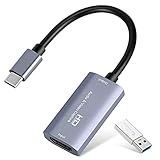
- 【1080P 60FPS Video Capture Card】 This HDMI game capture card is based on USB3.0 high speed transmission port, input resolution up to 4K@30HZ, output resolution up to 2K@30Hz or 1920×1080@60Hz. Type c and USB interface can meet most of the devices in daily life. Easily meet the online capture, real-time recording, online meetings, live gaming and other functions, so you have a better visual enjoyment. Note: For capture use only; requires capture software to function and is not intended for direct screen casting to a monitor or TV
- 【Ultra Low Latency Screen Sharing】 HDMI capture card is made of good quality aluminum alloy with strong heat dissipation, allowing you to enjoy ultra low latency while live gaming or video recording or live streaming, avoiding blue screens and lag. This HDMI to USBC capture card supports easy recording of good quality audio or HD video and transferring it to your computer or streaming platform, allowing you to record 60 fps HD video directly on your hard drive and real-time preview
- 【Plug and Play, Easy to Carry】 This HDMI 1080P video capture card does not require any additional drivers or external power supply, just plug and play for fast capture. The capture card is small and lightweight, so you can put it in your bag for emergencies, making it very portable for outdoor live streaming. It's also a great way to share content in game recording, video conference, video recorder and online teaching
- 【Wide Compatibility USB Capture Card】 Easily streams to Facebook, Youtube or Twitch. With the connection, this HDMI to USB C/3.0 video capture devices can be working on several Operating Systems and various software: Windows 7/ 8/ 10, Mac OS or above, Linux, Android, Laptop, Xbox One, PS3/PS4/PS5, Camera, DVDs, Set Top Box, Webcame, DSLR, Switch/Switch 2, TV BOX, HDTV, Potplayer/VLC, ZOOM, OBS Studio etc.
- 【Package Content & Note】 1x HD Audio Capture Card , 1x USB 3.0 to USB C Adapter (A-side 3.0, B-side 2.0), 1x user manual. Please note that you need to restart the OBS Studio software after the audio setup is complete, otherwise it will result in no sound output. When using an adapter, if the device is recognized as USB 2.0, try using the other side with the USB-C port. Simply flip the capture card and reconnect it to be recognized as USB 3.0
What can it capture?
OBS can create scenes from window captures, images, text, browser windows, webcams and capture cards. You can set hotkeys for nearly every action. That source coverage makes it suitable for a single game, a game-plus-webcam layout, a console feed through a capture card, or a two-computer stream.
Quick wins for a faster PC:
Fix the driver behind crashes, sound loss and screen glitchesFind Drivers →Clear out junk files and repair common Windows errorsFree Scan →Scan for outdated or missing drivers - takes under a minuteDriver Scan →How should you set up a first recording?
- Install OBS from the official site and open the scene collection.
- Create a scene for the game, then add the game or window source. Add a webcam and capture-card source only if the workflow needs them.
- In the audio mixer, confirm game audio and microphone meters move independently. Add filters only after the basic signal is working.
- Choose a hardware encoder when your GPU supports one; use CPU encoding only when that path is appropriate for your system.
- Assign start, stop and replay hotkeys that do not conflict with the game.
- Record a short sample, close OBS, open the file in your editor and check every track before recording a full session.
OBS gives you the most decisions in this shortlist, which is its advantage for production work and its cost in setup time for someone who only wants a highlight.
6. Xbox Game Bar: who is it for?
Xbox Game Bar is the lowest-friction option for occasional clips from a Windows PC game. Microsoft documents screen capture, sharing and chat while you remain in a PC game, including a keyboard shortcut for starting and stopping recording. Follow Microsoft’s documented Game Bar recording workflow.
Free access and limits
Game Bar is included with Windows, so there is no separate recorder purchase for the built-in capture function. It is best treated as a basic capture utility: expect fewer scene, routing and output controls than a production application, and confirm that the particular game and configuration respond to the documented shortcut.
When is it enough?
- Use it for an occasional clip when you do not need a webcam layout, capture card or elaborate audio mix.
- Move to a GPU utility if you want an overlay with replay controls tied to your graphics hardware.
- Move to OBS for livestreams, multiple sources, transitions or separate production scenes.
How do you record gameplay without losing FPS?
You cannot guarantee zero impact, but you can reduce avoidable load. Prefer a supported hardware encoder, keep the recording resolution and frame rate within what the PC can render consistently, and avoid stacking several background capture utilities.
- Update the GPU driver and recorder.
- Use the encoder supplied by your GPU when it is available and stable.
- Start with the game’s normal output resolution and frame rate instead of immediately increasing both for recording.
- Close unnecessary overlays, launchers and background tasks.
- Record a repeatable one- to two-minute segment and compare gameplay smoothness, dropped frames and audio sync.
- Reduce recording resolution, frame rate or bitrate if the recording stutters; reduce game settings if the game itself is the bottleneck.
High-resolution HDR capture can add compatibility issues in the editor and display pipeline. Check the resulting file for color shifts or a missing HDR flag rather than assuming the preview represents the saved file.
How do you record a PS5, Xbox or Switch on a PC?
A console sends an HDMI signal that ordinary PC game-capture software may not see directly. A USB HDMI capture card connects the console to the recording computer and commonly provides a pass-through output for the gaming display. A current capture-card buying guide explains this external-device workflow.
Shopping ad
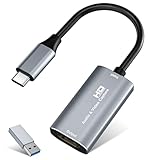
- 【4K HDMI Input, 2K@30Hz Recording】Powered by a true USB 3.0 high-speed interface, the capture card supports up to 4K@30Hz HDMI input and records at 2K@30Hz or 1080P@60Hz. Perfect for gamers, streamers, and professionals who need crisp, smooth video for live streaming, gameplay recording, or online meetings.
- 【Ultra Low Latency Screen Sharing】Built with a premium aluminum alloy shell and advanced chipset for stable heat dissipation, ensuring ultra-low latency transmission. Capture high-quality video and dual-channel audio in real time—no lag, no frame drop—ideal for Twitch, YouTube, or OBS streaming.
- 【Easy Plug and Play, Compact & Portable】No driver or external power required—just plug and play via USB 3.0 or Type-C connection to your Windows or macOS computer. Lightweight and compact design makes it easy to carry for outdoor streaming, live shows, or mobile recording setups.
- 【Wide Compatibility & Multi-Device Support】Compatible with Windows 7 8 10 11, macOS, Linux,Android and supports most popular software such as OBS, Zoom, VLC, Twitch Studio, and more. Works seamlessly with PS4, PS5, Xbox, Switch, DSLR cameras, TV boxes, and other HDMI-output devices for streaming to YouTube, Twitch, etc.
- 【What You Get】Includes: HDMI Capture Card, USB 3.0 to USB-C Adapter, User Manual. Tips: Make sure your tablet’s OTG function is enabled before connecting. Test your HDMI device with a monitor first to confirm video and audio output, then connect to the Video Capture Card for recording.
- Check the console’s HDMI output and the card’s input and pass-through limits.
- Match the desired resolution, refresh rate and HDR mode; a card may support different formats for capture and pass-through.
- Confirm the USB interface can carry the selected signal and that the card handles game audio correctly.
- Connect console to capture-card input, pass-through to the display if required, and USB to the recording PC.
- Add the capture-card source in OBS or the recorder that supports it, then test video, game audio, microphone and chat separately.
- Check latency before competitive play. A pass-through display can keep play responsive even when the recording preview has delay.
The same approach applies to an HDMI camera or a second PC. Verify HDCP behavior, because protected video output may not be recordable through a capture device.
Independent reader supportYour contribution helps us test, update, and keep practical guides available for everyone.Which audio settings matter most for gaming recordings?
Separate tracks are more useful than a louder mixed track. Put game audio, microphone, voice chat, music and alerts on tracks you can balance later whenever the recorder supports it.
The Tool Desk
Outbyte Driver Updater FREEFix the driver behind crashes, sound loss and screen glitchesFind Drivers →Outbyte PC Repair FREEClear out junk files and repair common Windows errorsFree Scan →- Speak a short sentence before recording and watch the microphone meter for clipping.
- Listen for game audio masking your voice; lower the game channel rather than boosting a distorted microphone.
- Confirm Discord or other chat is routed to the intended track and is not duplicated through desktop audio.
- Use headphones when possible to prevent microphone bleed.
- Record a sample and scrub through the saved file, not only the live preview.
OBS documents per-source filters, an audio mixer and VST support, making it suitable for deliberate mixing. Clip-focused software can be faster when a single game-plus-microphone track arrangement is all you need. Game Bar is better approached as a basic capture utility with fewer routing decisions.
How much storage does gameplay recording require?
Storage depends primarily on bitrate, duration and whether you keep multiple versions. Use the formula gigabytes ≈ megabits per second × seconds ÷ 8,000 for a planning estimate, then leave headroom for temporary files and edited exports.
- Choose a dedicated recording folder on a drive with ample free space.
- For long sessions, monitor free space before launching the game.
- Move completed recordings to an external drive or archive before the next session.
- Delete failed test files and unused replay-buffer clips.
- Keep the source recordings until the final edit is exported and checked.
What should you do when recording fails?
The preview is black
Try a different capture method: game capture, window capture or display capture. Check that the game is running, the recorder has permission to capture it, and an overlay or protected window is not blocking the source.
The file has no microphone
Re-select the microphone in the recorder, confirm its meter moves, and check that the saved file contains the expected audio track. A headset change or operating-system update can silently switch the default input.
The recording stutters
Check dropped-frame indicators, move from CPU encoding to a supported hardware encoder, lower output demands and close competing overlays. Repeat the same short test after each change.
Shopping ad

- High-Quality Video Capture, 4K HDMI Capture Card Ready: Capture smooth and vibrant video with this 4K HDMI capture card, engineered for gamers and content creators who demand crisp 1080P 60FPS video quality. Whether you're streaming to Twitch or recording gameplay for YouTube, your footage will look professional and detailed
- Plug-and-Play USB Capture Card, No Drivers Needed: Designed as a USB capture card for streaming, this device works instantly out of the box, just plug into your PC or laptop and start capturing. Fully compatible with popular software like OBS Studio, Streamlabs, and XSplit, making setup quick and stress-free for beginners and pros alike
- Universal Compatibility PS5, Xbox, Switch & More: Stream or record gameplay from virtually any HDMI-enabled device including Nintendo Switch, PS5, Xbox Series X, DSLR cameras, and PCs. The video capture card for gaming supports seamless passthrough so you can play without lag while your audience watches every frame in real time
- Low-Latency Performance for Smooth Streaming: This capture card for streaming minimizes delay between gameplay and broadcast, so you get reliable, low-latency capture that works well for competitive gaming, live broadcasts, and podcast sessions. Suitable for those building their channel with high-quality, engaging content
- Compact & Portable Design for Content Creators: Lightweight and portable, this USB 3.0 capture card works well for creators who travel or switch gaming setups often. Throw it in your bag and stream or record wherever you are, at home, events, LAN parties, streaming or studio sessions
Audio and video drift apart
Check sample-rate consistency, disable duplicate desktop-audio paths and inspect the saved file in an editor. If drift appears only after a long session, shorten the test and verify whether the source device or capture card is losing sync.
The file is enormous
Review bitrate, resolution, frame rate and codec, then calculate expected storage before the next session. Do not reduce quality blindly if the recording is intended for later editing; change one output variable at a time.
How we picked the shortlist
The shortlist covers distinct recording jobs rather than ranking products: built-in Windows clips, GPU-vendor overlays, automatic replay-buffer sharing, a dedicated licensed recorder, and a full production application. Selection criteria were source coverage, setup effort, encoder path, audio-track control, output flexibility, console and capture-card support, and the clarity of each product’s current pricing or access model. Alphabetical order keeps the list neutral; the right choice is the one that matches your source, workflow and hardware.
What’s actually slowing this PC down?
Pick the symptom - the matching free tool is one click away.
Frequently Asked Questions
Can a screen recorder capture a game protected by anti-cheat software?
Sometimes, but capture behavior varies by game and protection mode. If game capture is blocked, try window or display capture, and verify the saved file in a short test before relying on it for a tournament or long session.
Should I record game chat on the same track as my microphone?
Separate tracks are safer when you may edit, mute or rebalance voices later. A single mixed track is quicker for sharing clips but leaves fewer options if one participant is too loud or a private conversation must be removed.
Is a capture card necessary for a handheld console?
It is necessary when the handheld or dock outputs HDMI and the recording computer cannot access that signal as a software game source. Check whether the device actually provides HDMI output, then match the card’s input, pass-through and USB requirements.
Why does my recording look washed out even though the game looks normal?
HDR and color-range handling can differ between the game, recorder, capture card and editor. Compare an SDR test, check the saved file’s HDR metadata, and make sure the editor’s project color settings match the footage.
Do these 3 things before closing this tab:
1Repair Windows errors before they cause bigger problems2Fix the driver behind crashes, sound loss and screen glitches3Clear out junk files and repair common Windows errorsCan I save only the last few minutes instead of recording everything?
Use a replay buffer or instant-replay feature. Set the buffer duration and hotkey before playing, then confirm where clips are stored and how much disk space the buffer consumes.
Quick Recap
Product prices and availability are accurate as of the date/time indicated and are subject to change. Any price and availability information displayed on Amazon at the time of purchase will apply.

