Crashes, No Sound, or Screen Glitches?
Random freezes, missing sound and display glitches usually trace back to one bad driver. Find and replace yours safely.Free scan · under a minuteWindows Errors? Fix Them Before They Spread
Repair common Windows errors and clear accumulated junk for a smoother, more stable PC - no reinstall needed.Free scan · no reinstallThe Geeks Club is reader-supported. When you buy through links on our site, we may earn an affiliate commission. As an Amazon Associate I earn from qualifying purchases. Learn more
A screen recorder for an online course must capture the right screen content, microphone and computer audio, then produce a readable, captioned file your LMS can host or embed. Choose OBS Studio for free, open-source control; Camtasia for independent audio/video tracks and substantial post-production; or ScreenPal for straightforward recording, light editing and an established course-video workflow. Kdenlive and ShareX can also serve specific budgets or operating systems. The right choice depends less on a feature count than on your lesson workflow, editing needs, accessibility process and delivery platform.
The products below are listed alphabetically, not ranked. Confirm current operating-system support, trial terms, plan limits and export behavior on each vendor’s site before committing to a full course.
At a glance
| Name | Best for | Key spec | Free plan / price | Platforms | Checked |
|---|---|---|---|---|---|
| Camtasia | Polished lessons and repeatable editing | Independent screen, camera, system-audio and microphone layers; cursor editing; captions and annotations | Trial or paid license; confirm current terms | Windows/macOS desktop | November 2026 |
| Kdenlive | Open-source timeline editing after capture | Nonlinear editor that can assemble, trim and caption course footage | Free, open-source software | Windows, macOS and Linux | November 2026 |
| OBS Studio | Multi-source capture with no license fee | Scenes, window/display capture, webcam and capture-card sources; per-source audio filters | Free and open source | Windows 10/11, macOS 13 or newer, Linux | November 2026 |
| ScreenPal | Planned instructional videos with light editing | Screen, webcam, narration and computer-audio recording; trimming, combining, overlays and MP4 export | Free/trial and paid terms vary; confirm current limits | Desktop and browser-supported workflows; verify current edition | November 2026 |
| ShareX | Windows users needing quick screen captures | Open-source screen and region capture with workflow automation | Free, open-source software | Windows | November 2026 |
Details checked November 2026.
For the three course-focused products, the source material documents capabilities but not reliable current prices or free-tier limits. Do not assume a trial includes every export, caption or hosting feature; read the current plan page before recording a large library.
Do these 3 things before closing this tab:
1Scan for outdated or missing drivers - takes under a minute2Repair Windows errors before they cause bigger problems3Fix the driver behind crashes, sound loss and screen glitchesWhat should you evaluate before choosing?
Evaluate seven things in order: operating-system and hardware support; screen, webcam, microphone and system-audio capture; editing depth; captions and transcripts; export and hosting; setup time; and total cost. A recorder that produces attractive video but cannot deliver a captioned MP4 to your institution’s approved host is a poor course fit.
Shopping ad
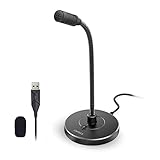
- 【Crystal Clear Audio Quality】Our Omnidirectional pattern condenser microphone accurately captures your voice, making it perfect for dictation, online classrooms, and more.
- 【Active Noise-Cancelling】Come in CMTECK CCS2.0 SMART CHIP with Omnidirectional Polar Pattern, which can effectively block the background noise. The pop filter prevents plosives from overloading the microphone, ensuring only your voice is heard.7
- 【Convenient Mute Button with LED Indicator】You can quickly mute/un-mute the microphone with the Mute Button and the built-in LED light lets you know the working status(Greenlight: Connected; Red light: Mute mode).
- 【Easy to use】 No drivers needed, just plug and record without external power supply, directly connect the microphone to a USB compatible device, well compatible with Windows(7, 8 and 10), Mac OS and PS4 (NOT compatible with Raspberry Pi/Linux/Android)
- 【Mini size with Adjustable Gooseneck】Adopted flexible and adjustable gooseneck metal pipe, easily adjust position 360 degrees to suit user comfort. The compact and stable base maximizes your desktop space.
1. Match the recorder to the lesson workflow
Software demonstrations usually need a clean screen capture, deliberate cursor movement and clear narration. A programming lesson may need a browser, terminal and webcam at once. A presentation-based course may need picture-in-picture, chapter cards, callouts and repeated correction of spoken mistakes. Write down what students must see and hear before comparing interfaces.
2. Check capture sources and audio routing
Confirm that the application can capture the exact window, display, browser tab or capture card you need. Check separate controls for microphone and computer audio. Make a short recording with the intended microphone and play it back before a full lesson; a silent system-audio track or distorted narration is much harder to repair later. A USB microphone is often the most consequential accessory for course recording because students can tolerate modest video compression more easily than muddy speech.
3. Decide how much editing you will do
Basic trimming is enough when lessons are short and carefully scripted. Independent tracks matter when you want to lower system audio without lowering narration, replace a camera shot, remove a cursor path or repair a single mistake. If every lesson receives titles, arrows, highlights, captions and translated versions, an integrated editor can save more time than a slightly faster recording setup.
4. Treat accessibility as part of production
Automatic captions are a starting point, not a finished transcript. Review names, code, mathematical notation, punctuation and speaker changes. Keep text large enough to read at the intended playback size, use color combinations with adequate contrast and do not rely on the cursor or a color flash alone to convey meaning.
5. Confirm delivery before you record
Ask your institution whether it accepts direct MP4 uploads, requires a media host, or expects an embed code. Check file-size limits, caption-file support, transcript downloads, analytics and whether students can view the video on mobile devices. Export a two-minute sample and verify that the LMS preserves audio, captions, aspect ratio and playback controls.
1. Camtasia: who it is for
Camtasia suits instructors who want a repeatable, polished production process rather than a capture utility alone. TechSmith describes recording the screen, camera, system audio and microphone as independent data layers, so each can be adjusted after recording. That arrangement is useful when narration needs noise reduction, the webcam must be repositioned, or a software demonstration contains a mistake that should be removed without cutting the entire scene.
The editor includes cursor editing, drag-and-drop assembly, annotations, captions and translations. Text-based editing through Audiate can help locate and remove spoken sections, while callouts and highlights direct attention to a button or code line. These capabilities are especially valuable for technology training, customer education and courses that will be updated repeatedly.
Free tools Windows power users keep installed
One-click scans. No signup required.
Shopping ad

- Studio-Quality Sound for Clear Podcast Recording – The K66 USB podcast microphone delivers studio-quality, broadcast-level audio using a high-performance condenser capsule and cardioid pickup pattern that focuses on your voice while reducing unwanted background noise. Designed as a reliable microphone for PC, it features a wide 40Hz–18kHz frequency response and a 46kHz sampling rate to reproduce rich lows, smooth mids, and clear highs for natural, detailed vocals. With –45dB ±3dB sensitivity, it captures balanced sound without distortion during expressive speaking. Ideal for podcasting, voice-over, online classes, meetings, and professional content creation.
- Intelligent Noise Reduction Mode for Cleaner Podcast Audio – This podcast microphone features an advanced Noise Reduction Mode designed for clearer, more focused voice recording in real-world environments. Press and hold the mute button to enable noise reduction (blue indicator). In this mode, the microphone helps reduce keyboard clicks, PC fan noise, air conditioner hum, and background chatter. Default Mode maintains a warm, natural vocal tone for quiet spaces. Designed as a reliable microphone for PC, it allows creators to identify the active mode instantly and adapt as needed, ensuring clear audio for podcasting, gaming, streaming, online classes, meetings, and recording.
- True Plug-and-Play USB Microphone with Wide Device Compatibility – Engineered for effortless plug-and-play use, the K66 USB microphone requires no drivers, apps, or software installation. Simply connect and start recording on Windows PC, Mac, laptops, PS4, PS5, and tablets. Included USB-C and Lightning adapters ensure seamless compatibility with iPhone, iPad, and modern USB-C phones and devices, making it easy to switch between desktop and mobile recording. Ideal for creators working across multiple platforms, this microphone delivers consistent, high-quality audio for YouTube, TikTok, Twitch, Zoom, Discord, OBS Studio, Streamlabs, podcasting, livestreaming, and professional voice recording.
- Real-Time Zero-Latency Monitoring with Adjustable Volume Control – This podcast microphone features real-time, zero-latency monitoring through a built-in 3.5mm headphone jack, allowing you to hear exactly what’s being recorded without delay. Designed as a reliable microphone for PC, it includes a dedicated monitoring volume control that lets you adjust headphone listening levels independently for accurate and comfortable audio monitoring. Real-time feedback helps identify distortion, background noise, or uneven volume before it affects your final recording, making this podcast microphone ideal for podcasting, streaming, online teaching, voice-over work, and professional content creation.
- Precision Audio Adjustment Knobs for Full Sound Control – This podcast microphone gives creators hands-on control with dedicated knobs for microphone volume, monitoring volume, and echo adjustment. Fine-tune mic gain to maintain clear, balanced vocal output, adjust headphone monitoring levels independently for comfortable listening, and add or reduce echo to enhance depth and presence. Designed as a reliable PC microphone, these intuitive physical controls allow fast, on-the-fly adjustments without software, helping identify distortion, background noise, or level inconsistencies instantly. Ideal for podcasting, streaming, ASMR, voice-overs, singing, and professional multi-platform recording.
Free access, paid access and limits
Camtasia is a commercial product. Trial availability, watermark behavior, export restrictions and subscription or license pricing can change, so review the current Camtasia product page before purchase. Upgrade when you need independent tracks, reliable post-production, reusable templates or a workflow that combines recording, editing and caption preparation in one desktop application.
Trade-offs
The additional editing depth can mean more setup and a larger project-management burden than a capture-only tool. Establish a naming convention for source recordings, project files, narration takes and caption reviews so a course team can revise a lesson months later.
2. Kdenlive: who it is for
Kdenlive is an open-source nonlinear editor for instructors who want timeline-based assembly without a recurring license. It is most useful after capture: record your screen with a suitable capture tool, then use the timeline to cut pauses, combine clips, add titles and prepare a final course file. Its cross-platform availability is useful when a teaching team works across Windows, macOS and Linux.
Because it is an editor rather than a course-hosting service, plan the capture, caption review and LMS-upload steps separately. Verify that your chosen capture format imports correctly and that the export preset produces a file your institution accepts.
Free access, paid access and limits
Kdenlive is distributed as free, open-source software rather than a paid service. There is no subscription tier to buy; costs are instead related to the computer, storage and any separate recording or captioning tools you use. Confirm current builds and hardware requirements for your operating system before standardizing on it.
Trade-offs
You may need more workflow assembly than with an all-in-one recorder. Create a short template project with your course intro, lower-third style, caption-safe margins and export settings so every lesson starts consistently.
3. OBS Studio: who it is for
OBS Studio is suited to instructors who need granular control over several sources and want a zero-license-cost workflow. The OBS Project calls it “Free and open source software for video recording and live streaming.” Its scenes can combine window captures, images, text, browser windows, webcams and capture cards. The audio mixer provides per-source filters, while unlimited scenes, transitions, hotkeys and Studio Mode support complex demonstrations.
Shopping ad
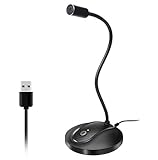
- 360 Degree Position Adjustable Gooseneck Design --Plug and play USB microphone Pick up the sound from 360-degree with high sensitivity, in the best possible location for sound to your PC gaming, dragon voice dictation, and talk to Cortana
- Mute Button & LED Indicator --One-click to mute/unmute your microphone for pc, Build-in LED indicator tells you the working status at any time
- Intelligent Noise-Canceling Tech --Premium omnidirectional condenser microphone with noise-canceling technology can pick up your clear voice and reduce background noise and echo
- USB Plug&Play(1.8/6ft USB Cable) -- No driver required. Just need to plug & play for the microphone to start recording, well compatible with Windows(7, 8, 10 and 11) and macOS. (NOT compatible with Xbox/Raspberry Pi/Android)
- Solid Construction--Adopting premium metal pipe and heavy-duty ABS stand to make sure that you will be satisfied with our computer mic quality
The current download information lists support for Windows 10 and 11, macOS 13 or newer and Linux. The page also shows release 33.0.1 dated October 29; compatibility and release details are volatile, so check the official OBS site immediately before deployment.
Free access, paid access and limits
OBS Studio has no paid plan: the software is free and open source. There is no integrated course editor or LMS hosting tier, so budget time for separate editing, captioning, storage and publishing. Choose it when you can maintain those steps or when scene control matters more than an all-in-one workflow.
Trade-offs and setup advice
OBS rewards preparation. Create one scene for screen-only demonstrations, one for picture-in-picture and one for slides or a document camera. Name sources clearly, set hotkeys for scene changes and use the audio mixer to confirm that the microphone meter moves without clipping. Record a short sample, close unrelated applications and verify the resulting file before teaching from it.
4. ScreenPal: who it is for
ScreenPal fits planned instructional videos that need recording plus light editing and a practical route into an LMS. Arizona State University’s Learning Experience guidance describes using it to record a screen, webcam or both with narration and computer audio. The documented workflow includes trimming, removing mistakes, combining clips, adjusting audio, adding text, shapes and highlights, saving an MP4, uploading it for captioning, reviewing the transcript and embedding the result in Canvas.
This workflow is different from a live-class tool: record the lesson when it is convenient, revise it, then publish the finished asset for students to watch later. Keep the webcam bubble away from menus, code, equations or other information students must read.
Free access, paid access and limits
ScreenPal offers free and paid editions whose recording, editing, export, captioning and hosting limits can change. Check the current plan page for resolution, watermark, storage, duration and collaboration restrictions before selecting it for a course. Upgrade when the institution needs a dependable publishing path, more editing headroom or fewer constraints on finished MP4 files.
Trade-offs
ScreenPal covers common instructional edits, but a production team that needs extensive track-level repair or sophisticated cursor treatment may outgrow its lighter workflow. Confirm where caption files live and who is responsible for transcript correction before assigning the process to multiple instructors.
Shopping ad

- [Convenient Setup] Plug and play recording USB microphone for PC, with 5.9-Foot USB cable included for computer PC laptop, is connected directly to USB-A port for recording music, computer singing or podcast. The office condenser microphone for computer is easy to use and install. (NOT compatible with Xbox and Phones)
- [Durable Metal Design] Solid sturdy metal construction design, the computer microphone for Zoom meetings with stable tripod stand is convenient when you are doing voice overs or livestreams on YouTube. Durable material extends the service life of the voice-over microphone.
- [Mic Volume Knob] Gaming condenser USB mic compatible for PS4 with additional volume knob itself has a louder or quieter adjustment and is more sensitive. Your voice would be heard well enough through the zoom microphone USB when gaming, skyping or voice recording. Also, you can adjust your volume to zero and protect your privacy.
- [Widely Use] USB-powered design, the condenser microphone for recording no need the 48v Phantom power supply, works well with Cortana, Discord, voice chat and voice recognition. The podcast microphone for Mac, with USB-B to USB-A/C cable, is compatible with desktop, laptop or PS4/PS5, which meets most of your daily recording needs.
- [Clear Output Voice] Cardioid condenser microphone for PC captures your voice properly, producing clear smooth and crisp sound. Great computer recording mic for gamers/streamers/youtubers focus on the main source and reduces background noise. The streaming microphone does the job well for broadcast ,OBS and teamspeak.
5. ShareX: who it is for
ShareX is a Windows-focused, open-source capture utility for instructors who need quick screen, window or region recordings and can handle editing and captioning elsewhere. It can be practical for short demonstrations, troubleshooting clips or supplementary lessons where a full production suite would add unnecessary overhead.
Because the course workflow depends on separate editing, captioning and hosting tools, establish those destinations first. Test the chosen recording mode, audio source and output format with a short clip; then confirm that your editor and LMS accept the file without a conversion step.
Recommended Free Tools
Free access, paid access and limits
ShareX is free and open source, with no paid plan to unlock. Its effective cost is the time required to configure capture, edit footage, review captions and publish it through other services. It suits Windows instructors who value a lightweight utility and already have those supporting tools.
Trade-offs
It is less of a guided course-production environment than Camtasia or ScreenPal. Document your settings and keep the original capture so you can correct a caption or re-edit a short segment without recording the entire lesson again.
Independent reader supportYour contribution helps us test, update, and keep practical guides available for everyone.How do I record my screen and webcam with narration?
Use this repeatable sequence regardless of the recorder:
- Define the visual target. Decide whether students need the whole display, one application, a browser area, slides or a whiteboard. Capture only what supports the explanation.
- Choose the camera layout. Use screen-only capture for software demonstrations. Add picture-in-picture when facial presence helps orientation or explanation, and place the webcam bubble where it cannot cover essential content.
- Configure audio. Select the intended microphone and computer-audio source. Watch the meters while speaking and playing a system sound. Make a short test recording and listen on headphones.
- Set a readable scale. Increase interface text and browser zoom before recording. Keep the cursor purposeful; pause over controls instead of sweeping across the screen.
- Record in short sections. Separate lessons or activities into manageable clips. If a mistake occurs, pause, repeat the sentence and continue; editing is easier when the correction is obvious.
- Edit for learning. Remove dead air and errors, combine clips, and add arrows, highlights or brief labels only where they direct attention. Deeper track and cursor work is a reason to favor Camtasia; straightforward trimming and overlays fit ScreenPal.
- Caption and review. Generate captions, correct technical vocabulary and inspect the transcript against the audio. Do not publish an unreviewed automatic transcript.
- Export and publish. Produce a compatible MP4 or the format your institution specifies, upload it to the supported host and test the embed as a student would see it.
What commonly goes wrong?
The recording has no computer audio
Verify that the application is capturing the intended system-audio device, not an inactive output. Check operating-system privacy permissions and make a short recording with a known sound before restarting the lesson.
Quick wins for a faster PC:
Clear out junk files and repair common Windows errorsFree Scan →Fix the driver behind crashes, sound loss and screen glitchesFind Drivers →Repair Windows errors before they cause bigger problemsFix Now →The narration is quiet or distorted
Move the microphone closer, reduce input gain if the meter clips and disable competing microphones. A USB microphone on a stable stand can provide a more consistent distance than a laptop microphone.
Shopping ad

- Cardioid Pick-up: Cardioid pickup pattern that captures clear and crisp voice in front of the mic and suppresses unwanted background noise. Design for chatting, teleconferencing, recording, podcast
- For Podcast: Equipped with a non-slip stand that adds stability while occupying a small desktop area. One-click mute and volume control for easy operation during the recording. The shock mount and pop filter can prevent recordings from being disturbed by vibration
- Strong Compatibility: TC-777 is multi-device and program compatible, you can use it on Windows, MAC, PS4 and 5. It can also be quickly recognized by Zoom, Skype, Discord, allowing you to start creating or communicating immediately. (Not compatible with Xbox)
- Plug & Play: With a USB 2.0 data port, the TC-777 is plug and play, with no additional drivers or assembly process required. The angle of both microhone and pop filter can be adjusted as needed to achieve the best audio effect
- What's In the Box: 1 x Microphone with Power Cord(1.9m), 1 x Foldable Mic Tripod, 1 x Mini Shock Mount, 1 x Pop Filter and 1 x Manual
The webcam covers the demonstration
Move the overlay before recording, or record the camera on a separate layer if your editor supports it. Keep the lower corners available for application status bars, subtitles and code output.
The LMS rejects or mishandles the file
Check the host’s supported container, codec, maximum size and caption method. Export a short sample, upload it to a test course and verify audio, captions, playback on mobile and the embed’s permissions.
Private information appears on screen
Close email, chat, cloud-storage tabs and notification banners. Use a clean browser profile or a dedicated recording account, and obtain permission before showing another person’s face, voice, name or work.
What’s actually slowing this PC down?
Pick the symptom - the matching free tool is one click away.
How should you decide?
Choose OBS Studio when source control, multiple scenes and a free open-source license outweigh the need for integrated editing. Choose Camtasia when every lesson needs independent tracks, cursor cleanup, annotations, captions or text-based correction. Choose ScreenPal when the priority is a simple screen-or-webcam recording, light edits, MP4 export and a practical LMS path. Choose Kdenlive when you want open-source timeline editing across desktop operating systems, and ShareX when a Windows utility is enough and separate post-production tools are already available.
Before buying or standardizing, run one complete pilot lesson: capture the real application, microphone and computer audio; edit a mistake; generate and correct captions; export; upload; and test the student-facing embed. That single rehearsal exposes compatibility, storage, accessibility and workflow problems while changing them is still inexpensive.
How we selected the shortlist
The shortlist reflects distinct course-production needs: free configurable capture, polished independent-layer editing, straightforward instructional publishing, open-source timeline work and lightweight Windows capture. The comparison considers source control, audio handling, editing depth, caption preparation, export and LMS delivery, learning curve and ongoing cost. Product names are presented alphabetically, not as a ranking.
Frequently Asked Questions
Can I record only one application window instead of my entire desktop?
Yes, when the recorder supports window or region capture. Select the target window, hide notifications and verify that menus, pop-ups and dialog boxes still appear when needed; a short rehearsal prevents an important step from being recorded outside the frame.
The Tool Desk
Outbyte PC Repair FREERepair Windows errors before they cause bigger problemsFix Now →Outbyte Driver Updater FREEFix the driver behind crashes, sound loss and screen glitchesFind Drivers →Should I keep a master recording after exporting an MP4?
Keep the original project and source capture when storage permits. A master lets you repair a caption, replace a single explanation or create a translated version without rerecording the whole lesson.
How can I make code and small interface text readable to students?
Increase application zoom and operating-system display scaling before capture, then preview the exported video at the size students will use. If text is still small, split the demonstration into focused clips instead of panning rapidly across a dense screen.
Who should correct automatically generated captions?
Assign review to someone who understands the lesson’s terminology, not only the person who recorded it. Technical names, commands, equations and acronyms are common sources of caption errors and should be checked against the script or slides.
Quick Recap
Product prices and availability are accurate as of the date/time indicated and are subject to change. Any price and availability information displayed on Amazon at the time of purchase will apply.

