Do these 3 things before closing this tab:
1Scan for outdated or missing drivers - takes under a minute2Clear out junk files and repair common Windows errors3Fix the driver behind crashes, sound loss and screen glitchesThe Geeks Club is reader-supported. When you buy through links on our site, we may earn an affiliate commission. As an Amazon Associate I earn from qualifying purchases. Learn more
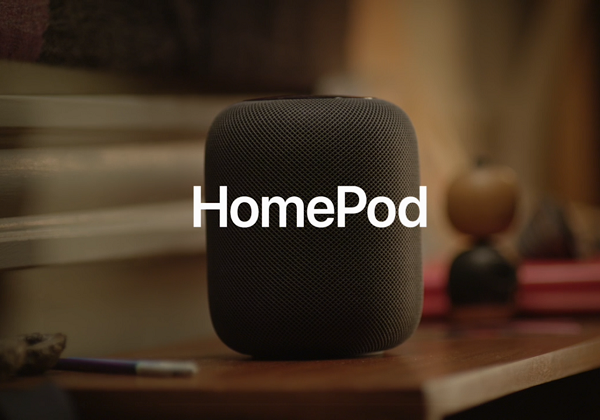
Apple’s HomePod is a Siri enabled smart speaker which can connect with Apple devices, and account for a lot of things. It can play music, read emails, remind about meetings in the calendar and so on. In this post, we are sharing how you Setup HomePod on iPhone or iPad.

How to Setup HomePod on iPhone or iPad
The HomePod set up is similar to setting up a pair of AirPods on your iPhone/iPad. The entire process takes no more than few minutes.
Pre-requisites to connect with HomePad
- Make sure iPhone or iPad is running on iOS 11.2.5 or above
- The iOS device is connected to the Wifi-internet and has Bluetooth turned on.
- Make sure that you signed in to iCloud with your Apple ID and turned on iCloud Keychain.
Steps to connect Homepod on iPhone or iPad
1] Plug your HomePod to a power source and wait for few seconds, until you hear a chime sound. You will also see a pulsing white light flashing on the top of HomePod.
Outdated Drivers Are Slowing You Down
One free scan finds every outdated or missing driver and matches the right update for your exact hardware.Free scan · exact hardware matchWindows Errors? Fix Them Before They Spread
Repair common Windows errors and clear accumulated junk for a smoother, more stable PC - no reinstall needed.Free scan · no reinstall2] When seen, unlock your iPhone/iPad and bring it close proximity to your HomePod.
Shopping ad

- Premium, immersive, high-fidelity audio
3] Now, tap ‘Set Up’ option when visible on your iOS device’s screen.

4] Select a room (Hallway, Kitchen, Living Room) when you see ‘Where’s the HomePod’ screen.

5] Next, enable Personal Requests to allow anyone to use HomePod to send and read messages, create notes and do more.
Quick wins for a faster PC:
Fix the driver behind crashes, sound loss and screen glitchesFind Drivers →Repair Windows errors before they cause bigger problemsFix Now →Scan for outdated or missing drivers - takes under a minuteDriver Scan →Shopping ad

- Features a 4" high-excursion woofer and five beamforming tweeters for deep bass, clear vocals, and detailed room-filling audio.
- Room Sensing technology automatically adjusts sound based on where the speaker is placed.
- Built-in Siri enables voice control for music, reminders, messages, smart home devices, and more.
- Supports AirPlay, Spatial Audio, Thread, Matter smart home control, Bluetooth 5.0, and Wi-Fi 4.
- Pair two HomePod speakers for stereo sound or use multiple units for whole-home audio playback.
6] Then click on the transfer settings button to automatically set up access to your information on iCloud, home Wi-Fi network, Apple Music, and more.

7] Wait for HomePod to finish setup. When done, Siri will greet you and give you a few examples of things you can ask.

8] Finally, to verify that HomePod is set up, open the Home app and look for HomePod in the Home or Rooms tab. Customize the settings, if required.
Shopping ad

- Your favorite music and content – Play music, audiobooks, and podcasts from Amazon Music, Apple Music, Spotify and others or via Bluetooth throughout your home.
- Alexa is happy to help – Ask Alexa for weather updates and to set hands-free timers, get answers to your questions and even hear jokes. Need a few extra minutes in the morning? Just tap your Echo Dot to snooze your alarm.
- Keep your home comfortable – Control compatible smart home devices with your voice and routines triggered by built-in motion or indoor temperature sensors.
- Do more with device pairing – Fill your home with music using compatible Echo devices in different rooms, or create a home theatre system with Fire TV.
- Say goodbye to drop-offs and buffering - With eero Built-in, Echo Dot doubles as a mesh wifi extender, adding up to 1,000 sq. ft. of wifi coverage to your existing eero network.
9] Once set up you can access the HomePod settings via the Home app on your Apple iPhone or iPad. To check the settings, find the HomePod in your Favourite Accessories and long press on the icon.
Other HomePod Features
Lastly, there’s another interesting feature about HomePod. It features an accelerometer that detects if the speaker has been moved. As such, it can automatically whizz through the sound setup procedure again.
You can always control HomePod from the iOS device. Tap the top of HomePod to play, pause, or adjust the volume. If you notice a multicolored light on top of the HomePod, it means somebody is playing music.
If the above method does not work for you as desired or if you experience any problem with the setup process, let us know in the comments.
Quick Recap
Product prices and availability are accurate as of the date/time indicated and are subject to change. Any price and availability information displayed on Amazon at the time of purchase will apply.

