Recommended Free Tools
The Geeks Club is reader-supported. When you buy through links on our site, we may earn an affiliate commission. As an Amazon Associate I earn from qualifying purchases. Learn more
The best 60fps screen recorder depends on what you are recording: OBS Studio is the flexible choice for configurable capture and production, Camtasia pairs recording with tutorial editing, and built-in or GPU-vendor tools suit quick game clips. For a console or another HDMI source, a capture card such as Elgato 4K S is a different kind of solution. A 60fps label is not a guarantee of smooth 60fps footage at every resolution: the source, display, computer resources, and capture settings all matter.
This comparison separates direct software capture from external HDMI capture and distinguishes vendor capability statements from editorial recommendations. No hands-on comparative testing is claimed.
At a glance
| Name | Best for | Key spec | Checked |
|---|---|---|---|
| OBS Studio | Configurable recording and production | Official documentation covers recording, sources, filters, and audio | November 2026 |
| Camtasia | Tutorials that need recording and editing | Vendor says 2024 and later can record 4K at 60fps under specified conditions | November 2026 |
| NVIDIA App / ShadowPlay | Quick game clips | Included among game-recording choices in editorial roundups | November 2026 |
| AMD Software: Adrenalin Edition | Game-recording workflows for AMD users | Included among game-recording choices in editorial roundups | November 2026 |
| Xbox Game Bar | A built-in game-recording option | Included among game-recording choices in editorial roundups | November 2026 |
| Steam Game Recording | Recording in a Steam game workflow | Included among game-recording choices in editorial roundups | November 2026 |
| Bandicam | A traditional game-recording option | Included among game-recording choices in editorial roundups | November 2026 |
| Elgato 4K S | Capturing a console or other external HDMI source | 4K60 capture; USB-C/UVC; Windows, Mac, and iPad support | November 2026 |
What does 60fps screen recording actually require?
A recorder can only produce a useful 60fps result when the capture chain can supply and preserve that frame rate. The source needs to be updating at 60 frames per second, the display and capture settings must support the intended mode, and the computer needs enough capacity to capture and encode the footage. A software feature label by itself does not establish that every resolution, game, or machine will record smoothly.
Do these 3 things before closing this tab:
1Fix the driver behind crashes, sound loss and screen glitches2Repair Windows errors before they cause bigger problems3Scan for outdated or missing drivers - takes under a minuteTechSmith gives a concrete example for its own product: its guidance says Camtasia 2024 and later can record 4K at 60fps, but specifies a maximum capture rate of 60fps, H.264, screen content refreshing at 60fps or higher, a 4K display set to at least 60Hz, and a discrete GPU driving that display. It recommends an NVIDIA GeForce RTX 2060 or AMD Radeon RX 5700 XT or higher, and says integrated graphics cannot capture true 4K-at-60fps content. These are vendor conditions and recommendations, not an independent performance benchmark.
Shopping ad

- 4K60 Capture: Record in cinematic quality with crisp detail and vivid colors
- HFR Support: Play and capture in 1440p120 or 1080p240
- HDR10 Support: Capture brilliant HDR content with tone mapping on Windows
- Cross-Platform Compatible: Works with PS5, Xbox Series X/S, Switch 2, and more
- Analog Audio In: Capture in-game chat or commentary with 3.5mm input
Keep the target realistic. If a game or desktop is running below 60fps, the recording cannot preserve 60 distinct source frames each second. If you are recording at 4K, the system has more work than for a lower-resolution capture. Choose resolution and frame rate together, then check the resulting file rather than assuming the setting alone guarantees the outcome.
Which 60fps screen recorder should you choose?
1. OBS Studio: best for configurable capture and production
OBS Studio is the strongest fit when you want to build a recording workflow around configurable sources and audio rather than choose a tool solely for quick clips. Its official knowledge base organizes guidance around recording, sources and filters, and audio, making it relevant to creators combining multiple capture elements or adjusting a production setup.
Platforms and price: The cited OBS knowledge-base material does not establish platform availability, plan terms, or a specific price, so this comparison does not attach one. 60fps limits: The cited documentation does not verify a maximum capture rate or a benchmark against the other options here. Do not treat OBS’s inclusion as proof of a particular 60fps resolution on your machine; configure the capture and confirm the output on your setup.
The Tool Desk
Outbyte Driver Updater FREEFix the driver behind crashes, sound loss and screen glitchesFind Drivers →Outbyte PC Repair FREEClear out junk files and repair common Windows errorsFree Scan →Choose it if you value capture control and can spend time configuring sources and audio. Look elsewhere if the priority is an integrated tutorial editor or a one-click clip workflow. Start with the OBS knowledge base for its recording, source, filter, and audio documentation.
2. Camtasia: best for tutorials that need editing after capture
Camtasia combines screen recording with editing, a practical match for tutorial creators who want to capture a desktop and shape the result in the same product. Its best-documented 60fps case is specifically 4K capture, with significant conditions attached—not a blanket promise for any computer or capture setting.
Shopping ad
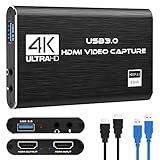
- 【4K60 Loop-Out & 1080P60/2K30 Capture】 This HDMI game capture card supports 4K 60Hz HDMI input and loop-out, captures up to 1080P 60fps video, and outputs up to 2K 30Hz via USB 3.0 with YUY2. HDMI input supports 4K30/60Hz and 1080p120/144Hz; it does not support 4K120/144Hz. Ideal for PS4/PS3, Xbox One/360, Wii U, Switch 2, DVD, DSLR, camera, security camera, set-top box, live games, online meetings, real-time recording, and preview.
- 【Plug-and-Play, Stable & Ultra-Low Latency】 No driver or external power supply required—true plug and play. The device is automatically identified, detects input, and adjusts output automatically. Aluminum alloy body with strong heat dissipation and optimized cable layout improves stability and picture clarity, helping avoid blue screens and lag. USB 3.0 low-latency capture with optional audio capture; no CPU occupation and no freeze with correct settings.
- 【HDMI Loop-Out & Mic-In】 High-speed USB 3.0 single-channel HD HDMI capture with loop-out for lag-free live gameplay. The 3.5mm mic input lets you add external commentary during games or interviews; it only accepts a 3.5mm microphone headset. Note: it does not record party chats.
- 【Wide Compatibility】 Works with Windows 7/8/10, macOS or above, Linux, Android, laptops, Switch, PS3/PS4/PS5, Xbox One/Series X, Xbox 360, Wii U, cameras, webcams, DSLR, security cameras, Steam, TV BOX, and HDTV. Streams to Twitch, YouTube, Facebook, and Twitter; compatible with OBS Studio, Streamlabs, XSplit, Potplayer, VLC, ZOOM, etc.
- 【Package Content & Important Notes】 Includes 1x Video Capture Card, 1x English User Manual, 1x USB-A to USB-C Adapter and 1x USB 3.0 USB-A Cable. After completing audio setup, please restart OBS Studio to avoid no sound output. Customer service is available 24 hours a day for quality problems.
TechSmith says Camtasia 2024 and later can record 4K plus 60fps. Its guidance calls for H.264, a capture frame rate capped at 60fps, screen content refreshing at 60fps or higher, a 4K display configured to at least 60Hz, and a discrete GPU driving the display. TechSmith recommends an NVIDIA GeForce RTX 2060 or AMD Radeon RX 5700 XT or higher; it says integrated graphics cannot capture true 4K-at-60fps content. The requirements are particularly important if you are buying or upgrading hardware for this workflow.
Platforms and price: The cited support article does not provide current platform or pricing terms. Limits: The 4K/60 capability is conditional, and the maximum capture frame rate stated in the guidance is 60fps. Read TechSmith’s 4K 60FPS recording and editing guidance before relying on that mode.
3. NVIDIA App / ShadowPlay: a candidate for quick game clips
NVIDIA App / ShadowPlay appears in recent editorial comparisons of game-recording options, including choices aimed at quick clips. That makes it a candidate to consider if your need is capturing gameplay rather than building a multi-source production or editing a tutorial in the recording tool.
Platforms and price: The cited material does not establish current platform, plan, or price details for this option. 60fps limits: The roundup does not provide a verified maximum capture rate or a controlled comparison, so it cannot establish what resolution and frame rate your particular system will sustain. Treat the inclusion as editorial guidance, not a guarantee of results. Compare your target capture mode with the current product documentation for your setup before depending on it for a long recording.
4. AMD Software: Adrenalin Edition: a game-recording option in AMD’s software lineup
AMD Software: Adrenalin Edition is included among the game-recording choices in the cited editorial comparisons. The AMD product page identifies the software as AMD Software: Adrenalin Edition; the comparisons position it among options for game-recording situations. It is worth considering when evaluating a GPU-vendor route rather than a general-purpose configurable production workflow.
Shopping ad

- Seamless Broadcasting and Versatile Streaming: Connect effortlessly to any app such as OBS, Streamlabs, Twitch Studio, Restream, Zoom, Teams, and stream flawlessly on various platforms like YouTube, Twitch, Discord, Facebook Gaming, etc., providing you with unparalleled flexibility and reach.
- Unrivaled Gaming Experience: Immerse yourself in pure gameplay at an astounding 8K60 resolution, all while effortlessly capturing the action in stunning 4K60 quality.
- Cutting-Edge Connectivity: Harness the power of HDMI 2.1 in/out to effortlessly record high frame rates, reaching up to an incredible 240fps in pristine 1080p resolution.
- Seamless Visuals: Say goodbye to screen tearing and relish in a flawlessly smooth gaming experience with Variable Refresh Rate (VRR) passthrough technology.
- Perfectly Synced Entertainment: Achieve unparalleled synchronization between your broadcast and gameplay, thanks to ultra-low latency that ensures every moment is captured with precision.
Platforms and price: Current platform support and pricing are not established by the cited product information here. 60fps limits: No verified maximum recording rate, resolution-specific promise, or comparative benchmark is established in the cited material. A product’s presence in a roundup should not be read as proof that every system can produce 60fps captures. See the AMD Software: Adrenalin Edition page for the product identity and consult current AMD documentation for configuration details.
5. Xbox Game Bar: a built-in-style choice to compare for game capture
Xbox Game Bar is named in the recent editorial comparisons as one of the choices for game recording. The useful distinction is its place in the decision: compare it as a game-recording option when you want a straightforward route, rather than assuming it offers the same configurable production workflow described in OBS’s documentation or an integrated tutorial-editing workflow like Camtasia.
Platforms and price: The cited sources do not establish current platform availability, plan terms, or price for this option. 60fps limits: They do not verify a maximum frame rate, supported resolution, or result on particular hardware. For a project where 60fps is essential, confirm the settings and resulting file on the actual system before recording a one-time event or lengthy session.
6. Steam Game Recording: consider it for a Steam-centered workflow
Steam Game Recording is another named option in the game-recorder comparisons. It belongs on a shortlist when the recording task is tied to a Steam game workflow; the supplied comparisons do not establish additional product-specific capabilities that would justify broader claims about editing, audio, or capture control.
Platforms and price: The cited information does not specify current platform or plan details. 60fps limits: No verified maximum rate, resolution capability, or comparative performance figure is available in the cited material. As with any software capture choice, match the option to the exact game, target resolution, and duration you need, and verify an actual output file before relying on it.
What’s actually slowing this PC down?
Pick the symptom - the matching free tool is one click away.
Shopping ad

- Turn Your Camera into a Pro Webcam: Connect your DSLR or mirrorless camera to any computer and go live in stunning quality
- Stunning quality: Stream and record in 1080p60 or even 4K60 for razor-sharp detail (Requires a compatible camera and the latest Cam Link 4K model)
- Connect More Than Just Cameras: Use a camcorder, action cam, or even your iPhone to level up your content
- No Lag, No Delays: Ultra-low latency keeps your video and audio perfectly in sync, just like it should be
- Your iPad, Now a Pro Field Monitor: Preview your shots in real time on an iPad with USB-C
7. Bandicam: a traditional game-recording alternative
Bandicam appears in the editorial comparisons as a traditional longer-recording option, distinct from choices framed around quick clips. That makes it a reasonable name to compare if your sessions are longer than a short highlight, while keeping in mind that the source is editorial guidance rather than a controlled test.
Platforms and price: The cited sources do not establish current platform support, plan terms, or price. 60fps limits: They do not verify a maximum capture frame rate, resolution-specific requirements, or head-to-head results. Check that the intended recording mode is supported by the current software and your system before committing to a long session.
8. Elgato 4K S: best when the source is an external HDMI device
Elgato 4K S is capture hardware, not a substitute for ordinary direct software capture of a computer screen. It is aimed at a different job: bringing a console or other external HDMI source into a computer or compatible device for recording. Elgato’s product page lists 4K60 capture, USB-C/UVC, support for Windows, Mac, and iPad, and compatibility with OBS.
Choose it if the footage comes from an external HDMI source and you need a capture device in the chain. Skip the hardware if you are recording the same computer’s desktop or game directly; the product is not necessary for that use. The page’s 4K60 capture specification describes a capture mode, not a guarantee that every connected source, host, or recording configuration will produce a 4K60 file. Current price and stock are not established here. See the Elgato 4K S product page for supported capture details.
How do you choose a 60fps screen recorder?
Start with the source, then choose the workflow. A direct PC game or desktop capture, a tutorial that needs editing, and a console feed over HDMI are different jobs; choosing for the wrong source can add complexity without improving the recording.
Shopping ad

- 4K60 Capture for PS5, PS5 Pro and Xbox Series X/S: Record and stream console gameplay at up to 4K60, or 1080p60 HDR, to Twitch, YouTube and Discord with OBS Studio, Streamlabs or AVerMedia Streaming Center
- With Nintendo Switch 2, no additional setup is required. Connect the console in TV mode through its dock and start capturing right away.
- VRR Recording and Ultrawide Support: Record VRR up to 1440p60, 1080p120 or 1080p240 with AVerMedia Streaming Center, plus 3440x1440 and 2560x1080 input support for 21:9 ultrawide gaming
- 5.1 Audio and OBS Workflow: Capture 5.1-channel audio on Windows with Streaming Center or Streaming Center Plug for OBS through the USB 3.2 Gen 1 Type-C connection.
- Console, PC, Mac and iPad Support: Capture unencrypted HDMI from PS5, PS5 Pro, Xbox Series X/S, Nintendo Switch 2 or PC using Windows 10/11, macOS 13/14+ or iPadOS 17+
- Identify the source. For a desktop or game running on the computer, compare software capture options. For a console or other external HDMI device, evaluate a capture card such as Elgato 4K S. A card is not a requirement for direct capture of the computer itself.
- Choose the workflow. For configurable sources and production, OBS is the documented fit. For tutorials where recording and editing belong together, consider Camtasia. For quick game clips or traditional longer recordings, compare the options identified in the editorial roundups, while treating those descriptions as guidance rather than benchmark results.
- Set a realistic resolution and frame rate. Decide whether 60fps at your target resolution is necessary. Camtasia’s vendor guidance shows why 4K-at-60fps needs more than a nominal setting: it specifies display refresh, H.264, a discrete GPU, and recommended GPU models.
- Check the whole capture chain. Confirm that the content refreshes at the intended rate, the display configuration meets any software requirement, and the system has the hardware headroom for capture. For external video, account for the source and capture device as well as the recording computer.
- Make a short sample recording. Use the same game or desktop, resolution, frame rate, and audio sources you plan to use. Review the exported file for smooth motion and usable audio; a selected setting is not the same thing as a verified result.
- Only pay for capabilities you need. Free or included software may be enough for direct game capture, while editing integration or external HDMI input can justify a different product or hardware. Current prices and plan terms are not provided in the cited information, so no price ranking is made here.
Why can a recorder fail to deliver smooth 60fps?
Most often, the target setting exceeds what one part of the capture chain can supply. The source may not update at 60fps, the display may be configured below the required refresh rate, or the recording system may not meet the software’s requirements—especially for 4K capture.
For Camtasia’s documented 4K/60 mode, check each vendor condition rather than troubleshooting only the frame-rate selector: H.264, a 60fps maximum capture rate, screen content refreshing at 60Hz or higher, a 4K display set to at least 60Hz, and a discrete GPU driving the display. TechSmith specifically says integrated graphics cannot capture true 4K-at-60fps content. If the setup falls short, reducing the capture resolution or choosing a lower frame-rate target is more realistic than assuming the software can compensate.
For other products in this comparison, the cited information does not provide comparable system requirements or a common performance test. Use the current documentation for the selected product and test the actual recording mode before an important capture. A short sample can reveal a mismatch among source rate, display settings, and output without risking a full session.
Free tools Windows power users keep installed
One-click scans. No signup required.
How we picked
This shortlist combines official product and support information with recent editorial comparisons of game-recording options. OBS, Camtasia, AMD Software: Adrenalin Edition, and Elgato 4K S are supported by the cited maker or support pages for the specific claims attached to them; the game-recorder roundups identify NVIDIA App / ShadowPlay, Xbox Game Bar, Steam Game Recording, and Bandicam as options for different recording situations. Those roundups are editorial guidance, not controlled comparative testing. The selection emphasizes the distinctions that change a purchase decision: direct software capture versus HDMI capture, configurable production versus quick clips, and recording alone versus recording plus editing. No head-to-head performance ranking or price ranking is claimed.
Frequently Asked Questions
Does recording at 60fps make a 30fps game look like 60fps?
No. A recording setting cannot create distinct motion frames that the source did not produce; it may save a file configured for 60fps, but that is not equivalent to capturing 60 unique source frames each second. Match the recording target to the game’s actual output when smooth motion matters.
Can I use a capture card to record gameplay from the same PC?
A capture card is mainly useful when video comes from an external HDMI device, such as a console. For a game running on the computer you are recording, direct software capture is the simpler category to compare; a card is not inherently required.
Why does a 60fps recording sometimes look choppy after export?
The source, capture process, and playback are separate links in the chain. A file set to 60fps can still look uneven if the source did not deliver frames steadily or the capture system could not preserve them; compare a short sample with the source and check playback on a display configured for the intended refresh rate.
Windows Errors? Fix Them Before They Spread
Repair common Windows errors and clear accumulated junk for a smoother, more stable PC - no reinstall needed.Free scan · no reinstallOutdated Drivers Are Slowing You Down
One free scan finds every outdated or missing driver and matches the right update for your exact hardware.Free scan · exact hardware matchQuick Recap
Product prices and availability are accurate as of the date/time indicated and are subject to change. Any price and availability information displayed on Amazon at the time of purchase will apply.

