The Geeks Club is reader-supported. When you buy through links on our site, we may earn an affiliate commission. As an Amazon Associate I earn from qualifying purchases. Learn more
The best background video generator for TikTok depends on whether you need new moving footage behind a subject or want to replace the background in video you already filmed. TikTok Symphony Creative Studio and Adobe Firefly are strong starting points for generating scenes and B-roll; CapCut is the practical choice for cutting out a person, replacing a background, adding captions and finishing a post. Dreamina, Pika, Kling, Runway and Veo cover different creative styles, but their framing, audio, model access and licensing terms differ.
Use the ranking below as a workflow guide rather than a single image-quality verdict. A polished landscape clip can still fail as a TikTok if a crop cuts off a product or a creator’s hands, and a generous monthly credit allowance does not guarantee a finished post without retries and editing.
At a glance
| Name | Best for | Key spec | Checked |
|---|---|---|---|
| TikTok Symphony Creative Studio | Creating or remixing TikToks inside TikTok’s business workflow | AI-generated TikToks, remixes and avatar videos | November 2026 |
| CapCut | Replacing a filmed background and finishing a vertical edit | Drag-and-drop timeline, captions, text-to-speech, background and green-screen editing | November 2026 |
| Adobe Firefly | Prompt-to-video with editing, audio and format controls | Text-to-video and image-to-video; regeneration, extension and multi-format export | November 2026 |
| Dreamina | Vertical social visuals and short TikTok B-roll | Positioned in a 2026 comparison for social-first clips | November 2026 |
| Pika | Short effects and visual transformations | Highlighted for effects and transformations in Dreamina’s comparison | November 2026 |
| Kling | Cinematic AI scenes with sound | Highlighted for cinematic scenes with native audio | November 2026 |
| Runway | Directed text-to-video or image-to-video shots | Gen-4.5 output is currently 16:9 in Dreamina’s comparison | November 2026 |
| Veo | Narrative-oriented generated clips | Included among the models discussed for TikTok video generation | November 2026 |
Prices, quotas and model access change frequently. The figures and access notes below are the terms documented in the cited sources; check the selected model and your account before paying.
The Tool Desk
Outbyte PC Repair FREERepair Windows errors before they cause bigger problemsFix Now →Outbyte Driver Updater FREEScan for outdated or missing drivers - takes under a minuteDriver Scan →What kind of TikTok background video do you need?
There are two separate jobs. A generative background is a new shot—such as a futuristic city, product pedestal or animated texture—made from a prompt or reference image. A background replacement starts with your own recording and removes, masks or keys the original scene so another image or video sits behind you.
Shopping ad

- Wide Used & Note & Package Content: JEBUTU green screen with stand is a good alternative product for professional backdrop screen. Suitable for streaming, portrait photo,interview setting, broadcast, film making, photography shooting, video shooting
- Green Screen Backdrop:JEBUTU green screen is made of high-quality polyester with a seamless design, Not prone to wrinkles. Good abrasion resistance, stronger and durable. Warm tips: This streaming green screen backdrop is folded and transported for a long time, it should be ironed with steam before use
- Stable Green Screen Stand: The photo backdrop stand is made of aluminum alloy for durability and long life. After frosted, it is qualifiable and not easy to scratch. It can adjustable from 2.69ft(82cm) to 6.5ft(200cm) in height
- Machine Washable & Hand Washable:JEBUTU protable green screen backdrop material is durable, When becomes dirty,it can be cleaned by machine or hand. After washing, please smooth the pantalla verde and lay it flat
- Portable & Easy to Store: Green screen stand has an adjustable telescopic mechanism. Features adjustable telescoping mechanism for raising and lowering. Put it in the storage bag. A completely folded tripod does not take up space, is easily stored
Generation is useful when you do not have the location or B-roll you need. Replacement is usually faster when the creator, hands or product are already recorded. TikTok for Business documents both sides of this workflow: Symphony Creative Studio for generating and remixing videos, and CapCut for editing, background changes and green-screen work in its Ramadan guide and SMB Creative Playbook.
1. TikTok Symphony Creative Studio: best for a TikTok-first generation and remix workflow
TikTok for Business describes Symphony Creative Studio as an AI-powered workspace for generating new TikToks, remixing existing videos and creating avatar videos. That makes it the most platform-oriented option in this list when your destination is TikTok rather than a general video library.
What it does
- Generates new TikTok concepts and videos from an AI-assisted workflow.
- Remixes existing videos, which can turn a long or horizontal source into several social variations.
- Creates avatar videos for explainers, product messages or scripted announcements.
TikTok’s guide says the generator is intended to help create content that feels native to the platform in minutes. Treat that as TikTok’s description of the intended workflow, not a guarantee that every generated clip will be publish-ready.
Why it fits background work
Use Symphony when the background is part of a complete TikTok concept: a short scene behind a voiceover, a remix of an existing ad or an avatar-led presentation with supporting visuals. The platform context can reduce handoffs between generation and TikTok publishing.
Limits and access
The cited guide is a 2025 TikTok for Business document, so features may be enabled differently by account, market or product update. Confirm that Symphony appears in your account and check the current usage terms before building a campaign around it. The guide does not establish a universal public price or quota.
2. CapCut: best for replacing a filmed background and finishing the post
CapCut is the strongest choice here when “background video” means changing footage you already shot. TikTok’s business materials describe a drag-and-drop timeline with automated captions, text-to-speech, background editing and green-screen editing.
What it does
- Places a new image or video behind a cut-out subject.
- Supports a green-screen workflow when you recorded against a solid color.
- Adds captions, text-to-speech, music, sounds, fonts, stickers and other finishing elements.
- Lets you assemble the background, subject, voice and captions on a timeline rather than exporting through several apps.
The TikTok Creative Playbook describes TikTok-styled music, sounds, fonts, stickers and elements as commercially licensed for ad usage in the context of that guide and its covered assets. Do not extend that statement to every asset, market, account type or music track; check the rights attached to anything you add.
Green-screen setup
A fabric or paper green-screen backdrop is optional, not a requirement for AI-generated footage. It helps when the subject has fine edges, hair or moving hands that an automatic cutout struggles to separate. Even with a green screen, light the backdrop evenly, keep the subject away from it to reduce color spill, and record at the same frame rate you intend to export.
Limits
CapCut is primarily an editor. It can make a convincing background replacement, but it is not a substitute for a dedicated text-to-video model when you need a completely new moving scene. Your result also depends on the quality of the original mask, the replacement clip’s perspective and the rights for imported media. TikTok’s materials do not establish one universal price or quota for every CapCut account.
3. Adobe Firefly: best for generation plus a complete creative workspace
Adobe Firefly combines text-to-video and image-to-video generation with clip editing, regeneration and extension. Adobe also documents voiceover, music and sound-effect additions, social clips and export in multiple formats and aspect ratios.
Shopping ad

- 🎬 COMPLETE GREEN SCREEN BACKDROP KIT – Everything needed for professional background setup in one package. Includes a 10x8.5 FT wrinkle-resistant polyester green screen, adjustable support stand, clips and sandbags for video recording, photography and virtual background applications.
- 🏗️ ENHANCED STABILITY FOR RELIABLE USE – Upgraded wide-leg aluminum stand design provides excellent balance and support. Included sandbags help keep the background frame steady, making it suitable for indoor studios, home setups and event environments.
- ⚡ QUICK SETUP & FLEXIBLE ADJUSTMENT – Adjustable crossbars and telescopic poles allow fast assembly without complicated tools. The 10ft wide and 8.5ft high frame provides enough coverage for full-body shots, group photos and different shooting environments.
- ✨ SMOOTH WRINKLE-RESISTANT FABRIC – Premium polyester material creates a more even green surface, helping reduce shadows and post-production editing while delivering cleaner and more professional visual effects.
- 📦 PORTABLE BACKGROUND SYSTEM FOR MULTIPLE LOCATIONS – The lightweight frame folds easily into the included carry bag for convenient storage and transportation. Ideal for photography studios, classrooms, offices, events and on-location shooting.
Standout workflow
- Describe a scene with a text prompt, or supply an image to guide the shot.
- Generate a clip, then regenerate or extend it when the motion, framing or duration is wrong.
- Add voiceover, music or sound effects in the same workspace.
- Export a version sized for TikTok, while checking that the chosen model supports the aspect ratio and controls you need.
Adobe’s page lists Veo 3.1, Luma AI Ray3, Kling 3.0 and Runway among partner models. That broadens creative choice, but model-specific controls, output limits and commercial terms can differ inside the same workspace.
Do these 3 things before closing this tab:
1Scan for outdated or missing drivers - takes under a minute2Repair Windows errors before they cause bigger problems3Fix the driver behind crashes, sound loss and screen glitchesCommercial-use qualification
Adobe says, “Videos generated with the Adobe Firefly Video Model are designed to be safe for commercial use.” The qualification matters: Adobe says eligibility depends on the selected model, and partner models may have different terms. Review the model name, plan and intended use before publishing paid or branded TikToks, and make sure you have rights to uploaded images, music, voices and likenesses.
Price information
Creative Bloq reported an Adobe Firefly Standard plan at $9.99 per month with 2,000 generative credits, estimating roughly twenty five-second 1080p clips. That is a third-party, time-sensitive figure rather than a promise of current availability; confirm Adobe’s official pricing and the credit cost for the exact model before subscribing. Credits should be treated as generation attempts, not a guaranteed number of finished posts.
Limits
Aspect-ratio controls and generation behavior depend on the selected model. A model that produces an attractive landscape composition may still require reframing for 9:16, and partner-model licensing can differ from Firefly’s own model.
4. Dreamina: best for social-first visual concepts
Dreamina’s 2026 comparison of AI video generators for TikTok clips treats vertical social visuals as a distinct use case. That makes Dreamina a practical starting point when your brief is a short, attention-grabbing background rather than a long narrative sequence.
Good use cases
- Animated backdrops behind a talking-head clip.
- Short product or fashion visuals designed around a portrait frame.
- Fast concept variations for hooks, transitions and visual loops.
Plan the subject’s safe area before generating. A vertical canvas must keep faces, hands, logos and products away from the interface-covered edges. If you start from a horizontal reference, decide what can be cropped before spending credits on detailed motion.
Limits
The comparison is publisher material from Dreamina, and its feature, price and quota descriptions are time-sensitive. Use it to understand workflow differences, then check Dreamina’s current plan and model pages. Do not assume a recommendation in that comparison is an independent quality score.
5. Pika: best for short effects and transformations
Dreamina’s comparison places Pika in the short-effects and transformation part of the TikTok generator landscape. It is a good fit when the background itself is an effect—an object morph, stylized environment or quick visual punch—rather than a long, carefully directed scene.
How to use it in a background workflow
- Generate a short effect that can loop behind a presenter or product.
- Use a consistent reference image when you need the same visual identity across variations.
- Export the effect and finish timing, captions and audio in an editor such as CapCut.
Short effects can require multiple attempts when motion breaks a logo, hand or product edge. Budget for retries and for trimming the usable moment out of a generated clip.
What’s actually slowing this PC down?
Pick the symptom - the matching free tool is one click away.
Limits
The cited comparison does not establish a single current Pika price, free allowance or universal output specification. Check the selected Pika plan and model terms, especially if the clip includes a person’s likeness, a customer asset or a commercial product.
Shopping ad
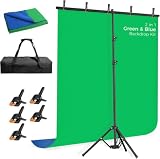
- [New Type of Reverse Folding Bracket]Innovative tripod base can be reverse-folded, with larger unfolding area, better stability and compact storage than conventional stands
- [2-in-1 Reversible Blue Green Screen Backdrop]Blue and green dual-color photo backdrop provides for more flexibility in use, which is made of polyester fibric, all edges are carefully finished preventing tears.Machine and hand washable, ironable, foldable
- [Adjustable T-shaped Stand]The height of the stand can extend from 120 cm to 198 cm (4 ft to 6.5 ft).After removing the telescopic rod, it can be adjusted from 82 cm to 152 cm (2.7 ft to 5 ft), with a width of 5 feet, making it suitable for use in both desktop and floor scenarios
- [Portable & Set-up Fast] The 2-in-1Blue Green Screen adjustable background stand is convenient to assemble and disassemble.With a carrying bag, both the backdrop stand, 5 clamps and the green blue backdrop can be stored, easy to store or carry
- [Application]The chromakey blue green screen backdrop stand kit enables quick and clean chroma key compositing in videos and images, ideal for home office, vlogging, TV broadcast, gaming, VR, zoom, live streaming, YouTube video recording, webcam etc
6. Kling: best for cinematic scenes with native audio
Dreamina’s comparison highlights Kling for cinematic scenes with native audio. Choose it when the background needs to feel like a complete shot—atmosphere, movement and sound—rather than a silent texture placed under narration.
Where it helps
- Establishing shots behind a travel, gaming or lifestyle presenter.
- Short narrative beats that benefit from environmental sound.
- Scenes where camera movement and mood matter as much as the subject.
Native audio can reduce editing work, but it does not remove the need to check timing, language, volume and rights. For a talking-head TikTok, you may still want to mute generated audio and use a separately licensed voice or music track.
Limits
Kling’s available models, duration limits, credits and commercial permissions can change. Verify those details in the current Kling interface or the service through which you access the model. If you use Kling through Firefly, the partner-model terms apply rather than automatically inheriting Firefly Video Model terms.
7. Runway: best for directed shots when you can reframe for portrait
Runway is useful for creators who want text-to-video or image-to-video direction over a shot’s camera movement and composition. The key TikTok constraint is output shape: Dreamina’s comparison says Runway Gen-4.5 text-to-video and image-to-video output is currently 16:9.
The 16:9 trade-off
A landscape source can lose hands, products, background action or camera movement when cropped to 9:16. Before generating, keep the important action near the center and avoid placing a face or product at the extreme left or right. If the shot is already rendered, use a crop-and-reframe pass and inspect the full nine-by-sixteen preview, not just the original landscape player.
Best workflow
- Write a prompt that describes the subject’s position and leaves center space for the portrait crop.
- Use an image reference when continuity matters between shots.
- Generate several short options rather than relying on one take.
- Reframe to 9:16, add captions and voice, and check that no key action is hidden under TikTok’s interface.
Limits
The 16:9 note is tied to Gen-4.5 and can change with model updates. Confirm the current output options, credit cost and commercial terms before committing to a production workflow.
8. Veo: best for narrative-style AI background clips
Veo appears among the models discussed in Dreamina’s TikTok comparison and is also listed by Adobe as a partner model. It is worth considering when the background needs a beginning, middle and visual payoff—a short narrative beat rather than a looping decoration.
Quick wins for a faster PC:
Clear out junk files and repair common Windows errorsFree Scan →Fix the driver behind crashes, sound loss and screen glitchesFind Drivers →Use it for
- A three-to-five-second story moment behind a spoken hook.
- Scene continuity across a sequence of related TikToks.
- Visual metaphors that need more than a single transformation.
Because Veo can be accessed in different products or model versions, check where the generation occurs, which aspect ratios are available and whether audio is generated or must be added later. Keep prompts explicit about vertical framing, subject placement and the moment at which the action resolves.
Limits
The cited sources do not establish one universal Veo price, quota or output policy. Partner access can have separate terms from a direct Veo service, so read the model-specific commercial-use and upload rules at the point of generation.
How do you choose the right background video generator for TikTok?
Start with the job, then compare framing, control, finishing and rights. The following checklist prevents a visually impressive generation from becoming an unusable post.
Shopping ad

- 🎬 COMPLETE GREEN SCREEN BACKDROP KIT – Everything needed for professional background setup in one package. Includes a 10x7 FT wrinkle-resistant polyester green screen, adjustable support stand, clips and sandbags for video recording, photography and virtual background applications.
- 🏗️ ENHANCED STABILITY FOR RELIABLE USE – Upgraded wide-leg aluminum stand design provides excellent balance and support. Included sandbags help keep the background frame steady, making it suitable for indoor studios, home setups and event environments.
- ⚡ QUICK SETUP & FLEXIBLE ADJUSTMENT – Adjustable crossbars and telescopic poles allow fast assembly without complicated tools. The 10ft wide and 7ft high frame provides enough coverage for full-body shots, group photos and different shooting environments.
- ✨ SMOOTH WRINKLE-RESISTANT FABRIC – Premium polyester material creates a more even green surface, helping reduce shadows and post-production editing while delivering cleaner and more professional visual effects.
- 📦 PORTABLE BACKGROUND SYSTEM FOR MULTIPLE LOCATIONS – The lightweight frame folds easily into the included carry bag for convenient storage and transportation. Ideal for photography studios, classrooms, offices, events and on-location shooting.
1. Decide whether you are generating or replacing
Choose CapCut when the person or product is already filmed and the main task is isolation, green-screen keying, captions and export. Choose Symphony, Firefly, Dreamina, Pika, Kling, Runway or Veo when you need new footage that does not exist yet. A hybrid workflow is common: generate B-roll, then assemble it with a real presenter in CapCut.
Outdated Drivers Are Slowing You Down
One free scan finds every outdated or missing driver and matches the right update for your exact hardware.Free scan · exact hardware matchPC Slower Than It Used to Be?
A free scan shows the junk files, broken settings and background clutter dragging Windows down - then fixes them in one click.Free scan · Windows 10 & 112. Confirm 9:16 framing before generation
Native portrait output is simplest, but a crop-and-reframe tool can work if the source leaves enough center space. Dreamina specifically warns that cropping can cut out hands, products, background action or camera movement. Adobe supports multiple formats and aspect ratios, but the exact controls depend on the model you select.
3. Match control to the shot
- Prompt only: fastest for abstract backgrounds and simple scenes.
- Image or reference input: better for product appearance, color palette and continuity.
- Camera or motion controls: useful for planned pans, pushes and reveals.
- Editing and extension: important when a five-second generation needs to support a longer spoken segment.
- Native audio: useful for cinematic ambience, but separate voice and music may be easier to clear and mix.
4. Estimate cost per finished post, not credits per month
A monthly credit number does not equal a monthly video count. Rejected motion, bad hands, unwanted text, continuity errors and alternative crops consume attempts. Add the cost of retries, editing, captions, music, voice and any upscale or export step. The only concrete price figure in the cited material is Creative Bloq’s report of Firefly Standard at $9.99 per month and 2,000 credits; verify it before purchase.
5. Check rights at the model level
Review rights for the selected model, uploaded images, music, voice and likeness. Adobe’s commercial-use statement applies to its own Firefly Video Model and is qualified by model; partner models can have different terms. TikTok’s CapCut asset statement is limited to the assets and ad-use context described in its business guide.
6. Plan the finishing handoff
If you need captions, text-to-speech, green-screen editing and a timeline, CapCut can be the finishing hub. If you need prompt-to-video, image-to-video, regeneration, extension, voiceover and multiple exports in one workspace, Firefly reduces handoffs. Symphony is attractive when the entire concept is intended for TikTok and available in your account.
Recommended Free Tools
How do you make a vertical AI background video for TikTok?
You can make one by generating a portrait-safe scene, checking the crop at full-screen size, and finishing it with captions and audio.
- Write the shot brief. State the subject, background action, camera movement, lighting, duration and where the presenter or product will sit. Add “vertical 9:16” when the model supports it.
- Choose a reference. Supply a cleared image when color, product shape or character continuity matters. Do not upload material you do not have permission to use.
- Generate short options. Make several variations so you can reject broken motion without forcing one clip to carry the whole post.
- Inspect the portrait safe area. Keep faces, hands, products and text away from the top, bottom and side regions covered by TikTok controls.
- Edit the usable moment. Trim the clip, loop it if appropriate, and align the visual change with the spoken hook.
- Add audio and captions. Use cleared music and voice assets. If generated audio is distracting or unclear, mute it and mix a separate track.
- Export and review on a phone. Check legibility, edge crops, caption timing and whether the background competes with the subject before posting.
How do you change a video background on TikTok?
For footage you already recorded, use a cutout or green-screen workflow in CapCut, then export the finished vertical edit to TikTok.
- Record the subject against an evenly lit background; use a green screen when automatic separation is unreliable.
- Import the clip into CapCut and place the replacement video or image on the layer below it.
- Apply background removal or green-screen keying, then refine the edge around hair, hands and product outlines.
- Match the replacement clip’s brightness, direction and camera perspective to the foreground. A mismatched horizon or light direction makes the composite obvious.
- Add captions, text-to-speech, music and sound effects on the timeline, checking the rights for each asset.
- Preview at 9:16, trim the opening hook and export at the resolution and frame rate your account supports.
How we picked these generators
The ranking follows the distinctions and criteria in the cited product documentation: whether a tool generates new scenes or edits filmed footage, portrait framing, reference-image support, motion and camera control, clip duration, native audio, editing and export, usable quota and retries, and model-specific rights.
A HeyGen comparison reports a test of 11 tools using the same 45-second vertical script. That is HeyGen’s publisher-reported test, not a test conducted for this article, and it does not establish a universal quality score. No independent cross-tool benchmark or measured “best accuracy” result is used here.
Free tools Windows power users keep installed
One-click scans. No signup required.
Frequently Asked Questions
Can I make a vertical AI video for TikTok?
Yes. Use a generator with native 9:16 output when available, or generate with the important action centered and crop to portrait afterward. Always inspect the final crop because landscape footage can remove hands, products or camera movement.
Shopping ad

- Complete 8x7.2FT Kit with Stand: T-shape aluminum stand adjusts 5.9-8FT high, includes backdrop, 6 clamps, sandbag and carry bag. Sectional tubes assemble in minutes
- Wrinkle-Free Even Green: Lightweight polyester with matte non-reflective finish for clean chroma key. Machine washable, ironable and foldable, no light bleed.
- Stable T-Base with Sandbag: Wide base plus sandbag keeps steady. Push clamps fully on and tighten top screw to stop wobble and tipping.
- Adjustable for Full-Body: Full 8FT width for standing video, photography and streaming. Lower to 5.9FT for desk Zoom. Check numbers on tubes before connecting.
- For Zoom Streaming Studio: Works with Zoom, Teams, OBS and chroma apps for vlogging, gaming and interviews. Folds into bag for storage.
Is a green-screen backdrop required for an AI background?
No. Green screen is optional and is mainly useful when you are replacing the background of footage you filmed. Prompt-generated B-roll does not require a physical backdrop; a backdrop kit only helps the keying workflow.
Are AI-generated TikTok backgrounds safe for commercial use?
It depends on the exact model, plan and assets. Adobe says its own Firefly Video Model is designed for commercial use, while warning that partner models may have different eligibility; music, uploaded images, voices and likenesses require their own rights checks.
Why does my AI background look fine in landscape but fail on TikTok?
TikTok’s portrait frame removes the sides of a 16:9 image. Recompose with the subject and important action in the center, or use a model and export workflow that supports 9:16 before generation.
Free tools Windows power users keep installed
One-click scans. No signup required.
How many TikToks can I make with an AI video subscription?
Credits represent generation attempts, not guaranteed finished posts. Retries for broken motion, continuity errors, rejected prompts and alternate crops can consume the allowance; editing, captions, audio and rights-clearing also affect the number of publishable videos.
Frequently Asked Questions
Can I make a vertical AI video for TikTok?
Yes. Use native 9:16 output when available, or keep important action centered and crop afterward. Check the final portrait crop because landscape footage can remove hands, products or camera movement.
Is a green-screen backdrop required for an AI background?
No. Green screen is optional for replacing the background of footage you filmed. Prompt-generated B-roll does not need a physical backdrop.
Are AI-generated TikTok backgrounds safe for commercial use?
Rights depend on the selected model, plan and uploaded assets. Adobe’s commercial-use statement applies to its Firefly Video Model, while partner models and music or likenesses can have different terms.
The Tool Desk
Outbyte PC Repair FREEClear out junk files and repair common Windows errorsFree Scan →Outbyte Driver Updater FREEScan for outdated or missing drivers - takes under a minuteDriver Scan →Why does my AI background look fine in landscape but fail on TikTok?
A 16:9 source loses its sides when cropped to 9:16. Keep key action centered or generate and export in portrait when the model supports it.
How many TikToks can I make with an AI video subscription?
Credits cover generation attempts, not guaranteed finished posts. Retries, bad motion, alternate crops, editing and audio can all reduce the number of publishable videos.
The Bottom Line
For a filmed subject, start with CapCut. For new TikTok-native concepts, check Symphony Creative Studio. For a broader generation-and-editing workspace, use Adobe Firefly while confirming the selected model’s aspect ratio and commercial terms. Choose Dreamina, Pika, Kling, Runway or Veo when their particular visual style and control match the shot you need.
Quick Recap
Product prices and availability are accurate as of the date/time indicated and are subject to change. Any price and availability information displayed on Amazon at the time of purchase will apply.
Recommended Free Tools

