Windows Errors? Fix Them Before They Spread
Repair common Windows errors and clear accumulated junk for a smoother, more stable PC - no reinstall needed.Free scan · no reinstallCrashes, No Sound, or Screen Glitches?
Random freezes, missing sound and display glitches usually trace back to one bad driver. Find and replace yours safely.Free scan · under a minuteThe Geeks Club is reader-supported. When you buy through links on our site, we may earn an affiliate commission. As an Amazon Associate I earn from qualifying purchases. Learn more
OBS Studio is the strongest all-around free screen recorder in 2026 if you need desktop, window, webcam, microphone, capture-card, and multi-scene recording on Windows, macOS, or Linux. Windows users who want a faster utility should look at ShareX or Snipping Tool. Loom is better for short, hosted explanations, but its free Starter plan is capped at 25 videos per person, five minutes per recording, and 720p.
The right choice depends on whether you need a local video file or a shareable link, a simple rectangular clip or several synchronized sources, and a desktop recorder or a built-in operating-system tool. The comparison below makes those trade-offs explicit.
At a glance
| Name | Best for | Key spec | Free plan / price | Platforms | Checked |
|---|---|---|---|---|---|
| OBS Studio | Multi-source recording, tutorials, streaming | Scenes, window/webcam/capture-card sources, audio mixing, plugins | Free and open source | Windows 10/11, macOS 13+, Linux | Nov 2026 |
| ShareX | Configurable Windows capture and sharing | Fullscreen, window, monitor, region, screen and GIF recording | Free and open source | Windows | Nov 2026 |
| Snipping Tool | Quick rectangular clips on Windows | Video snip of a selected rectangular area | Free, built into Windows | Windows 10/11 | Nov 2026 |
| Loom Starter | Short async explanations with hosted sharing | Screen plus camera bubble, system audio, comments, transcriptions | $0; 25 videos/person, 5 minutes/video, up to 720p | Desktop and web workflows | Nov 2026 |
| QuickTime Player | Simple Mac recordings | Apple’s built-in media app for basic capture workflows | Free, included with macOS | macOS | Nov 2026 |
| macOS Screenshot | Basic screen clips without installing software | Built-in capture interface for simple screen recording | Free, included with macOS | macOS | Nov 2026 |
| Xbox Game Bar | Quick Windows app or game clips | Built-in gaming-focused capture workflow | Free, included with Windows | Windows | Nov 2026 |
Local tools such as OBS, ShareX, Snipping Tool, QuickTime Player, macOS Screenshot, and Xbox Game Bar do not present a hosted free-plan quota in the product information summarized here. That is different from a guarantee that every version has unlimited duration, storage, or identical audio behavior; operating-system updates and app settings can change those details. Loom’s limits are explicit and should be treated as binding for its current Starter tier.
The Tool Desk
Outbyte PC Repair FREERepair Windows errors before they cause bigger problemsFix Now →Outbyte Driver Updater FREEScan for outdated or missing drivers - takes under a minuteDriver Scan →Which free screen recorder is best overall?
Choose OBS Studio when you need more than a single uncomplicated clip. It is the only option in this group whose documented feature set covers configurable scenes, multiple source types, per-source audio filters, hotkeys, Studio Mode, and plugin or script extensibility across all three major desktop platforms.
Shopping ad

- [Convenient Setup] Plug and play recording USB microphone for PC, with 5.9-Foot USB cable included for computer PC laptop, is connected directly to USB-A port for recording music, computer singing or podcast. The office condenser microphone for computer is easy to use and install. (NOT compatible with Xbox and Phones)
- [Durable Metal Design] Solid sturdy metal construction design, the computer microphone for Zoom meetings with stable tripod stand is convenient when you are doing voice overs or livestreams on YouTube. Durable material extends the service life of the voice-over microphone.
- [Mic Volume Knob] Gaming condenser USB mic compatible for PS4 with additional volume knob itself has a louder or quieter adjustment and is more sensitive. Your voice would be heard well enough through the zoom microphone USB when gaming, skyping or voice recording. Also, you can adjust your volume to zero and protect your privacy.
- [Widely Use] USB-powered design, the condenser microphone for recording no need the 48v Phantom power supply, works well with Cortana, Discord, voice chat and voice recognition. The podcast microphone for Mac, with USB-B to USB-A/C cable, is compatible with desktop, laptop or PS4/PS5, which meets most of your daily recording needs.
- [Clear Output Voice] Cardioid condenser microphone for PC captures your voice properly, producing clear smooth and crisp sound. Great computer recording mic for gamers/streamers/youtubers focus on the main source and reduces background noise. The streaming microphone does the job well for broadcast ,OBS and teamspeak.
OBS describes itself as “Free and open source software for video recording and live streaming.” Its current official page lists release 33.0.1, dated October 29, and support for Windows 10 and 11, macOS 13 or newer, and Linux. The trade-off is setup: scenes, sources, audio routing, and output settings offer control that a one-off screen snip does not need.
1. OBS Studio: best for multi-source recording and future growth
What it does: OBS captures and mixes real-time video and audio. You can combine a desktop or window, webcam, microphone, application audio, capture card, images, and other sources in scenes, then switch between layouts or record one scene locally.
- Standout features: unlimited scenes, window capture, webcam and capture-card inputs, per-source audio filters, configurable hotkeys, Studio Mode, and plugin/script extensibility.
- Platforms: Windows 10 and 11, macOS 13 or newer, and Linux.
- Free offering: free and open source; there is no paid tier required for the documented core recorder.
- Limits and trade-offs: the breadth of controls increases setup effort. The official homepage does not specify a universal recording-duration or watermark policy, so do not treat an assumed “unlimited” setting as a promise for every build or workflow.
OBS is the practical choice for narrated tutorials, software demonstrations with a face camera, gameplay layouts, and anyone who may later stream. Its certified-devices page lists compatibility criteria for microphones and capture cards, including native plug-and-play behavior for USB microphones and considerations such as latency, passthrough, and audio synchronization for capture cards. A certified USB microphone or capture card is optional: ordinary desktop recording works without either.
For a clean first project, create one scene, add a display or window source, add a microphone source only if narration is needed, and make a short local recording before building multiple scenes. Keep the microphone and capture-card possibilities in mind when choosing OBS, but do not buy hardware merely to record a normal desktop.
2. ShareX: best for a configurable Windows capture toolkit
What it does: ShareX combines screenshots, screen recording, GIF recording, file sharing, and productivity workflows in a Windows utility. Its official site lists fullscreen, active-window, active-monitor, and custom-region capture modes alongside configurable workflows and upload destinations.
- Standout features: several capture targets, screen and GIF recording, automation-oriented workflows, and direct sharing options.
- Platform: Windows. The product site links to other artifacts, but the documented product description here supports calling it Windows software rather than a cross-platform recorder.
- Free offering: free and open source.
- Limits and trade-offs: its power-user workflow can feel less immediate than a one-button built-in tool. The product page does not establish a universal duration, resolution, or watermark promise, so choose it for configurable capture rather than an assumed set of quotas.
ShareX suits a Windows user who repeatedly captures different regions, windows, monitors, screenshots, and short recordings, especially when the next step is uploading or routing a file. The vendor’s live counter says “More than 34 million downloads worldwide”; that is a download count, not a measure of active users or recording quality.
Shopping ad

- Studio-Quality Sound for Clear Podcast Recording – The K66 USB podcast microphone delivers studio-quality, broadcast-level audio using a high-performance condenser capsule and cardioid pickup pattern that focuses on your voice while reducing unwanted background noise. Designed as a reliable microphone for PC, it features a wide 40Hz–18kHz frequency response and a 46kHz sampling rate to reproduce rich lows, smooth mids, and clear highs for natural, detailed vocals. With –45dB ±3dB sensitivity, it captures balanced sound without distortion during expressive speaking. Ideal for podcasting, voice-over, online classes, meetings, and professional content creation.
- Intelligent Noise Reduction Mode for Cleaner Podcast Audio – This podcast microphone features an advanced Noise Reduction Mode designed for clearer, more focused voice recording in real-world environments. Press and hold the mute button to enable noise reduction (blue indicator). In this mode, the microphone helps reduce keyboard clicks, PC fan noise, air conditioner hum, and background chatter. Default Mode maintains a warm, natural vocal tone for quiet spaces. Designed as a reliable microphone for PC, it allows creators to identify the active mode instantly and adapt as needed, ensuring clear audio for podcasting, gaming, streaming, online classes, meetings, and recording.
- True Plug-and-Play USB Microphone with Wide Device Compatibility – Engineered for effortless plug-and-play use, the K66 USB microphone requires no drivers, apps, or software installation. Simply connect and start recording on Windows PC, Mac, laptops, PS4, PS5, and tablets. Included USB-C and Lightning adapters ensure seamless compatibility with iPhone, iPad, and modern USB-C phones and devices, making it easy to switch between desktop and mobile recording. Ideal for creators working across multiple platforms, this microphone delivers consistent, high-quality audio for YouTube, TikTok, Twitch, Zoom, Discord, OBS Studio, Streamlabs, podcasting, livestreaming, and professional voice recording.
- Real-Time Zero-Latency Monitoring with Adjustable Volume Control – This podcast microphone features real-time, zero-latency monitoring through a built-in 3.5mm headphone jack, allowing you to hear exactly what’s being recorded without delay. Designed as a reliable microphone for PC, it includes a dedicated monitoring volume control that lets you adjust headphone listening levels independently for accurate and comfortable audio monitoring. Real-time feedback helps identify distortion, background noise, or uneven volume before it affects your final recording, making this podcast microphone ideal for podcasting, streaming, online teaching, voice-over work, and professional content creation.
- Precision Audio Adjustment Knobs for Full Sound Control – This podcast microphone gives creators hands-on control with dedicated knobs for microphone volume, monitoring volume, and echo adjustment. Fine-tune mic gain to maintain clear, balanced vocal output, adjust headphone monitoring levels independently for comfortable listening, and add or reduce echo to enhance depth and presence. Designed as a reliable PC microphone, these intuitive physical controls allow fast, on-the-fly adjustments without software, helping identify distortion, background noise, or level inconsistencies instantly. Ideal for podcasting, streaming, ASMR, voice-overs, singing, and professional multi-platform recording.
3. Windows Snipping Tool: best for a quick rectangular video snip
What it does: Microsoft’s Snipping Tool can record a video clip of a rectangular area you select on screen. After the capture, you can make changes, save the result, and share it.
- Standout feature: a straightforward region-selection workflow for demonstrating a portion of the desktop.
- Platforms: Windows 11 and Windows 10, according to Microsoft’s support documentation.
- Free offering: free and included with Windows.
- Limits and trade-offs: it is intentionally narrower than OBS or ShareX. The documented workflow does not establish every version’s recording duration, microphone behavior, system-audio behavior, or output control, so it is best treated as a simple rectangular capture tool rather than a full production recorder.
Use Snipping Tool for a short bug report, a walkthrough of one dialog, or a visual explanation where you do not need scenes, a webcam layout, or an external video source. If the recording needs several sources or repeatable audio mixing, move up to OBS.
4. Loom Starter: best for short hosted explanations
What it does: Loom records the screen with a camera bubble, captures system audio, and adds hosted collaboration features such as comments and transcriptions. It is designed around sharing a link rather than managing a local recording library.
- Standout features: screen-and-camera recording, system audio, comments, and transcriptions.
- Platforms: Loom’s desktop and web workflows support recording and sharing across a user’s computer environment; exact app availability can vary by current release.
- Free offering: Starter costs $0.
- Limits: 25 videos per person, five minutes per screen recording, and video quality up to 720p on the current Starter pricing page.
Those caps make Loom useful for a quick async answer, a short lesson explanation, or a concise bug reproduction—not for an hour-long class, long gameplay session, or a large archive of high-resolution videos. If a recording may exceed five minutes, use a local recorder such as OBS instead of discovering the limit after you have started.
5. QuickTime Player: best for basic Mac capture without another install
What it does: QuickTime Player is Apple’s built-in media application and a familiar route to simple screen-recording workflows on a Mac.
- Standout benefit: it is already part of macOS, so there is no separate recorder package to download for a basic clip.
- Platform: macOS.
- Free offering: included with macOS at no additional charge.
- Limits and trade-offs: it is aimed at straightforward capture, not OBS-style scenes, plugin scripting, multi-source layouts, or advanced audio mixing. Recording behavior and available audio choices depend on the current macOS release and Apple documentation.
Pick QuickTime when the goal is a simple Mac demonstration and the built-in workflow is more valuable than production controls. For a webcam-plus-screen lesson, multiple layouts, or an external camera or console, OBS provides a clearer path.
Shopping ad
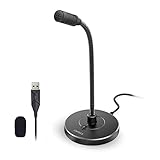
- 【Crystal Clear Audio Quality】Our Omnidirectional pattern condenser microphone accurately captures your voice, making it perfect for dictation, online classrooms, and more.
- 【Active Noise-Cancelling】Come in CMTECK CCS2.0 SMART CHIP with Omnidirectional Polar Pattern, which can effectively block the background noise. The pop filter prevents plosives from overloading the microphone, ensuring only your voice is heard.7
- 【Convenient Mute Button with LED Indicator】You can quickly mute/un-mute the microphone with the Mute Button and the built-in LED light lets you know the working status(Greenlight: Connected; Red light: Mute mode).
- 【Easy to use】 No drivers needed, just plug and record without external power supply, directly connect the microphone to a USB compatible device, well compatible with Windows(7, 8 and 10), Mac OS and PS4 (NOT compatible with Raspberry Pi/Linux/Android)
- 【Mini size with Adjustable Gooseneck】Adopted flexible and adjustable gooseneck metal pipe, easily adjust position 360 degrees to suit user comfort. The compact and stable base maximizes your desktop space.
6. macOS Screenshot: best for an occasional built-in Mac recording
What it does: macOS Screenshot provides Apple’s built-in screen-capture interface, including simple screen-recording workflows, without requiring a third-party installation.
- Standout benefit: immediate access from the operating system for an occasional clip.
- Platform: macOS.
- Free offering: included with macOS.
- Limits and trade-offs: it is a basic capture interface rather than a scene compositor or streaming studio. Exact controls, audio choices, save behavior, and duration constraints can vary by macOS version, so consult the current Apple support instructions for the release installed on your Mac.
Screenshot is a sensible choice when you want the least setup possible and do not need a camera bubble, external capture card, or elaborate audio chain. If you routinely record tutorials, create reusable layouts, or need cross-platform consistency, OBS avoids rebuilding a workflow around built-in menus.
7. Xbox Game Bar: best for a quick Windows game or app clip
What it does: Xbox Game Bar is Windows’ built-in gaming-oriented capture route and is commonly used for quick clips from an app or game.
Do these 3 things before closing this tab:
1Fix the driver behind crashes, sound loss and screen glitches2Clear out junk files and repair common Windows errors3Scan for outdated or missing drivers - takes under a minute- Standout benefit: no separate recorder installation for a basic Windows gaming capture workflow.
- Platform: Windows.
- Free offering: included with Windows at no additional charge.
- Limits and trade-offs: it is a quick-capture utility, not a general multi-scene production environment. Current Windows documentation should be checked for the exact shortcut, audio behavior, app exclusions, duration rules, and supported OS build before you depend on it for a course or long recording.
Game Bar makes sense for an occasional game highlight or app clip when you do not need webcam composition, multiple scenes, or a capture card. Streamers, tutorial makers, and anyone who needs repeatable layouts should use OBS.
How do free screen recorders handle watermarks and time limits?
There is no universal rule: local applications and hosted services set different terms. Loom’s current free Starter plan clearly limits each person to 25 videos, five minutes per recording, and 720p; that makes it unsuitable for assuming unlimited free recording.
The local tools in this guide are distributed as free desktop or operating-system utilities and do not show a comparable hosted Starter quota in the cited product information. However, that does not justify a blanket “no watermark” or “no time limit” claim for every version, output mode, or future update. Check the current product page and your installed build before recording an important event.
Shopping ad

- [Natural Audio Clarity] Operated with frequency response of 50Hz-16KHz, the podcasting XLR mic delivers balanced audio range, likely to resonate with your audience. Directional cardioid dynamic microphone corded will not exaggerate your voice, while rejects unwanted off-axis noise for vocal originality and intelligibility during your PS5 gaming streaming video recording. (Tips: Keep the top of end-addressing XLR dynamic microphone AM8 facing audio source, and suggested recording range is 2 to 6 in.)
- [XLR Connection Upgrade-Ability] To use XLR connection, connect the podcast microphone to an audio interface (or mixer) using a separate XLR cable (NOT Included) . Well-connected and smooth operation improves audio flexibility to make you explore various types of music recording singing. The streaming mic isolates the pristine and accurate sound from ambient noise with greater no interference and fidelity. (RGB and function key on mic are INACTIVE when using XLR connection.)
- [USB Connection with Handy Mute] Skip the hassle of setting something up and plug the cable to play the dynamic USB microphone directly, which suits for beginner creators or daily podcast. You can quickly control the gamer mic with tap-to-mute that is independent of computer/Macbook programs to keep privacy when live streaming. LED mute reminder helps you get rid of forgetting to cancel the mute. (RGB and function key are only available for USB connection, but NOT for XLR connection)
- [Soothing Controllable RGB] RGB ring on the desktop gaming microphone for PC, with 3 modes and more than 10 light colors collection, matches your PC gears accessories for gaming synergy even in dim room. You can control the RGB key button of the dynamic microphone USB directly for game color scheme gaming or live streaming. Configured memory function, the streaming microphone RGB no need to repeated selections after turnning off and brings itself alive when power on. (Only available for USB connection)
- [More Function Keys] Computer microphone with headphones jack upgrades your rhythm game experience and gets feedback whether the real-time voice your audience hear as expected. Get the desired level via monitoring volume control when gaming recording. Smooth mic gain knob on the PC microphone gaming has some resistance to the point, easily for audio attenuation or boost presence to less post-production audio. (Only available for USB connection)
How should you choose a free recorder?
Start with the workflow rather than the brand name. These questions narrow the list quickly.
Free tools Windows power users keep installed
One-click scans. No signup required.
- Which operating system do you use? Linux leaves OBS as the documented choice in this group. Windows offers OBS, ShareX, Snipping Tool, Loom, and Game Bar. macOS offers OBS, Loom, QuickTime Player, and Screenshot.
- Do you need a local file or a link? OBS, ShareX, Snipping Tool, QuickTime Player, Screenshot, and Game Bar are local-first workflows. Loom emphasizes hosted sharing, comments, and transcriptions.
- How many sources must appear together? Choose OBS for a desktop or window plus webcam, microphone, application audio, images, or a capture card. Choose a built-in tool when one rectangular area or one app is enough.
- Do you need external video? A console or camera feed generally requires compatible capture hardware. OBS documents capture-card compatibility criteria; neither a microphone nor a capture card is required for ordinary desktop recording.
- How long and how often will you record? Short, occasional clips fit Snipping Tool, Screenshot, QuickTime Player, or Game Bar. Repeated or long recordings favor a local recorder; Loom’s five-minute and 25-video Starter caps are important planning constraints.
- How much setup can you tolerate? OBS and ShareX reward configurable workflows. Built-in tools minimize setup but provide fewer controls over scenes, audio, and source composition.
How to record a reliable tutorial or gameplay clip
For a dependable multi-source recording, OBS is the most capable option documented here. Use this preparation sequence:
- Decide the frame: full display, one application window, or a custom region. A window or region reduces unrelated notifications and desktop clutter.
- Add only needed sources: screen or window first, then webcam, microphone, application audio, or capture card. Extra sources add troubleshooting work.
- Build a simple scene: keep one primary layout for the recording. Add additional scenes only when you genuinely need a face-camera view, title card, or alternate composition.
- Check audio separately: watch the source meters while speaking and while playing system audio. A USB microphone can improve narration, but OBS can record from ordinary built-in or connected inputs.
- Make a short local clip: verify that the intended window, camera framing, and audio sources appear before a long lesson or gameplay session. This is a setup check, not a performance benchmark.
- Record and organize: use a descriptive filename and keep enough free storage for the expected duration. If the final destination is a hosted service, upload after confirming the local file plays correctly.
For a quick Windows region clip, use Snipping Tool instead: select the rectangular video-snipping mode, mark the area, record, then save or share. For a short hosted explanation, Loom’s screen-and-camera workflow is faster, but plan around the five-minute Starter ceiling.
What equipment is actually necessary?
None beyond the computer for an ordinary desktop recording. A built-in microphone is enough to begin narration, and a webcam is optional if your audience benefits from seeing you.
Consider a USB microphone when clear voice narration matters. OBS’s certified-device information includes plug-and-play criteria for USB microphones and names examples such as the Shure MV6, but certification is compatibility context, not a ranking or a requirement. Consider a capture card only when you need console, camera, or another external video source; the OBS criteria address latency, passthrough, and audio synchronization.
How we picked
The ranking prioritizes documented platform support, capture scope, audio and camera inputs, local-versus-hosted workflow, setup complexity, and clearly stated free-plan limits. OBS ranks first because its official documentation covers the broadest multi-source feature set across Windows, macOS, and Linux. ShareX and Snipping Tool follow for distinct Windows workflows; Loom is placed according to its useful collaboration features and explicit Starter caps; the built-in Mac and Windows utilities round out the list for quick, low-setup captures.
Shopping ad

- [USB Output] Enables simple setup. USB studio recording microphone kit provides a direct convenient plug-and-play connection to pc and laptop without any additional hardware or drivers for recording vocals, podcasts and Skype. Studio microphone for recording vocals is never been easier to get high-quality sound for your voice and computer-based audio recordings. (Incompatible with Xbox)
- [Excellent Sound Quality] With rugged construction for durable performance, the vocal recording microphone, USB condenser mic for PC,offers a wide frequency response and handles high SPLs with ease. Ideal for project/home-studio applications. The cardioid condenser capsule captures crystal-clear audio from the front and avoid ambient noise when communicating/creating/recording. Comes ready to go with a desktop mic boom arm stand and 8.2ft USB cable, you're guaranteed to get great-sounding results.
- [Durable Arm Set] The podcast microphone bundle with versatile and sturdy broadcast suspension boom scissor arm with 180° up and down rotation, 135° forward and backward extension for optimal adjustment, for capturing your voice in podcast or voiceover. The double pop filter attached on the music recording microphone provides two layers of dissipation, removes the rush of air, minimize the popping sounds or cancel noise that can compromise your recording, great for studio as well as home use.
- [Easy to Attach] The streaming microphone for PC includes adjustable boom studio scissor arm stand that features a heavy-duty combo mount consisting of a sturdy C-clamp and a detachable desktop mount. With 13" fixed horizontal arm and offers a 30" reach, the low-profile, table-hugging design of audio recording microphone allows on-air talent to perform without facial obstruction to record in podcasting or make dubbing sounds for videos, use voice chat in Discord or online conference on Zoom or Skype.
- [The Accessory Package Includes] The studio microphone music recording comes with practical accessories for you to use in most of recording. The scissor arm stand is made out of all steel construction, sturdy and durable, a studio-grade shock mount, a double pop filter, premium 8.2' USB-B to USB-A/C cable, a podcast PC gaming microphone, a user manual and friendly Technical Support.
Frequently Asked Questions
Frequently Asked Questions
Can I record a console with a free screen recorder?
Yes, but a computer cannot capture most console video through software alone. You generally need a compatible capture card, and OBS documents compatibility considerations such as latency, passthrough, and audio synchronization; the card is optional for desktop recording.
Which free recorder is suitable for Linux?
OBS Studio is the clearly documented Linux option in this comparison. The built-in Windows and macOS utilities do not provide Linux versions, while ShareX is documented as Windows software.
Is a webcam required to record the screen?
No. Screen-only recording works without a camera, and a webcam is an additional source when you want a face view. Loom’s camera bubble and OBS scenes make camera recording possible, but neither requires one for a basic clip.
Are free screen recordings automatically stored online?
Not necessarily. OBS, ShareX, Snipping Tool, QuickTime Player, macOS Screenshot, and Xbox Game Bar are local-first tools, whereas Loom is built around hosted sharing and collaboration. Check where your chosen app saves or uploads files before recording sensitive material.
What should I use for a class longer than five minutes?
Use a local recorder such as OBS rather than relying on Loom Starter’s five-minute cap. A local workflow also avoids Loom’s 25-video-per-person quota and 720p ceiling, although you remain responsible for storage and editing.
Quick Recap
Product prices and availability are accurate as of the date/time indicated and are subject to change. Any price and availability information displayed on Amazon at the time of purchase will apply.

