Windows Errors? Fix Them Before They Spread
Repair common Windows errors and clear accumulated junk for a smoother, more stable PC - no reinstall needed.Free scan · no reinstallCrashes, No Sound, or Screen Glitches?
Random freezes, missing sound and display glitches usually trace back to one bad driver. Find and replace yours safely.Free scan · under a minuteThe Geeks Club is reader-supported. When you buy through links on our site, we may earn an affiliate commission. As an Amazon Associate I earn from qualifying purchases. Learn more
OBS Studio is the best free HD screen recorder for most people who need control, local files, and streaming. Choose Camtasia when a recording must become a polished tutorial, Loom when a team needs a link immediately, and ScreenFlow when you use a Mac and want capture and editing together. ShareX, Bandicam, and Xbox Game Bar cover simpler Windows workflows. “HD” is not a preset quality guarantee: the result depends on your source display, capture resolution and frame rate, encoder, bitrate, audio settings, and export format.
At a glance
| Name | Best for | Key spec | Free plan / price | Platforms | Checked |
|---|---|---|---|---|---|
| OBS Studio | Advanced free recording and streaming | Scenes combine displays, cameras, and audio | Free | Windows, macOS, Linux | Nov 2026 |
| Camtasia | Polished tutorials and training | 4K capture, multitrack editor, captions and interactive elements | Starter from $39/year; Essentials $179.88/year to remove watermark | Windows, macOS | Nov 2026 |
| Loom | Fast team updates and support videos | Screen, webcam, browser editing and link sharing | Free: 25 videos, up to 5 minutes each; Business from $18/user/month | Windows, macOS, Chrome and mobile apps | Nov 2026 |
| ScreenFlow | Mac capture plus editing | Region, timed, looped, and application-specific recording | Paid app; current price varies by offer | macOS 15 Sequoia and macOS 26 Tahoe on supported Macs | Nov 2026 |
| ShareX | Free Windows screenshots and clips | Open-source region, window, and full-screen capture | Free | Windows | Nov 2026 |
| Bandicam | Windows recording with a simple control panel | Screen, game, and device capture modes | Free mode with watermark and duration limits; paid licenses available | Windows | Nov 2026 |
| Xbox Game Bar | Instant Windows game or app clips | Built-in Windows capture with microphone toggle | Free with Windows | Windows 10 and 11 | Nov 2026 |
What makes a screen recording genuinely HD?
HD describes the pixels recorded and delivered, not the name of the application. A 1,920×1,080 (1080p) recording is normally considered Full HD; 1,280×720 is HD; 2,560×1,440 is 1440p; and 3,840×2,160 is 4K UHD. If your monitor is 1080p, a recorder cannot recover detail that is not present on the source. Recording a 4K desktop at 1080p scales it down, while recording a 1080p region at 4K only enlarges the pixels.
Frame rate matters for motion. Thirty frames per second is adequate for most software demonstrations; 60 fps makes cursor movement, games, and scrolling smoother but requires more encoder and storage bandwidth. Set the canvas and output resolution deliberately, choose a hardware or software encoder your computer can sustain, and export without a second low-resolution transcode.
Recommended Free Tools
Audio is part of perceived quality. Capture microphone and system audio on separate tracks when possible so narration can be balanced against application sound. A webcam overlay is useful for lessons and updates, but it consumes additional capture and encoding resources.
Shopping ad

- Turn Your Camera into a Pro Webcam: Connect your DSLR or mirrorless camera to any computer and go live in stunning quality
- Stunning quality: Stream and record in 1080p60 or even 4K60 for razor-sharp detail (Requires a compatible camera and the latest Cam Link 4K model)
- Connect More Than Just Cameras: Use a camcorder, action cam, or even your iPhone to level up your content
- No Lag, No Delays: Ultra-low latency keeps your video and audio perfectly in sync, just like it should be
- Your iPad, Now a Pro Field Monitor: Preview your shots in real time on an iPad with USB-C
1. OBS Studio: who is it for?
OBS Studio is the strongest no-cost choice for creators who want local recordings, multiple sources, and live streaming. Zapier’s 2026 evaluation describes it as a free Windows, Mac, and Linux application that combines displays and cameras in customizable scenes and lets you switch between prepared audio/video configurations.
What it does well
- Build scenes containing a whole display, a single window, a cropped region, cameras, images, and browser sources.
- Keep separate scene layouts for a tutorial, gameplay, webcam presentation, or vertical clip.
- Record to a local file or send the same scene to a live stream.
- Choose output resolution, frame rate, encoder, container, and audio tracks instead of accepting a one-click preset.
Free plan, platforms, and limits
OBS is free on Windows, macOS, and Linux. There is no hosted-link quota or subscription, but you supply the storage, bandwidth, and hardware. Its flexibility creates the main limitation: beginners must configure scenes, sources, audio routing, and encoder settings themselves. OBS does not provide Camtasia’s integrated tutorial editor, stock media, or interactive training controls.
Best HD workflow
- Set the base canvas to the display or game resolution you actually want to preserve.
- Set output resolution and frame rate to the delivery target, such as 1080p30 for narrated software or 1080p60 for fast motion.
- Add microphone and desktop audio as separate sources and monitor for clipping.
- Record a short sample, inspect text legibility and audio sync, then commit to the full session.
2. Camtasia: who is it for?
Camtasia is the best fit when capture is only the first step and the finished file must look like a structured tutorial or training lesson. It combines straightforward recording with a full editor, effects, stock media, captions, and interactive elements. A 2026 iTechGuides ranking placed it second at 9.2/10 and described 4K capture, multitrack editing, and training tools; that is a published third-party ranking, not a laboratory measurement.
Quick wins for a faster PC:
Fix the driver behind crashes, sound loss and screen glitchesFind Drivers →Clear out junk files and repair common Windows errorsFree Scan →Scan for outdated or missing drivers - takes under a minuteDriver Scan →Standout features
- Capture screen, microphone, and webcam, then edit on a multitrack timeline.
- Use cuts, zooms, callouts, cursor emphasis, transitions, and stock assets to direct attention.
- Add captions and interactive elements for lessons, demonstrations, and internal training.
- Export a conventional video rather than requiring viewers to open a hosted workspace.
Plans, platforms, and limits
Zapier lists a limited Starter plan from $39 per year and an Essentials plan at $179.88 per year that removes the watermark. Prices can vary by region or offer. The lower-cost option is therefore best treated as an evaluation path; confirm the current export and watermark terms before buying. Camtasia runs on Windows and macOS. Its larger annual commitment is harder to justify for occasional clips, and its strength is post-capture editing rather than the scene-and-stream control of OBS.
Choose it when
Pick Camtasia if every recording needs cleanup, callouts, chapter-like structure, captions, or a consistent training style. If you only need to send an unedited explanation to colleagues, Loom is faster; if you need complex live scenes, OBS is more configurable.
3. Loom: who is it for?
Loom is designed for speed: record the screen, webcam, or both, let the service upload the result, make light browser edits, and share a link. It suits asynchronous team updates, bug explanations, customer support replies, and quick walkthroughs where recipients should not download a large file.
Plans and limits
The free plan allows 25 videos of up to five minutes each. Zapier reports a Business plan starting at $18 per user per month with unlimited videos and recording length. The free cap is a practical constraint for long lessons, archived demos, and multi-hour sessions. Hosted sharing also means access, retention, and download behavior depend on the workspace settings rather than a file sitting only on your computer.
Do these 3 things before closing this tab:
1Fix the driver behind crashes, sound loss and screen glitches2Repair Windows errors before they cause bigger problems3Scan for outdated or missing drivers - takes under a minuteShopping ad

- Reliable & Stable Performance – Ideal for electronics repair, microscope observation, and precision work recording
- High-Resolution Capture – Stream and record in smooth 1080p60 or even up to 2K50 resolution. Capture every detail with vibrant clarity for a professional on-screen presence.
- Wide Device Compatibility – Works with microscopes, DSLR cameras, action cams, and other HDMI devices.
- Plug-and-Play Convenience – No drivers required; instantly compatible with OBS, Zoom, and other streaming software.
- Versatile Multi-Scenario Use – Perfect for live streaming, teaching, coin or jewelry inspection, and detailed DIY projects.
Quality and workflow
Before recording, select the screen or window, decide whether to include the camera, and check microphone permission. Use a stable connection because the recording uploads after capture. Loom’s browser editor is useful for trimming and sharing, but it is not a replacement for a multitrack editor when you need layered music, detailed callouts, or frame-accurate compositing.
Choose it when
Use Loom when the fastest path from “I need to explain this” to “the team has a link” matters more than maximum local control. For a final 4K training master or a video that must remain available offline, use a local recorder and export workflow instead.
4. ScreenFlow: who is it for?
ScreenFlow is the Mac-focused choice for recording and editing in one application. Telestream’s ScreenFlow 10.5.2 release notes list region, timed, looped, and application-specific recording modes, making it useful for repeatable demonstrations as well as one-off captures.
Compatibility and hardware
The 10.5.2 notes list Apple Silicon or Intel Macs, macOS 15 Sequoia or macOS 26 Tahoe, at least 4 GB of RAM, 20 GB of disk space, and an Apple-approved graphics card. Telestream states: “ScreenFlow requires a GPU officially supported by Apple.” Verify the current macOS and GPU requirements before purchase, particularly on older Intel hardware or systems upgraded to a new macOS release.
The Tool Desk
Outbyte Driver Updater FREEFix the driver behind crashes, sound loss and screen glitchesFind Drivers →Outbyte PC Repair FREEClear out junk files and repair common Windows errorsFree Scan →Capture modes
- Region: record only the rectangle containing the lesson or app.
- Timed: schedule a start and stop for repeatable captures.
- Looped: capture continuously in a workflow that keeps only the useful segment.
- Application-specific: target a particular app instead of the entire desktop.
ScreenFlow is a paid application; the cited release information does not establish a single universal price, so check the current Telestream offer for your region. Its Mac-only scope is the decisive limitation for Windows or Linux users.
5. ShareX: who is it for?
ShareX is a free, open-source Windows utility for users who prioritize quick screenshots, region captures, and lightweight recordings over a full editing timeline. It can be configured around hotkeys and automated destinations, which makes it practical for support staff and developers who capture many short clips.
Strengths and limits
- Free to install and use on Windows.
- Fast region and window selection for documenting a bug or UI change.
- Useful automation and destination options for image-first workflows.
- Not a substitute for Camtasia or ScreenFlow when you need polished multitrack editing, captions, or interactive lessons.
ShareX is best for short, functional evidence: show the exact menu, error, or reproduction step, then send the file or image. For long recordings, webcam composition, or live streaming, choose OBS instead.
Shopping ad
- 【Turn Your Camera into a Pro Webcam】 Connect your DSLR, camcorder, or action cam to your Mac or PC and transform it into a high-quality webcam. Ideal for electronics repair, microscope observation, and precision work recording. Go live on YouTube, Twitch, Facebook, and more with crystal-clear video.
- 【Stunning Image Quality】 Stream and record in smooth 1080p120 or even up to 4K60 resolution. Capture every detail with vibrant clarity for a professional on-screen presence. (MJPEG: 3840×2160@60FPS, NV12: 3840×2160@30FPS, YUY2: 3840×2160@30FPS, XRGB: 2560×1440@30FPS)
- 【Ultra-Low Latency Performance】Enjoy instant, real-time audio and video transmission with virtually no lag. Perfect for livestreams, gaming, video calls, and online teaching.
- 【Broad Device Compatibility】 Works with Windows and macOS, supporting HDMI devices like microscopes, DSLRs, game consoles (PS, Xbox, Switch), laptops, DVD players, and more. Ideal for content creators, gamers, professionals, and for electronics repair & precision work.
- 【Plug and Play】No drivers needed—just plug it in and start streaming. Automatically recognized by your system with no external power required.
6. Bandicam: who is it for?
Bandicam is a Windows recorder with separate screen, game, and device-capture modes. Its control panel is simpler than OBS’s scene system, which can appeal to users who want to choose a source and start recording without building a production layout.
Free mode and paid limits
The free edition places a watermark on recordings and limits recording duration; paid licenses remove those restrictions. Exact offers can differ by edition and promotion, so treat the free build as a way to check compatibility rather than a permanent solution for branded tutorials.
When it makes sense
Choose Bandicam for Windows-only capture when you want a focused recorder for desktop activity or gameplay and do not need a browser-based team library. For external HDMI sources, confirm that your capture device is supported and that the selected mode records the device rather than merely the desktop preview.
7. Xbox Game Bar: who is it for?
Xbox Game Bar is built into Windows 10 and Windows 11 and is the quickest option for an app or game clip when you do not want to install another recorder. Open the overlay with Win+G, enable the microphone if needed, and use the capture controls or Win+Alt+R to start and stop recording.
Strengths and limits
- Free with Windows and available immediately on supported systems.
- Convenient for a single application or game, with a microphone toggle for commentary.
- Not designed as a full scene compositor, tutorial editor, captioning suite, or team-sharing service.
- For desktop areas outside the supported app/game workflow, use OBS or ShareX.
Game Bar is a sensible first try for a short 1080p clip. Move to OBS when you need multiple displays, a webcam layout, separate audio tracks, streaming, or explicit encoder control.
How do you choose the best HD screen recorder?
Start with the destination, not the marketing label. The right choice changes depending on whether the viewer needs a local master, a browser link, a polished lesson, or a live broadcast.
- Pick the delivery format. For a local 1080p or 4K file, favor OBS, Camtasia, ScreenFlow, or Bandicam. For an immediate link, Loom is the natural fit.
- Match the operating system. OBS covers Windows, macOS, and Linux. Camtasia covers Windows and macOS. ScreenFlow is Mac-only. ShareX, Bandicam, and Game Bar are Windows options.
- Decide how much editing you need. Trimming a beginning and end is very different from adding zooms, callouts, captions, stock media, and interactive training. Camtasia and ScreenFlow address the latter; OBS and Game Bar primarily capture.
- Count your sources. Multiple displays, cameras, browser windows, and prepared layouts favor OBS scenes. A single app clip favors Game Bar or ShareX.
- Plan audio. Confirm microphone and system-audio capture before recording. Separate tracks make narration easier to repair than a single mixed track.
- Check hardware headroom. Higher resolution, 60 fps, webcam overlays, and software encoding increase CPU, GPU, and disk load. Close unnecessary applications, record to a drive with room for large files, and make a short sample first.
- Check sharing and retention. Loom’s hosted link is convenient but tied to plan limits and workspace access. Local recorders give you the file, but you must store, back up, and distribute it.
- Check captions and accessibility. If captions, transcripts, or interactive checks are part of the deliverable, choose an editor or service that supports them instead of adding them as an afterthought.
What settings should you use for an HD recording?
Use the source’s native aspect ratio to avoid stretched text. For ordinary software demonstrations, 1080p at 30 fps balances readability, motion, and file size. Use 60 fps when cursor movement, games, or scrolling is central. Select 4K only when the source display and computer can sustain it and the audience benefits from the extra detail.
Shopping ad

- Seamless Broadcasting and Versatile Streaming: Connect effortlessly to any app such as OBS, Streamlabs, Twitch Studio, Restream, Zoom, Teams, and stream flawlessly on various platforms like YouTube, Twitch, Discord, Facebook Gaming, etc., providing you with unparalleled flexibility and reach.
- Next-gen capture: Unleash the full potential of your content with cutting-edge 4K resolution, delivering crystal-clear visuals at an impressive 144 frames per second.
- HDMI 2.1 in/out: Elevate your recording capabilities with HDMI 2.1 support, allowing you to document high frame rates up to 240fps in glorious 1080p resolution for an unparalleled viewing experience.
- VRR passthrough: Immerse yourself completely in the gaming experience as our Variable Refresh Rate (VRR) passthrough ensures flawlessly smooth gameplay, eliminating screen tearing for an uninterrupted visual feast.
- Ultra-low latency: Stay in the moment with ultra-low latency powered by USB 3.2 Gen 2, ensuring your broadcast and gameplay remain perfectly synchronized, delivering an immersive and responsive streaming experience.
Choose an encoder your hardware supports, keep the capture and export frame rates consistent, and avoid repeatedly transcoding the same file. Record a short sample that includes small text, a loud sound, and a camera overlay. Review the sample at full size: unreadable UI text usually means the source or output resolution is too low, while dropped frames usually indicate an overloaded encoder or storage path.
Can you record an HDMI camera or console in HD?
Yes, but a desktop recorder needs a capture device that presents the HDMI feed as a supported input. Telestream’s ScreenFlow release notes list Elgato Cam Link 4K among supported UVC capture devices. A Cam Link 4K can bring an HDMI camera, console, or other external source into a compatible recording workflow; it does not improve ordinary desktop capture from a monitor.
Connect the HDMI source to the capture device, connect the device to the computer, select it as a video source, and verify that the incoming resolution and frame rate match your intended output. HD quality still depends on the camera or console signal, cabling, capture settings, encoder, and export.
Independent reader supportYour contribution helps us test, update, and keep practical guides available for everyone.How we picked these screen recorders
The ranking weighs capture resolution and frame-rate controls, Windows/macOS/Linux coverage, screen/window/region capture, webcam and microphone/system-audio support, editing depth, captions or transcripts, export versus hosted sharing, plan limits, ease of use, and hardware requirements. Those criteria reflect the baseline used in Zapier’s 2026 evaluation and TechSmith’s 2026 comparison. No universal quality winner can be established without identical hardware, codec, bitrate, and display conditions, so each recommendation is tied to a specific workflow.
Frequently Asked Questions
What is the best free screen recorder for a low-end PC?
Start with OBS using a modest output resolution and hardware encoder if available, or use Xbox Game Bar for a single Windows app or game. Keep the frame rate at 30 fps, close GPU-heavy applications, and test a short clip for dropped frames before recording a long session.
Can a screen recorder capture system audio and my microphone separately?
OBS is built around separate configurable audio sources, which lets you balance desktop sound and narration later. Other applications expose the controls differently, so confirm both meters move independently in a sample recording before relying on the setup.
Free tools Windows power users keep installed
One-click scans. No signup required.
Is Loom suitable for a 30-minute tutorial?
The free Loom plan is not: it limits recordings to five minutes and 25 videos. A paid Business plan removes the cited length limit, but a local editor such as Camtasia or ScreenFlow may be preferable when the tutorial needs detailed cuts, captions, and a downloadable master.
Shopping ad
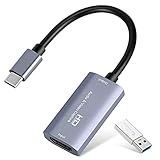
- 【1080P 60FPS Video Capture Card】 This HDMI game capture card is based on USB3.0 high speed transmission port, input resolution up to 4K@30HZ, output resolution up to 2K@30Hz or 1920×1080@60Hz. Type c and USB interface can meet most of the devices in daily life. Easily meet the online capture, real-time recording, online meetings, live gaming and other functions, so you have a better visual enjoyment. Note: For capture use only; requires capture software to function and is not intended for direct screen casting to a monitor or TV
- 【Ultra Low Latency Screen Sharing】 HDMI capture card is made of good quality aluminum alloy with strong heat dissipation, allowing you to enjoy ultra low latency while live gaming or video recording or live streaming, avoiding blue screens and lag. This HDMI to USBC capture card supports easy recording of good quality audio or HD video and transferring it to your computer or streaming platform, allowing you to record 60 fps HD video directly on your hard drive and real-time preview
- 【Plug and Play, Easy to Carry】 This HDMI 1080P video capture card does not require any additional drivers or external power supply, just plug and play for fast capture. The capture card is small and lightweight, so you can put it in your bag for emergencies, making it very portable for outdoor live streaming. It's also a great way to share content in game recording, video conference, video recorder and online teaching
- 【Wide Compatibility USB Capture Card】 Easily streams to Facebook, Youtube or Twitch. With the connection, this HDMI to USB C/3.0 video capture devices can be working on several Operating Systems and various software: Windows 7/ 8/ 10, Mac OS or above, Linux, Android, Laptop, Xbox One, PS3/PS4/PS5, Camera, DVDs, Set Top Box, Webcame, DSLR, Switch/Switch 2, TV BOX, HDTV, Potplayer/VLC, ZOOM, OBS Studio etc.
- 【Package Content & Note】 1x HD Audio Capture Card , 1x USB 3.0 to USB C Adapter (A-side 3.0, B-side 2.0), 1x user manual. Please note that you need to restart the OBS Studio software after the audio setup is complete, otherwise it will result in no sound output. When using an adapter, if the device is recognized as USB 2.0, try using the other side with the USB-C port. Simply flip the capture card and reconnect it to be recognized as USB 3.0
Why does my 4K recording look blurry after upload?
Check the entire chain: source display resolution, recorder output setting, encoder bitrate, and the platform’s playback or transcode quality. Recording a 1080p source at a 4K output cannot create new detail, and a service may show a lower-resolution version until processing finishes.
Do I need a capture card to record my monitor?
No. Software recorders can capture the desktop directly. You need a capture card only when bringing in an external HDMI source such as a camera or console, or when your workflow specifically requires hardware-isolated capture.
Frequently Asked Questions
What is the best free screen recorder for a low-end PC?
Start with OBS using a modest output resolution and hardware encoder if available, or use Xbox Game Bar for a single Windows app or game. Keep the frame rate at 30 fps, close GPU-heavy applications, and test a short clip for dropped frames before recording a long session.
What’s actually slowing this PC down?
Pick the symptom - the matching free tool is one click away.
Can a screen recorder capture system audio and my microphone separately?
OBS is built around separate configurable audio sources, which lets you balance desktop sound and narration later. Other applications expose the controls differently, so confirm both meters move independently in a sample recording before relying on the setup.
Is Loom suitable for a 30-minute tutorial?
The free Loom plan is not: it limits recordings to five minutes and 25 videos. A paid Business plan removes the cited length limit, but a local editor such as Camtasia or ScreenFlow may be preferable when the tutorial needs detailed cuts, captions, and a downloadable master.
Why does my 4K recording look blurry after upload?
Check the entire chain: source display resolution, recorder output setting, encoder bitrate, and the platform’s playback or transcode quality. Recording a 1080p source at a 4K output cannot create new detail, and a service may show a lower-resolution version until processing finishes.
Do I need a capture card to record my monitor?
No. Software recorders can capture the desktop directly. You need a capture card only when bringing in an external HDMI source such as a camera or console, or when your workflow specifically requires hardware-isolated capture.
Quick Recap
Product prices and availability are accurate as of the date/time indicated and are subject to change. Any price and availability information displayed on Amazon at the time of purchase will apply.

