Recommended Free Tools
The Geeks Club is reader-supported. When you buy through links on our site, we may earn an affiliate commission. As an Amazon Associate I earn from qualifying purchases. Learn more
To convert a video to GIF, use FFmpeg to select a clip, set its frame rate and width, generate a color palette from the clip, and apply that palette when encoding. Preview the result, then adjust its duration, dimensions, or frame rate to balance smooth motion, color, and file size. If you prefer a graphical editor, Photoshop also has tools for optimizing animation frames.
At a glance
| Name | Best for | Core controls | Trade-off | Checked |
|---|---|---|---|---|
| FFmpeg | Repeatable conversions with explicit output controls | Clip selection, frame rate, scale, palette, looping | Command-line workflow; you choose and preview settings | November 2026 |
| FFmpeg Cookbook browser converter | A graphical conversion workflow in a browser | Browser-based conversion; the publisher lists its own limits and suggested defaults | Limits and processing claims apply to that tool, not browser converters generally | November 2026 |
| Adobe Photoshop | Frame-level editing and animation optimization | Animation frames, changing-area optimization, palette methods | Paid editing software; unnecessary for a straightforward conversion | November 2026 |
How do I convert a video to GIF with FFmpeg?
FFmpeg gives you direct control over which frames are included, the output dimensions and frame rate, the color palette, and whether the animation loops. The command below is a starting point, not a universal quality setting; inspect the output and adjust it for your clip and destination.
General shopping ads
ffmpeg -i input.mp4 -filter_complex "[0:v]fps=15,scale=320:-1,split[s0][s1];[s0]palettegen[p];[s1][p]paletteuse" -loop 0 output.gifThis workflow follows the palette-generation approach documented by Wikimedia Commons’ FFmpeg guide. Replace input.mp4 with your video’s filename and choose a distinct output filename for the GIF.
The example combines several decisions in one filter graph. The fps=15 filter sets the output rate, and scale=320:-1 sets a width while letting FFmpeg calculate a proportional height. The split step creates branches for palette generation and GIF encoding; palettegen builds a palette from the clip, and paletteuse applies it to the output. Finally, -loop 0 requests indefinite looping. Change these parts deliberately rather than treating the whole command as a preset.
Shopping ad
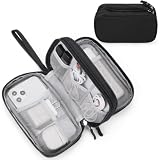
- Dimensions: 7.5" x 4.3" x 2.2". Compact size and lightweight make it easy to carry and put into your backpack, handbags or laptop bag without taking much space. Suitable for family use and daily organization. Note: Small mesh pockets are ideal for charging cords no longer than 3ft; longer cables (over 3ft) fit better in the larger compartments
- Quality Material: This electronic organizer travel case made of high quality durable waterproof oxford and soft sponge inside to secure your gadgets in place and deliver a quick access whenever you want. Water-resistant fabric protects your gear from unexpected splashes, keeping all your electronic essentials safe and secure
- Double Layers Design: This tech pouch features a double-layer interior design with 8 compartments, including multiple see-through mesh pockets and ample space to store your cords, cables, USB drives, cellphone, charger, mouse, flash drive and more, keeping all accessories neatly organized and tangle-free
- Practical and Convenient: Comes with a comfortable hand strap for easy carrying; You may carry it in your hand when heading out. Durable and smooth zipper closure keeps your favorite device securely, convenient for you to have quick access to the items inside the case
- Portable and Lightweight: The small size and lightweight design durable cable organizer pouch is a perfect choice when going on holiday, business trip, travel, office. Enjoy hassle-free travel without wasting time on tangled accessories. Great gift for yourself also a nice share with families and friends. (No include cords, electronic accessories)
- Choose the portion to convert. For a short clip, add start and end times with FFmpeg’s
-ssand-tooptions. For example, to select a section from 3 to 8 seconds, place-ss 00:00:03 -to 00:00:08before-i input.mp4. Check the timing against your installed FFmpeg version and the clip you want. Selecting only the useful action or moment can avoid encoding unneeded footage and can reduce the amount of material in the output. - Set the frame rate. In
fps=15, 15 is the output frame rate in frames per second. A higher value can preserve more motion, but creates more frames to encode; a lower value can reduce output data but may make movement look choppy. Inspect the motion in the actual GIF: a rate that works for a slow scene may not look right for fast movement. There is no single ideal value for every source or destination. - Set the width. In
scale=320:-1, 320 sets the width in pixels and-1tells FFmpeg to calculate the height while preserving the video’s proportions. Reduce the width if the GIF is too large; increase it only if the extra detail is worth the added output size. Consider where the animation will be viewed and how much detail is needed there, rather than exporting the source at its full dimensions by default. - Generate and apply a palette. The filter graph splits the video stream: one branch generates a palette from the clip, while the other uses it to encode the GIF. This can improve how the clip’s colors are mapped compared with relying on a fixed palette, though it cannot remove GIF’s format limitations. Keep both palette steps together; generating a palette without applying it to the encoding branch does not complete this workflow.
- Choose looping behavior. The command’s
-loop 0value means the animation loops indefinitely. If you want the GIF to play once instead, FFmpeg’s GIF muxer uses-loop -1for no looping. Confirm the intended behavior for the place where you will use the file. - Preview and revise. Open the GIF and check its motion, color, dimensions, duration, looping behavior, and file size. If it is too large, try shortening the selected portion, reducing dimensions, or lowering the frame rate. If it looks choppy, inspect the frame rate before making other changes. Render another version and compare it with the first rather than assuming a setting will behave identically on every clip.
FFmpeg’s GIF muxer documentation explains that frame delays cannot be smaller than one centisecond. In its words, “The GIF format has a very large time base: the delay between two frames can therefore not be smaller than one centisecond.” That timing granularity matters when you need very precise pacing: a GIF cannot represent arbitrarily fine delays between frames. If the clip depends on timing finer than the format can express, retaining a video format may be a better choice.
Before relying on a command for an important conversion, check its behavior with the FFmpeg version installed on your system and preview the output. The documented workflow is a practical starting pattern, but the right trim points, dimensions, frame rate, and loop behavior depend on the clip and the destination.
Which settings should I change if the GIF looks wrong?
Start with the problem you can see: oversized files usually call for a shorter clip or fewer pixels and frames, while visible color banding calls for a clip-specific palette. Make a change, render again, and compare the result rather than assuming one preset suits every source.
- The file is too large: Trim the clip first, then try lowering the width or frame rate. Each setting reduces a different part of the material being encoded: duration, image dimensions, or the number of output frames. A short, tightly selected section is often a better first adjustment than reducing every setting at once, because you can preserve detail in the moment that matters. Preview the revised GIF to make sure the reduction has not removed necessary context or made motion too choppy.
- Colors have visible bands: Keep the palette-generation and palette-application steps in the filter graph. Generating a palette from the video can improve color mapping, but GIF still has format constraints and the result may not match the original video exactly. Palette generation is a color-mapping aid, not a guarantee of identical colors or a way to remove the format’s limitations. Compare the output with the source clip in the same scene, especially where you can see the issue.
- Motion looks choppy: Check the output frame rate in the command and adjust it if the clip needs more motion detail. A higher frame rate means more frames to encode, so consider whether a shorter clip or smaller width can offset the added data. Also check that the selected section itself contains the movement you intended; changing the rate will not restore action excluded by the trim points.
- The GIF is too small or lacks useful detail: Review the width set by
scale=320:-1. Increasing the width may preserve more visible detail, but additional pixels add material to encode and can increase file size. Make a test at the size appropriate for the destination, then compare it with the smaller version before settling on one. - Timing seems imprecise: GIF frame delays have one-centisecond minimum granularity, as documented by FFmpeg. If the clip depends on timing finer than that, a GIF may not be the right format. This is a format constraint, not a setting that can be fixed by choosing a different width or generating another palette.
- The animation loops when you do not want it to: Check the muxer option. In FFmpeg,
-loop 0requests indefinite looping, while-loop -1means no looping. Use the value that matches the intended playback and check the exported file. - The clip is still too large or loses too much photographic detail: Use a video format instead if the destination accepts video. GIF’s palette and frame-timing constraints make it a poor fit when the priority is retaining photographic color or keeping a longer clip compact. The decision depends on what the destination accepts: if it specifically requires an animated GIF, work within GIF’s controls; if it accepts video, do not convert merely because the source happens to be a video.
When you revise, change one or two controls at a time and keep the version that best meets the destination’s needs. Lowering duration, width, and frame rate together may produce a smaller file, but it also makes it harder to tell which compromise affected the result. A preview is the practical test for the balance among file size, color, dimensions, and motion.
Shopping ad

- 【UPGRADED LAPTOP CLEANING KIT 】 The macbook cleaning kit computer screen cleaner comes with a number of accessories including a retractable large brush, polishing cleaning cloth X 2, keycap puller, metal pen tip, flocking sponge, thin soft brush, soft plastic lens cleaning pen, 5 replacing cloth, large cleaning microfiber cloth. You deserve the comprehensive computer cleaning kit keyboard vacuum at a low cost
- 【PROFESSIONAL KEYBOARD CLEANING KIT】 The laptop screen cleaner keyboard cleaner can pull out the keycaps of gaming keyboards and mechanical keyboards. A retractable keyboard brush works on laptops and keyboards, while the mini high-density brush is great for deep cleaning between keys for cleaning between flatter keys on a laptop, the metal pin tip gently removes any stains. This electronic cleaning kit macbook cleaner totally meets professional cleaning needs
- 【OFFICE DESK ACCESSORIES】This keyboard cleaner kit is easy to use and can clean your keyboard and electronic screen with just one swipe. Wiping with the 2mm thicken widen polishing cleaning cloth designed at a right angle for better fitting screen corners of computers with our recyclable cleaning spray, The laptop cleaner kit for macbook effectively absorbs stubborn stains, leaves no discoloration, no streaks, and no fiber shedding on the screens
- 【MULTIFUNCTIONAL TOOLS 】Mini soft brush and soft plastic lens cleaning pen are specially designed for DSLR camera screen, lens, and other delicate surfaces. 5 more cleaning cloths of it supplied for replacement. The flocking sponge is an excellent tool for cleaning earbuds charging cases, And the earbud cleaning kit is ideal. This electronics for college students is equivalent to 10 other electronic cleaning kit
- 【PORTABLE DESIGN & CLEANER TOOL】 The office supplies is compact in design, easy to carry, and you can easily take it anywhere. It's convenient to keep one in a drawer, one in your car, or in your bag and dorm. It is easy to use and can clean your keyboard and electronic screen with just one swipe. Is the college essentials cleaning tool for your friends, family, colleagues and students
What are the alternatives to using FFmpeg?
A browser converter or Photoshop may suit you better if you want a graphical workflow or frame-level editing. Their trade-offs differ: a browser tool’s limits and privacy-related processing claims are specific to that service, while Photoshop is a paid editing application with more animation controls than a basic conversion requires. When comparing them, consider ease of use, whether the file needs to be uploaded, which clip and output controls are available, and whether you need to edit individual frames.
FFmpeg Cookbook browser converter
The FFmpeg Cookbook GIF converter offers a browser-based route without a desktop conversion workflow. Its publisher says processing happens locally in the browser and lists its own input and memory limits; those statements should be treated as claims about that specific tool, not as a description of all browser converters. A locally processed file, according to the publisher, does not follow the same upload workflow as a service that sends the file to a remote server, but check the tool’s own current explanation and limits before choosing it for a particular video.
The publisher also suggests 320 pixels and 15 fps as defaults. Those are that tool’s starting recommendations, not universal settings for every source or destination. They happen to resemble the example values in the FFmpeg command above, but your source, desired size, and motion may call for different choices. Check the current page for its limits before relying on it for a particular file, especially if the input is large or you need controls beyond the options it exposes.
A browser interface can be convenient when you do not want to construct a command, but convenience does not answer every conversion question. Check whether the tool lets you trim the section you want, set dimensions and frame rate, choose looping behavior, or inspect the result before saving. The exact controls and limits belong to that service; do not assume another browser converter has the same features or handles files locally.
Shopping ad

- Compatible Space: This electronics organizer bag features 2 zippered mesh pockets fits phones, standard power banks, 4 elastic loop pouches for small items, 2 elastic loop pouches for wireless headphones and small chargers. Elastic loops for phone charging cable. And specific slots for SD cards. Please check the size to ensure it meets your needs
- Lightweight Travel Accessories: The size of the electronic organizer travel case is 10.6" L x 7.5" W x 1.2" H, Compact but substantial size fits your intended bag or space. Suitable for traveling use and daily organization
- Keep Everything Organized: This compact travel organizer features dedicated compartments for your phone charger, cables, and tech accessories, keeping them tangle-free and ready to go. You can find travel accessories quickly, no chasing cords in your pack anymore
- Durable Travel Essentials: Features double zippers for easy access, elastic loops with non-slip grips for daily protection. Organizer for office use and traveling, (Not including cords, electronic accessories). It can serve as a travel checklist. Before you leave a place, just open the case and check if everything is there, preventing you from leaving things behind
- Versatile Use: Its practicality and convenience make it a travel essential bag. It is suitable for a weekend trip, business trip, and travel. This organizer pouch is suitable for office, business, daily use and can be given as a gift for friends, family, or men, for birthdays, Valentine's Day, Christmas Day, Father's Day
Adobe Photoshop
Photoshop is a graphical option when you want to work with animation frames, not just convert a clip. Adobe documents optimization that can restrict frames to changing areas and palette methods intended to keep colors consistent across frames. Restricting frames to changing areas is an optimization for animation content; palette methods address how colors are handled across frames. These are useful considerations when you are already editing an animation and want to optimize its frames, rather than requirements for every basic conversion.
See Adobe’s guides to enhancing animation frames and video and animation in Photoshop. Photoshop is paid software and is not required for a simple video-to-GIF conversion; plan availability and pricing can vary, so consult Adobe’s current product information before purchasing. Choose it when its animation and frame-editing controls serve a broader task, not because FFmpeg requires Photoshop.
How do I choose the right conversion method?
Choose based on how much control you need, whether you want a graphical interface, and whether the destination truly requires a GIF. The shortest path is not always the best deliverable: if a video is accepted, retaining it can avoid GIF’s color and timing constraints. A useful comparison is not just “command line or GUI”; consider what the destination permits and which parts of the conversion you need to control.
- Choose FFmpeg if you want repeatable commands and explicit control over clip selection, dimensions, frame rate, palette, and looping. It is the most direct route in this guide, but you will need to edit the command and inspect your output. This option fits a workflow where you want the same kind of controls available each time and are comfortable changing command options for a particular clip.
- Choose the browser converter if you prefer a graphical browser workflow. Check that specific service’s current file and memory limits, and distinguish its processing claims from those of other browser converters. Confirm that its controls cover the trim and output choices you need. The cited converter’s 320-pixel and 15-fps defaults are suggestions from its publisher, not a requirement or a quality guarantee.
- Choose Photoshop if the conversion is part of a broader frame-editing or animation-optimization task. It adds controls for animation work, including options documented by Adobe for changing areas and palette handling, but is more software than a basic conversion needs. Its paid status also means you should check current product information if you are considering purchasing it for this task.
- Choose video rather than GIF if the destination accepts it and your priorities are photographic color or a longer clip in a manageable file. GIF is useful when the destination specifically expects an animated GIF, but it is not automatically the best format for every short video. This is a format-choice consideration, not a claim that every video file will be smaller in every circumstance.
If you are unsure, identify the destination’s actual requirement first. If it needs an animated GIF, use a short selection and tune the output against a preview. If it accepts a video, compare whether preserving the source as video better serves the desired length and color. Then choose the conversion method based on the editing and control you need, rather than installing or buying software by default.
Shopping ad
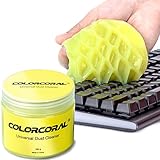
- Universal fit: ColorCoral cleaning gel, simple and convenient cleaning kits for PC/laptop keyboard and other rugged surface, such as the car vent, camera, printer, telephone, calculator, Instrument, speaker, air conditioner, TV and other appliances
- Safe cleaning gel: The keyboard cleaner gel is made from natural gel, no sticky to hands, smells sweet with lemon fragrance, no stimulation to skin
- Easy dust cleaning: Make sure your hands are dry and clean, knead the cleaning gel into a ball, press the cleaning gel slowly into the keyboard, car vent and rugged surface till the cleaning gel could touch the bottom and then pull out, the dust would be carried away with the cleaning gel
- Reusable: The keyboard cleaning gel could be used repeatedly till the color turn to dark or it become sticky, then you have to replace the cleaning gel with a new one. After cleaning, please stock the cleaning gel in cool place. (Note: Don’t wash the gel in water.)
- In the package: 1 can of universal cleaning gel, we provide the cleaning gel with brand new, if you find the package broken, the cleaning gel dirty, or any other quality issues, please email us through message, we provide you new one soon
How we picked
The routes here address three distinct needs documented by their publishers: command-line control through FFmpeg, a browser-based conversion workflow, and frame-level animation optimization in Photoshop. The comparison weighs clip and output controls, interface, and the trade-off between a straightforward conversion and deeper frame editing; it does not imply a universal best setting or a measured performance ranking.
The recommendation for FFmpeg is based on its documented clip, frame-rate, scale, palette, and looping controls. The browser option is described only in terms of the cited publisher’s claims and stated recommendations, which can change. The Photoshop option is included for readers who want to optimize or edit animation frames; its documented capabilities do not make it necessary for ordinary conversion.
Frequently Asked Questions
Frequently Asked Questions
Can an animated GIF have sound?
No. A GIF is an image animation, not a video-with-audio deliverable. If the sound matters, keep the clip in a video format supported by the destination.
What’s actually slowing this PC down?
Pick the symptom - the matching free tool is one click away.
How do I make an FFmpeg GIF play only once?
Use FFmpeg’s GIF muxer loop setting for no looping: -loop -1. The value 0 means indefinite looping, so choose the value that matches how the destination should play the animation.
Shopping ad

- Award-Winning Compact Design & EDC-Ready Gift Choice: Weighing only 0.09 lb and sized like a credit card, this compact laser measure is designed for everyday carry. It slips easily into a pocket, tool pouch, or bag, and can attach to a keychain for quick access wherever you go. Its minimalist design, premium tactile finish, and practical one-button measuring make it a useful EDC gadget for DIYers, real estate agents, homeowners, and tech enthusiasts. A thoughtful gift for men on any occasion
- One-Button Easy Measuring, Simple to Use: Designed with simple one-button operation, this compact laser tape measure makes quick measuring easy without complicated controls. Just press to measure room dimensions, furniture spacing, window height, wall décor placement, and everyday distances around the home. Ideal for users who want a smart, pocket-size measuring tool that fits naturally into an everyday carry (EDC) setup and feels intuitive, modern, and easy to use
- Fast & Accurate Indoor Measurements with Class 2 Laser: Measure distances from 0.16 ft to 98 ft with up to ±1/16 in / ±2 mm accuracy. With quick measurement response in about 0.2 seconds, HOTO helps you check spaces efficiently for home renovation, furniture layout, moving, decorating, craft projects, and DIY planning. Built with a Class 2 laser for everyday indoor measuring; use as directed and avoid direct eye exposure
- Low-Power OLED Display & USB-C Rechargeable Convenience: The low-power OLED display provides clear indoor readings while helping reduce battery drain. With USB-C rechargeable design, auto shut-off, and up to 1000 measurements per charge, this digital laser measure is built for repeated daily use without frequent battery replacement. Compact enough to keep in a drawer, toolbox, bag, or pocket
- Useful for Home, Work & Everyday Projects: From home renovation and furniture measuring to room planning, real estate checks, interior design, and light construction projects, this pocket-size laser distance measure is made for practical everyday use. Compact enough to keep in a drawer, toolbox, bag, or pocket, it is a stylish measuring tool that feels just as giftable as it is useful
Does converting a video to GIF change the original video?
The example command reads the named input and writes a separate .gif output file. Give the output a different filename from the source so you keep both files.
Can I convert just one scene instead of the whole video?
Yes. Set the start and end points with FFmpeg’s seek and end-time options before encoding; that way the output contains only the selected portion rather than the full source.
What frame rate and width should I use for a GIF?
There is no one setting that suits every clip or destination. The example uses 15 fps and a width of 320 pixels as starting values, while the FFmpeg Cookbook converter also publishes those as its own suggested defaults. Preview the output and adjust frame rate and dimensions for the motion, detail, and file size you need.
Windows Errors? Fix Them Before They Spread
Repair common Windows errors and clear accumulated junk for a smoother, more stable PC - no reinstall needed.Free scan · no reinstallOutdated Drivers Are Slowing You Down
One free scan finds every outdated or missing driver and matches the right update for your exact hardware.Free scan · exact hardware matchThe Bottom Line
For a controllable conversion, select a short clip in FFmpeg, set a practical width and frame rate, generate and apply a clip-specific palette, and preview the GIF before using it. Adjust duration, dimensions, and frame rate to suit the destination; use a video format instead when GIF’s color or timing constraints do not fit the job.
More shopping ads
Product prices and availability are accurate as of the date/time indicated and are subject to change. Any price and availability information displayed on Amazon at the time of purchase will apply.

