Hardware FixRecommendedDevice not working? Your driver may be the problemCheck updates for common hardware issues.Fix DriversHispanic Heritage MonthAmazon USChoose tech for shared celebrationsPortable audio, phone accessories, and charging essentials for gatherings and everyday connection.Check DealsClean PCRecommendedOne scan can reveal what keeps slowing WindowsLook for cleanup and repair opportunities.Run Scan×
Skip to content
THEGEEKSCLUB

How to use Portrait mode in Google Pixel 3 and 3 XL

Activate call forwarding & waiting in Google Pixel Phones
Special offer. See more information about Outbyte and uninstall instructions. Please review EULA and Privacy policy.

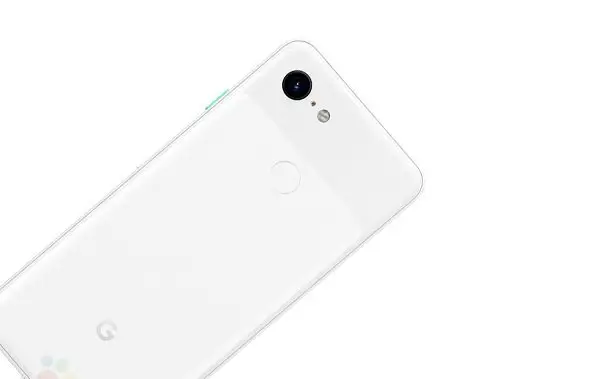
Google launched their latest addition to the premium Android smartphones. The all-new Google Pixel 3 series is now trending globally with its well-known camera performance and other Google goodies. All previous models of the Google Pixel series come with the market’s best camera sensors and deliver the best camera experience for the users. Also, these devices are very popular with portrait photos. Here is how to use the portrait mode in Google Pixel 3 and 3 XL smartphones.

The most notable thing is that both of the models come with just a single camera setup only. Even with the single camera unit, they perform better than any other leading smartphone brands. That’s why Google Pixel phones are very popular in the camera department. Because of its camera performance, many Pixel fans all over the world are now waiting for the device. But most of them are unaware of its camera settings and other key tools. Since portrait mode is the most important camera setting on this phone, everyone should know how to use it. This article provides the steps to use the portrait mode in Google Pixel 3 phones.

How to use the portrait mode in Google Pixel 3 and Pixel 3 XL smartphones

When using portrait mode, the camera sensor in your phone will automatically use a large aperture to help keep the background out of focus by using a narrow depth of field. So the subject being photographed is the only thing in focus. When phone cameras snap a photo in portrait mode, though, they blur parts of the image for a neat stylistic effect.

  • Open the camera app in your Google Pixel 3 or 3 XL smartphone.
  • Now you just swipe left to access the settings.
  • Here you can find many camera options including slow motion, Panorama, Photo Sphere, Portrait and settings. You can find the same settings in both of the variants.
  • Just tap on the option named Portrait and it makes the camera app portrait ready.
  • Now you can snap your favorite portrait photos by tapping on the Shutter button. 

The interface of Google Camera has most of the things under the menu. Its kind of annoying because swiping to switch mode between them would have been a better solution.

What’s actually slowing this PC down?

Pick the symptom - the matching free tool is one click away.

Special offer. See more information about Outbyte and uninstall instructions. Please review EULA and Privacy policy.
Shopping ad
Google - Pixel 3 with 64GB Memory Cell Phone (Unlocked) - Just Black
  • Capture the perfect shot every time, get things done with the Google Assistant, 1 enjoy an all-day battery, and more.
  • Get everyone in the picture with Group Selfies—no selfie stick required. Snap portraits like a pro with Portrait Mode. Capture smiles, not blinks, for a great photo every time.
  • Pixel 3 comes with a battery that charges fast and wirelessly, and lasts all day. It's even smart enough to limit battery usage for the apps you don't use often to keep you going longer.
  • Get help from the Google Assistant: reserve a table at your favorite restaurant, buy tickets, get commute times, weather info, and more—all with a simple squeeze, or just by using your voice.
  • Screen spam, scams, and other nuisance calls. Get real-time transcription and block unwanted callers so you’ll never hear from them again.

That said, you can also use your Pixel 2 and Pixel 2 XL Portrait mode to create natural depth effect with extremely well background blur. Portrait photos are much more professional and well looking and it lets you focus on a single object when two or more objects are present on the screen. You can just tap and focus on one object and tap on the shutter button to take the perfectly focused portrait photo.

Quick Recap

Bestseller No. 1
Google - Pixel 3 with 64GB Memory Cell Phone (Unlocked) - Just Black
Display Type: Fhd Plus Flexible Oled At 443Ppi; Included Components: Usb-C Digital Earbud; Operating System: Android;Chrome Os
Bestseller No. 2
Google Pixel 3a XL, 64GB, Just Black - Locked to Verizon (Renewed)
Fullscreen 6.0-inch (152.4mm) displayFHD+ (2160 x 1080) OLED at 402 ppi18:9 aspect ratio; Camera 12.2 MP Front Camera 8 MP
$74.99
SaleBestseller No. 3
Google Pixel 3a, 64GB, Just Black - Unlocked (GSM Only) (Renewed)
Capture stunning photos with features like night sight, portrait mode, and HDR+.
$129.00
Shopping ad
Sale
Google Pixel 3a, 64GB, Just Black - Unlocked (GSM Only) (Renewed)
  • Capture stunning photos with features like night sight, portrait mode, and HDR+.
Shopping ad
Google Pixel 3a XL, 64GB, Just Black - Locked to Verizon (Renewed)
  • Fullscreen 6.0-inch (152.4mm) displayFHD+ (2160 x 1080) OLED at 402 ppi18:9 aspect ratio
  • Camera 12.2 MP Front Camera 8 MP
  • Battery 3700mAh
  • Experience HD Voice, Video Calling and Simultaneous Voice & Data. Enable Wi-Fi Calling and make calls anywhere you have a Wi-Fi connection.
  • Qualcomm Snapdragon 670 2.0GHz + 1.7GHz, 64-bit Octa-Core

Product prices and availability are accurate as of the date/time indicated and are subject to change. Any price and availability information displayed on Amazon at the time of purchase will apply.

Independent reader supportYour contribution helps us test, update, and keep practical guides available for everyone.Support on Ko-Fi

Filed under
Akhil G
Written by

Akhil G

Skilled technology writer and widely-read journalist. Social media Influencer, FB India Media Partner. Managing multiple news portals and writing for many. Google Hall Of Fame award winner. Youth Icon of the year - Government of Kerala 2018.

More from this author ↗
Recommended PC Tool
Recommended PC Tool
Outdated Drivers Are Slowing You DownFree scan - exact matches
Windows Errors? Fix Them Before They SpreadFree repair scan

Two free Windows tools

One Free Minute Could Fix That PC

Before you go - each of these free tools takes about a minute and tackles what quietly slows a Windows PC down.

Special offer. View Outbyte info, uninstall instructions, EULA, and Privacy Policy.
